
Close Menu
  • Home
  • About
  • Wearables
  • Earbuds
  • Computer Accessories
    • Routers
    • Remotes
  • Embedded
    • Single Board Computers
    • Addon Boards
    • Raspberry Pi
  • Wireless Routers
  • Contact
Facebook X (Twitter) Instagram Threads
Trending
  • Banana Pi BPI-R4 Pro Review: The Best WiFi 7 OpenWrt Router? We Checked!
  • CamThink NeoEyes NE301: An Ultra-Low Power Edge AI Camera with STM32N6 MCU (Review)
  • AliExpress New Promotions: Country-specific Promo Codes
  • Kickpi K7C RK3576 Edge AI SBC Launches with 6 TOPS AI Power & Dual Gigabit Ethernet
  • Raspberry Pi 5 vs Orange Pi 6: Which SBC is Best in 2026?
  • Ugoos SK4 Review (2025): The Best Mid-Range Android TV Box for Value & Features
  • Orange Pi 6 Unveiled: The Affordable, Slimmed-Down SBC Alternative to the 6 Plus
  • Orange Pi 6 Plus Review: A 12-Core SBC Powerhouse (Benchmarks, Specs, and Pricing)
AndroidPIMP
Facebook X (Twitter) Instagram
  • Home
  • About
  • Wearables
  • Earbuds
  • Computer Accessories
    • Routers
    • Remotes
  • Embedded
    • Single Board Computers
    • Addon Boards
    • Raspberry Pi
  • Wireless Routers
  • Contact
AndroidPIMP
DIY Projects & Tutorials

How to fix poor GPS Reception on Mediatek Phones

By androidpimpApril 10, 2014Updated:July 31, 2018No Comments2 Mins Read
Facebook Twitter Pinterest LinkedIn Tumblr Email
Follow Us
Google News Flipboard
GPS Fix MTK Reception

Introduction

This Tutorial explains how to fix GPS signal problems with Mobileuncle Tools App. Basically, it’s a very handy app for diagnosing, tweaking GPS performance in mobile devices based on MediaTek (MTK) chipsets running in tablet PCs, Android Smartphones etc.


Mobileuncle MTK Tools Features List  :

  1. Display device info
  2. Information about device and running status
  3. Easy open engineer mode and MTK engineer mode
  4. Backup IMEI for MTK mobile
  5. Recovery online update
  6. Easy update tool via sd card
  7. Enable USB Mass Storage Device, connect cable first
  8. Crack operator GPRS lock for MTK
  9. Free the network access limited via GPRS
  10.   Power GPS search
  11.   Power the GPS search satellite ability
  12.   Enable AP
  13.   Easy reboot to recovery 

Fixing Poor GPS Reception / Performance on Mediatek Smart Phones

(Note: Please Make sure Wi-Fi Connection is Turned  On)

Open the app and press “Engineer Mode”
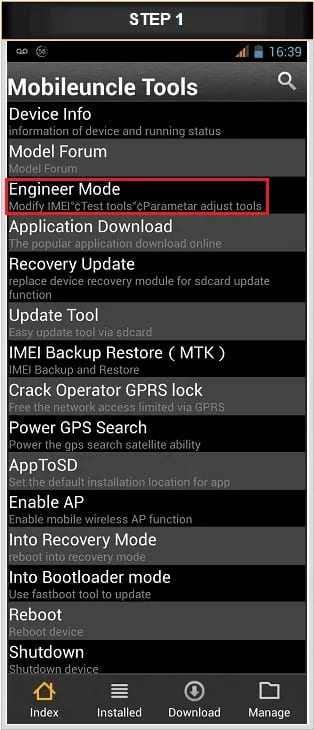
tweak_android_smartphones_GPS_with_mobileuncle_mtk_Step1

After that press “Engineer Mode (MTK)”
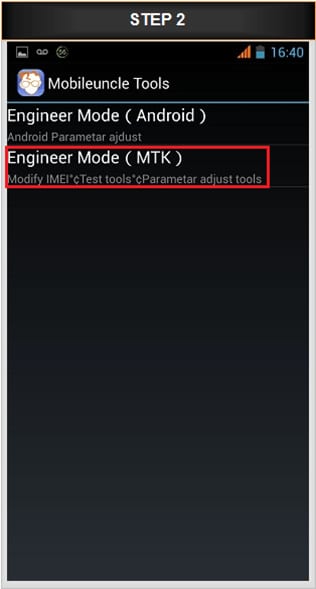
tweak_android_smartphones_GPS_with_mobileuncle_mtk_tools-Step2_thumb.png

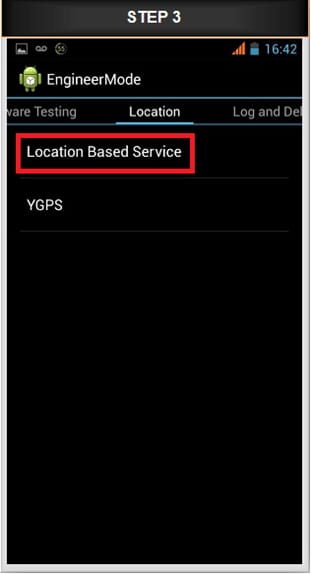
GO TO “Location Based Services”

tweak_android_smartphones_GPS_with_mobileuncle_mtk_toolsStep3_thumb.png


Select “EPO” and check that “Enable EPO” is enabled
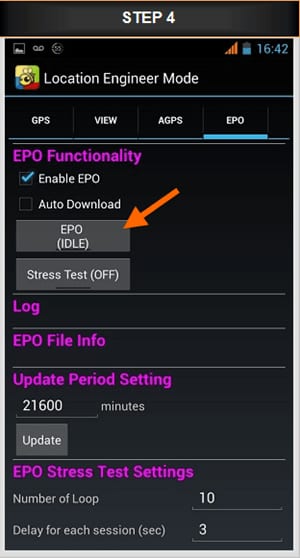
tweak_android_smartphones_GPS_with_mobileuncle_mtk_tools-Step4_thumb.png


“EPO IDLE” will change to “EPO DOWNLOADING”, so you will need to wait few minutes to download a file.
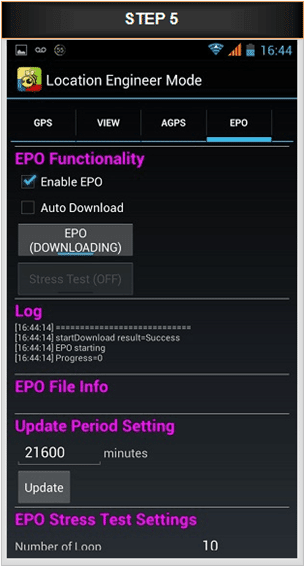
tweak_android_smartphones_GPS_with_mobileuncle_mtk_tools-Step5_thumb.png


After EPO DOWNLOADING finished downloading it will back again to “EPO IDLE” status.
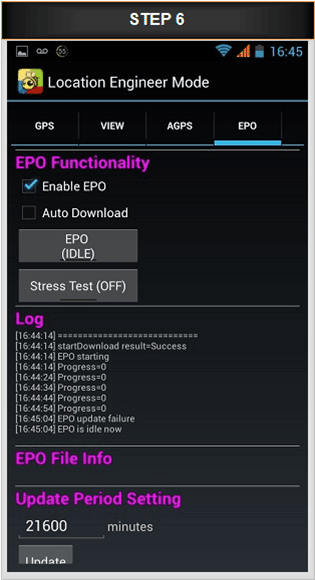
tweak_android_smartphones_GPS_with_mobileuncle_mtk_tools-Step6_thumb.png


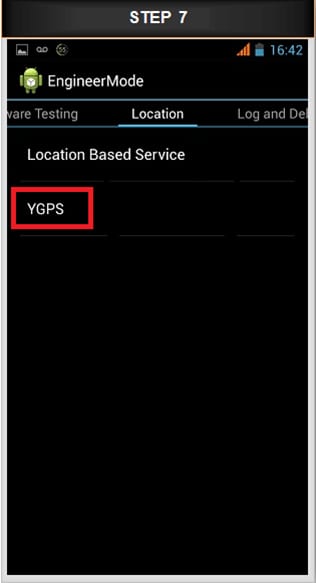
Now go back and enter into “YGPS”tweak_android_smartphones_GPS_with_mobileuncle_mtk_tools-Step7_thumb.png

In the “YGPS” you will need to press on “Hot”, “Full” and “AGPS Restart”.
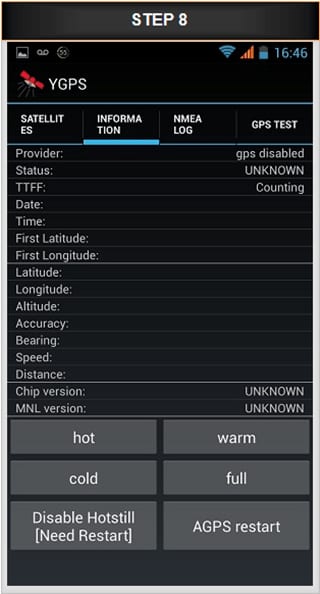
tweak_android_smartphones_GPS_with_mobileuncle_mtk_tools-Step8_thumb.png


Final Notes :

  • Now that you are done, test your GPS and you should find that it performs faster.
  • Recommended App for testing GPS Performance: GPS Test.


Special Credits to Gizchina.com  (Note: Following Tutorial Based on original Article Here)
Share. Facebook Twitter Pinterest LinkedIn Tumblr Email
Previous ArticleBoSuntop MK903IV Android Mini PC Review
Next Article USB Power Meter: Tester for Voltage and Current
androidpimp
  • Website

Related Posts

Internet Speed Test Guide

Internet Speed Test: 6 Useful Tips to Test Your Connection

July 1, 2021
Secure OpenWrt Router

How to Go Anonymous Online and Secure Your Home Network with OpenWrt Router

April 9, 2020
0 0 votes
Article Rating
Subscribe
Notify of
0 Comments
Oldest
Newest Most Voted
Inline Feedbacks
View all comments
Categories
PureVPN
PureVPN Ad Banner
VyprVPN – No. 1 in Anonymity
Vyprvpn 350x260
PrivadoVPN – No. 1 in Parental Control
PrivadoVPN 350x437
Recent Posts
  • Banana Pi BPI-R4 Pro Review: The Best WiFi 7 OpenWrt Router? We Checked!
  • CamThink NeoEyes NE301: An Ultra-Low Power Edge AI Camera with STM32N6 MCU (Review)
  • AliExpress New Promotions: Country-specific Promo Codes
  • Kickpi K7C RK3576 Edge AI SBC Launches with 6 TOPS AI Power & Dual Gigabit Ethernet
  • Raspberry Pi 5 vs Orange Pi 6: Which SBC is Best in 2026?
  • Ugoos SK4 Review (2025): The Best Mid-Range Android TV Box for Value & Features
  • Orange Pi 6 Unveiled: The Affordable, Slimmed-Down SBC Alternative to the 6 Plus
  • Orange Pi 6 Plus Review: A 12-Core SBC Powerhouse (Benchmarks, Specs, and Pricing)
  • LattePanda IOTA Review: 4 Reasons It Beats Raspberry Pi 5
  • Ugoos GaN Fast Chargers (35W, 65W, 140W): USB‑C PD 3.1, Ultra‑Compact, High‑Speed Charging 2026
RSS The Latest RSS Feeds
  • Banana Pi BPI-R4 Pro Review: The Best WiFi 7 OpenWrt Router? We Checked!
  • CamThink NeoEyes NE301: An Ultra-Low Power Edge AI Camera with STM32N6 MCU (Review)
  • AliExpress New Promotions: Country-specific Promo Codes
Facebook X (Twitter) Instagram Pinterest
@2026 - All Right Reserved. Designed by AndroidPIMP

Type above and press Enter to search. Press Esc to cancel.

Accessibility
Accessibility modes
Epilepsy Safe Mode
Dampens color and removes blinks
This mode enables people with epilepsy to use the website safely by eliminating the risk of seizures that result from flashing or blinking animations and risky color combinations.
Visually Impaired Mode
Improves website's visuals
This mode adjusts the website for the convenience of users with visual impairments such as Degrading Eyesight, Tunnel Vision, Cataract, Glaucoma, and others.
Cognitive Disability Mode
Helps to focus on specific content
This mode provides different assistive options to help users with cognitive impairments such as Dyslexia, Autism, CVA, and others, to focus on the essential elements of the website more easily.
ADHD Friendly Mode
Reduces distractions and improve focus
This mode helps users with ADHD and Neurodevelopmental disorders to read, browse, and focus on the main website elements more easily while significantly reducing distractions.
Blindness Mode
Allows using the site with your screen-reader
This mode configures the website to be compatible with screen-readers such as JAWS, NVDA, VoiceOver, and TalkBack. A screen-reader is software for blind users that is installed on a computer and smartphone, and websites must be compatible with it.
Readable Experience
Content Scaling
Default
Text Magnifier
Readable Font
Dyslexia Friendly
Highlight Titles
Highlight Links
Font Sizing
Default
Letter Spacing
Default
Left Aligned
Center Aligned
Right Aligned
Visually Pleasing Experience
Dark Contrast
Light Contrast
Monochrome
High Contrast
High Saturation
Low Saturation
Adjust Text Colors
Adjust Title Colors
Adjust Background Colors
Easy Orientation
Mute Sounds
Hide Images
Hide Emoji
Reading Guide
Stop Animations
Reading Mask
Highlight Hover
Highlight Focus
Big Dark Cursor
Big Light Cursor
Cognitive Reading
Virtual Keyboard
Navigation Keys
Voice Navigation

AndroidPIMP

Accessibility Statement

  • AndroidPIMP.com
  • 10/18/2025

Compliance status

We believe the internet should be open and accessible to everyone, and we’re dedicated to making our website usable for the widest audience possible, no matter their circumstances or abilities.

To achieve this, we follow the World Wide Web Consortium’s (W3C) Web Content Accessibility Guidelines 2.1 (WCAG 2.1) at the AA level as closely as possible. These guidelines outline how to make web content accessible for people with a variety of disabilities. By complying with them, we help ensure our website is usable by everyone, including those who are blind, have motor or visual impairments, cognitive disabilities, and more.

This website uses a range of technologies to stay accessible at all times. An accessibility interface lets people with specific disabilities customize the site’s UI and design to fit their personal needs.

The website also uses an AI-powered application that works in the background to constantly enhance its accessibility. This app fixes the site’s HTML, adjusts its features and behavior for screen readers used by blind users, and optimizes keyboard functions for people with motor impairments.

If you’ve found a malfunction or have ideas for improvement, we’ll be happy to hear from you. You can reach out to the website’s operators by using the following email [email protected]

Screen-reader and keyboard navigation

Our website implements the ARIA attributes (Accessible Rich Internet Applications) technique, alongside various different behavioral changes, to ensure blind users visiting with screen-readers are able to read, comprehend, and enjoy the website’s functions. As soon as a user with a screen-reader enters your site, they immediately receive a prompt to enter the Screen-Reader Profile so they can browse and operate your site effectively. Here’s how our website covers some of the most important screen-reader requirements, alongside console screenshots of code examples:

  1. Screen-reader optimization: we run a background process that learns the website’s components from top to bottom, to ensure ongoing compliance even when updating the website. In this process, we provide screen-readers with meaningful data using the ARIA set of attributes. For example, we provide accurate form labels; descriptions for actionable icons (social media icons, search icons, cart icons, etc.); validation guidance for form inputs; element roles such as buttons, menus, modal dialogues (popups), and others. Additionally, the background process scans all the website’s images and provides an accurate and meaningful image-object-recognition-based description as an ALT (alternate text) tag for images that are not described. It will also extract texts that are embedded within the image, using an OCR (optical character recognition) technology. To turn on screen-reader adjustments at any time, users need only to press the Alt+1 keyboard combination. Screen-reader users also get automatic announcements to turn the Screen-reader mode on as soon as they enter the website.

    These adjustments are compatible with all popular screen readers, including JAWS and NVDA.

  2. Keyboard navigation optimization: The background process also adjusts the website’s HTML, and adds various behaviors using JavaScript code to make the website operable by the keyboard. This includes the ability to navigate the website using the Tab and Shift+Tab keys, operate dropdowns with the arrow keys, close them with Esc, trigger buttons and links using the Enter key, navigate between radio and checkbox elements using the arrow keys, and fill them in with the Spacebar or Enter key.Additionally, keyboard users will find quick-navigation and content-skip menus, available at any time by clicking Alt+1, or as the first elements of the site while navigating with the keyboard. The background process also handles triggered popups by moving the keyboard focus towards them as soon as they appear, and not allow the focus drift outside it.

    Users can also use shortcuts such as “M” (menus), “H” (headings), “F” (forms), “B” (buttons), and “G” (graphics) to jump to specific elements.

Disability profiles supported in our website

  • Epilepsy Safe Mode: this profile enables people with epilepsy to use the website safely by eliminating the risk of seizures that result from flashing or blinking animations and risky color combinations.
  • Visually Impaired Mode: this mode adjusts the website for the convenience of users with visual impairments such as Degrading Eyesight, Tunnel Vision, Cataract, Glaucoma, and others.
  • Cognitive Disability Mode: this mode provides different assistive options to help users with cognitive impairments such as Dyslexia, Autism, CVA, and others, to focus on the essential elements of the website more easily.
  • ADHD Friendly Mode: this mode helps users with ADHD and Neurodevelopmental disorders to read, browse, and focus on the main website elements more easily while significantly reducing distractions.
  • Blindness Mode: this mode configures the website to be compatible with screen-readers such as JAWS, NVDA, VoiceOver, and TalkBack. A screen-reader is software for blind users that is installed on a computer and smartphone, and websites must be compatible with it.
  • Keyboard Navigation Profile (Motor-Impaired): this profile enables motor-impaired persons to operate the website using the keyboard Tab, Shift+Tab, and the Enter keys. Users can also use shortcuts such as “M” (menus), “H” (headings), “F” (forms), “B” (buttons), and “G” (graphics) to jump to specific elements.

Additional UI, design, and readability adjustments

  1. Font adjustments – users, can increase and decrease its size, change its family (type), adjust the spacing, alignment, line height, and more.
  2. Color adjustments – users can select various color contrast profiles such as light, dark, inverted, and monochrome. Additionally, users can swap color schemes of titles, texts, and backgrounds, with over seven different coloring options.
  3. Animations – person with epilepsy can stop all running animations with the click of a button. Animations controlled by the interface include videos, GIFs, and CSS flashing transitions.
  4. Content highlighting – users can choose to emphasize important elements such as links and titles. They can also choose to highlight focused or hovered elements only.
  5. Audio muting – users with hearing devices may experience headaches or other issues due to automatic audio playing. This option lets users mute the entire website instantly.
  6. Cognitive disorders – we utilize a search engine that is linked to Wikipedia and Wiktionary, allowing people with cognitive disorders to decipher meanings of phrases, initials, slang, and others.
  7. Additional functions – we provide users the option to change cursor color and size, use a printing mode, enable a virtual keyboard, and many other functions.

Browser and assistive technology compatibility

We aim to support the widest array of browsers and assistive technologies as possible, so our users can choose the best fitting tools for them, with as few limitations as possible. Therefore, we have worked very hard to be able to support all major systems that comprise over 95% of the user market share including Google Chrome, Mozilla Firefox, Apple Safari, Opera and Microsoft Edge, JAWS and NVDA (screen readers).

Notes, comments, and feedback

Despite our very best efforts to allow anybody to adjust the website to their needs. There may still be pages or sections that are not fully accessible, are in the process of becoming accessible, or are lacking an adequate technological solution to make them accessible. Still, we are continually improving our accessibility, adding, updating and improving its options and features, and developing and adopting new technologies. All this is meant to reach the optimal level of accessibility, following technological advancements. For any assistance, please reach out to [email protected]

wpDiscuz