Close Menu
  • Home
  • About
  • Wearables
  • Earbuds
  • Computer Accessories
    • Routers
    • Remotes
  • Embedded
    • Single Board Computers
    • Addon Boards
    • Raspberry Pi
  • Wireless Routers
  • Contact
Facebook X (Twitter) Instagram Threads
Trending
  • Top Global AliExpress Promo Codes February 26, 2026
  • WaveNote AI Review 2026: An Honest Pro/Con Comparison (Tested)
  • CamThink NE301 Review: 25 FPS YOLOv8 on STM32 Edge AI
  • PrivadoVPN Review 2026: Is the Best Free VPN Still Good for Streaming?
  • Orange Pi 6: Why Buy an AI HAT+? This SBC has 45 TOPS of Integrated AI Power
  • AliExpress Shopping Guide 2026: How to Find Top Deals & Avoid Scams
  • Banana Pi BPI-R4 Pro Review: The Best WiFi 7 OpenWrt Router? We Checked!
  • Best Off-Grid LoRa Mesh Messenger [2026] – LoraSecret
AndroidPIMP
Facebook X (Twitter) Instagram
  • Home
  • About
  • Wearables
  • Earbuds
  • Computer Accessories
    • Routers
    • Remotes
  • Embedded
    • Single Board Computers
    • Addon Boards
    • Raspberry Pi
  • Wireless Routers
  • Contact
AndroidPIMP
Edge AI Hardware

CamThink NE301 Review: 25 FPS YOLOv8 on STM32 Edge AI

By androidpimpFebruary 19, 2026Updated:February 23, 2026No Comments18 Mins Read
Facebook Twitter Pinterest LinkedIn Tumblr Email
Follow Us
Google News Flipboard
NeoEyes NE301 Review
NeoEyes NE301
Table of contents
  1. Part 1 – Introducing the Product
  2. Meet the CamThink NE301 Edge AI Camera Module, designed to run AI models locally and offer a wide range of additional features.
  3. Short video intro
  4. Modular Design
  5. Design with an open hardware architecture in mind
    1. It can also connect to external sensors
  6. Key highlights
  7. A closer look at the main board that powers the device
  8. Hardware – Behind the Scenes
  9. Specifications
  10. Designed for Edge AI computing, it offers durability along with water and dust resistance.
    1. It can be used for AI applications, either running locally or sending data to the cloud.
  11. Part 2 – Review of the CamThink NeoEyes NE301 (currently being updated)
    1. The Package
    2. Package Contents
  12. A closer look at the NE300-MB01 development board, the powerhouse behind the NeoEyes NE301 camera.
  13. Installing additional components
    1. LTE Cat.1 Communication Board
    2. The camera Module
  14. The NE301 Case
  15. The lesser good
    1. Protection against water and dust
  16. Power supply
    1. Powering the NE301 with a cable
      1. Option #1
      2. Option #2
      3. Final thoughts
    2. Extra interfaces
  17. Cooling the main board components
  18. Mounting Options
  19. Operation
  20. Software-wise
    1. Training AI Models
    2. What are the steps?
    3. How to Train AI Models – A Complete Summary of the Workflow
    4. We gave a few trained models a spin to see how they performed.
  21. Final verdict
  22. CamThink NeoEyes NE301 price
    1. Prices and availability

Operation

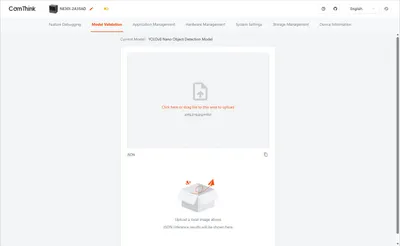
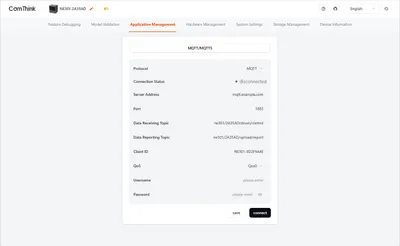
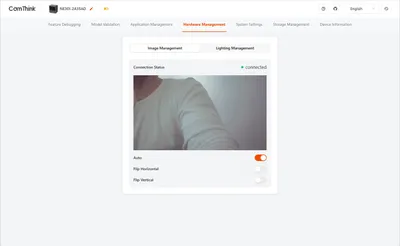
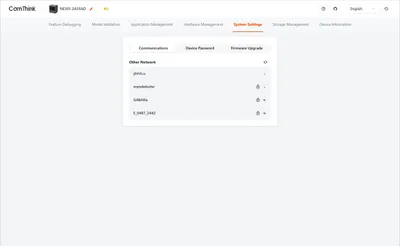
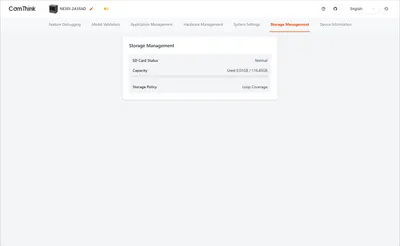
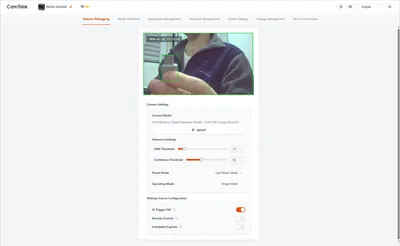
The NE301 creates its own Wi-Fi access point, allowing you to set it up and connect it to your main Wi-Fi network. Through its web interface, you can view a live video preview, switch between models, upload your own YOLOv8 models, and tweak thresholds and output formats.


Software-wise

The NE301 is an edge AI camera built around the STM32N6 microcontroller. The CamThink team has developed an open source-based web GUI for controlling the camera operations. The product is designed to offer developers, AI enthusiasts, and smart home fans an affordable, low-power AI camera capable of running local AI models based on YOLOv8 (You Only Look Once) which is also open source based.

From our hands-on experience, it works quite well and offers advantages over running object detection AI models through a cloud server. Running local models is much faster, meaning you can enjoy lower latency time. This device can also be used as a security surveillance camera to monitor people and environments, so the only limit is your imagination.

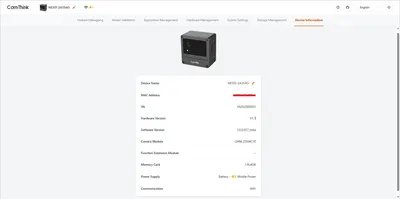
The NE301 comes with CamThink management software pre-installed on its 128MB HyperFlash. To access it, you will need to power the device and connect to it via Wi-Fi as an access point. Once connected, just open a web browser and enter the device’s gateway IP address: http://192.168.10.10. From there, the web interface lets you easily control camera functions and deploy AI models.

The device main operating settings can be grouped into the following categories:

  • Load a model (factory or custom)
  • Run inference on incoming data (e.g., camera frames)
  • Tune thresholds to optimize detection behavior
  • Send results upstream via MQTT for monitoring or automation

For example, the Object detection AI identifies and recognizes the objects it sees. So, what it does is:

  • Detects people, vehicles, animals, packages, etc.
  • Draws bounding boxes around detected objects.
  • Classifies objects (e.g., “Person”, “Car”, “Dog”).
  • Tracks objects as they move across frames.

Training AI Models

You will need to train your AI models. This is part of the learning process, like teaching a baby its first steps. When you first turn on the NE301 device, it’s worth noting that it won’t automatically successfully recognizes objects or be ready to use straight out of the box. Training AI models for the NeoEyes NE301 is done with CamThink’s AI Tool Stack—a complete pipeline for data collection, annotation, training, quantization, and deploying models to the camera. The NE301 doesn’t train models onboard; instead, you train them on a computer or in the cloud and then deploy them to the camera.

What are the steps?

How to Train AI Models – A Complete Summary of the Workflow

The AI Tool Stack can be installed on a Linux-based computer or even a Mini PC. While an NVIDIA GPU is recommended for better performance, it’s not required. The table below outlines the workflow steps for training and deploying an AI model using the NE301.

StageToolWhat Happens
1. Data CollectionNE301 CameraCapture images/events for training
2. AnnotationAI Tool StackLabel objects/actions in images
3. TrainingAI Tool Stack + UltralyticsTrain YOLO‑based model on PC/cloud
4. QuantizationAI Tool StackConvert model to INT8 for STM32N6
5. DeploymentNE301 Web UIUpload model and run inference on camera

We gave a few trained models a spin to see how they performed.

The company kindly sent us a few pre-trained YOLOv8 models to try out. The first one featured object detection, mainly for humans, along with distance approximation to estimate range, which worked rather well. The second model was designed to detect various types of objects captured by the camera but ended up performing poorly, likely due to insufficient AI training or human error, so it’s understandable.

Overall, the web-based GUI is rather easy to operate and offers a wide selection of features and settings to explore. For more accurate AI-based object detection, you can connect the NE301 to the OpenAI API. While this will likely boost accuracy, it could also lead to higher latency or slower response times, since the server has to send and receive data packets over the internet.

NE301 management software
NE301 Software 1
NE301 Software 1
NE301 Software 2
NE301 Software 2
NE301 Software 3
NE301 Software 3
NE301 Software 4
NE301 Software 4
NE301 Software 5
NE301 Software 5
NE301 Software 6
NE301 Software 6
NE301 Software 7
NE301 Software 7
1 2 3 4 5 6 7 8 9 10 11
Share. Facebook Twitter Pinterest LinkedIn Tumblr Email
Previous ArticlePrivadoVPN Review 2026: Is the Best Free VPN Still Good for Streaming?
Next Article WaveNote AI Review 2026: An Honest Pro/Con Comparison (Tested)
androidpimp
  • Website

Related Posts

WaveNote

WaveNote AI Review 2026: An Honest Pro/Con Comparison (Tested)

February 25, 2026
WonderLLM Chatbot Module

HiWonder WonderLLM: ESP32-S3 AI Vision & Chatbot Module with 2MP Camera

January 30, 2026
HuskyLens 2 AI Machine Vision sensor

HUSKYLENS 2: DFRobot’s New AI Machine Vision Sensor Unveiled

November 5, 2025
0 0 votes
Article Rating
Subscribe
Notify of
0 Comments
Oldest
Newest Most Voted
Inline Feedbacks
View all comments
PureVPN
PureVPN Ad Banner
VyprVPN – No. 1 in Anonymity
Vyprvpn 350x260
PrivadoVPN – No. 1 in Parental Control
PrivadoVPN 350x437
Recent Posts
  • Top Global AliExpress Promo Codes February 25, 2026
  • WaveNote AI Review 2026: An Honest Pro/Con Comparison (Tested)
  • CamThink NE301 Review: 25 FPS YOLOv8 on STM32 Edge AI
  • PrivadoVPN Review 2026: Is the Best Free VPN Still Good for Streaming?
  • Orange Pi 6: Why Buy an AI HAT+? This SBC has 45 TOPS of Integrated AI Power
  • AliExpress Shopping Guide 2026: How to Find Top Deals & Avoid Scams
  • Banana Pi BPI-R4 Pro Review: The Best WiFi 7 OpenWrt Router? We Checked!
  • Best Off-Grid LoRa Mesh Messenger [2026] – LoraSecret
  • Redmi Turbo 5 Max (2026) unveiled with 9,000mAh battery, specs, price, and design
  • HiWonder WonderLLM: ESP32-S3 AI Vision & Chatbot Module with 2MP Camera
RSS The Latest RSS Feeds
  • Top Global AliExpress Promo Codes February 25, 2026
  • WaveNote AI Review 2026: An Honest Pro/Con Comparison (Tested)
  • CamThink NE301 Review: 25 FPS YOLOv8 on STM32 Edge AI
Facebook X (Twitter) Instagram Pinterest
@2026 - All Right Reserved. Designed by AndroidPIMP

Type above and press Enter to search. Press Esc to cancel.

Powered by
►
Necessary cookies enable essential site features like secure log-ins and consent preference adjustments. They do not store personal data.
None
►
Functional cookies support features like content sharing on social media, collecting feedback, and enabling third-party tools.
None
►
Analytical cookies track visitor interactions, providing insights on metrics like visitor count, bounce rate, and traffic sources.
None
►
Advertisement cookies deliver personalized ads based on your previous visits and analyze the effectiveness of ad campaigns.
None
►
Unclassified cookies are cookies that we are in the process of classifying, together with the providers of individual cookies.
None
Powered by
Accessibility
Accessibility modes
Epilepsy Safe Mode
Dampens color and removes blinks
This mode enables people with epilepsy to use the website safely by eliminating the risk of seizures that result from flashing or blinking animations and risky color combinations.
Visually Impaired Mode
Improves website's visuals
This mode adjusts the website for the convenience of users with visual impairments such as Degrading Eyesight, Tunnel Vision, Cataract, Glaucoma, and others.
Cognitive Disability Mode
Helps to focus on specific content
This mode provides different assistive options to help users with cognitive impairments such as Dyslexia, Autism, CVA, and others, to focus on the essential elements of the website more easily.
ADHD Friendly Mode
Reduces distractions and improve focus
This mode helps users with ADHD and Neurodevelopmental disorders to read, browse, and focus on the main website elements more easily while significantly reducing distractions.
Blindness Mode
Allows using the site with your screen-reader
This mode configures the website to be compatible with screen-readers such as JAWS, NVDA, VoiceOver, and TalkBack. A screen-reader is software for blind users that is installed on a computer and smartphone, and websites must be compatible with it.
Readable Experience
Content Scaling
Default
Text Magnifier
Readable Font
Dyslexia Friendly
Highlight Titles
Highlight Links
Font Sizing
Default
Letter Spacing
Default
Left Aligned
Center Aligned
Right Aligned
Visually Pleasing Experience
Dark Contrast
Light Contrast
Monochrome
High Contrast
High Saturation
Low Saturation
Adjust Text Colors
Adjust Title Colors
Adjust Background Colors
Easy Orientation
Mute Sounds
Hide Images
Hide Emoji
Reading Guide
Stop Animations
Reading Mask
Highlight Hover
Highlight Focus
Big Dark Cursor
Big Light Cursor
Cognitive Reading
Virtual Keyboard
Navigation Keys
Voice Navigation

AndroidPIMP

Accessibility Statement

  • AndroidPIMP.com
  • 10/18/2025

Compliance status

We believe the internet should be open and accessible to everyone, and we’re dedicated to making our website usable for the widest audience possible, no matter their circumstances or abilities.

To achieve this, we follow the World Wide Web Consortium’s (W3C) Web Content Accessibility Guidelines 2.1 (WCAG 2.1) at the AA level as closely as possible. These guidelines outline how to make web content accessible for people with a variety of disabilities. By complying with them, we help ensure our website is usable by everyone, including those who are blind, have motor or visual impairments, cognitive disabilities, and more.

This website uses a range of technologies to stay accessible at all times. An accessibility interface lets people with specific disabilities customize the site’s UI and design to fit their personal needs.

The website also uses an AI-powered application that works in the background to constantly enhance its accessibility. This app fixes the site’s HTML, adjusts its features and behavior for screen readers used by blind users, and optimizes keyboard functions for people with motor impairments.

If you’ve found a malfunction or have ideas for improvement, we’ll be happy to hear from you. You can reach out to the website’s operators by using the following email [email protected]

Screen-reader and keyboard navigation

Our website implements the ARIA attributes (Accessible Rich Internet Applications) technique, alongside various different behavioral changes, to ensure blind users visiting with screen-readers are able to read, comprehend, and enjoy the website’s functions. As soon as a user with a screen-reader enters your site, they immediately receive a prompt to enter the Screen-Reader Profile so they can browse and operate your site effectively. Here’s how our website covers some of the most important screen-reader requirements, alongside console screenshots of code examples:

  1. Screen-reader optimization: we run a background process that learns the website’s components from top to bottom, to ensure ongoing compliance even when updating the website. In this process, we provide screen-readers with meaningful data using the ARIA set of attributes. For example, we provide accurate form labels; descriptions for actionable icons (social media icons, search icons, cart icons, etc.); validation guidance for form inputs; element roles such as buttons, menus, modal dialogues (popups), and others. Additionally, the background process scans all the website’s images and provides an accurate and meaningful image-object-recognition-based description as an ALT (alternate text) tag for images that are not described. It will also extract texts that are embedded within the image, using an OCR (optical character recognition) technology. To turn on screen-reader adjustments at any time, users need only to press the Alt+1 keyboard combination. Screen-reader users also get automatic announcements to turn the Screen-reader mode on as soon as they enter the website.

    These adjustments are compatible with all popular screen readers, including JAWS and NVDA.

  2. Keyboard navigation optimization: The background process also adjusts the website’s HTML, and adds various behaviors using JavaScript code to make the website operable by the keyboard. This includes the ability to navigate the website using the Tab and Shift+Tab keys, operate dropdowns with the arrow keys, close them with Esc, trigger buttons and links using the Enter key, navigate between radio and checkbox elements using the arrow keys, and fill them in with the Spacebar or Enter key.Additionally, keyboard users will find quick-navigation and content-skip menus, available at any time by clicking Alt+1, or as the first elements of the site while navigating with the keyboard. The background process also handles triggered popups by moving the keyboard focus towards them as soon as they appear, and not allow the focus drift outside it.

    Users can also use shortcuts such as “M” (menus), “H” (headings), “F” (forms), “B” (buttons), and “G” (graphics) to jump to specific elements.

Disability profiles supported in our website

  • Epilepsy Safe Mode: this profile enables people with epilepsy to use the website safely by eliminating the risk of seizures that result from flashing or blinking animations and risky color combinations.
  • Visually Impaired Mode: this mode adjusts the website for the convenience of users with visual impairments such as Degrading Eyesight, Tunnel Vision, Cataract, Glaucoma, and others.
  • Cognitive Disability Mode: this mode provides different assistive options to help users with cognitive impairments such as Dyslexia, Autism, CVA, and others, to focus on the essential elements of the website more easily.
  • ADHD Friendly Mode: this mode helps users with ADHD and Neurodevelopmental disorders to read, browse, and focus on the main website elements more easily while significantly reducing distractions.
  • Blindness Mode: this mode configures the website to be compatible with screen-readers such as JAWS, NVDA, VoiceOver, and TalkBack. A screen-reader is software for blind users that is installed on a computer and smartphone, and websites must be compatible with it.
  • Keyboard Navigation Profile (Motor-Impaired): this profile enables motor-impaired persons to operate the website using the keyboard Tab, Shift+Tab, and the Enter keys. Users can also use shortcuts such as “M” (menus), “H” (headings), “F” (forms), “B” (buttons), and “G” (graphics) to jump to specific elements.

Additional UI, design, and readability adjustments

  1. Font adjustments – users, can increase and decrease its size, change its family (type), adjust the spacing, alignment, line height, and more.
  2. Color adjustments – users can select various color contrast profiles such as light, dark, inverted, and monochrome. Additionally, users can swap color schemes of titles, texts, and backgrounds, with over seven different coloring options.
  3. Animations – person with epilepsy can stop all running animations with the click of a button. Animations controlled by the interface include videos, GIFs, and CSS flashing transitions.
  4. Content highlighting – users can choose to emphasize important elements such as links and titles. They can also choose to highlight focused or hovered elements only.
  5. Audio muting – users with hearing devices may experience headaches or other issues due to automatic audio playing. This option lets users mute the entire website instantly.
  6. Cognitive disorders – we utilize a search engine that is linked to Wikipedia and Wiktionary, allowing people with cognitive disorders to decipher meanings of phrases, initials, slang, and others.
  7. Additional functions – we provide users the option to change cursor color and size, use a printing mode, enable a virtual keyboard, and many other functions.

Browser and assistive technology compatibility

We aim to support the widest array of browsers and assistive technologies as possible, so our users can choose the best fitting tools for them, with as few limitations as possible. Therefore, we have worked very hard to be able to support all major systems that comprise over 95% of the user market share including Google Chrome, Mozilla Firefox, Apple Safari, Opera and Microsoft Edge, JAWS and NVDA (screen readers).

Notes, comments, and feedback

Despite our very best efforts to allow anybody to adjust the website to their needs. There may still be pages or sections that are not fully accessible, are in the process of becoming accessible, or are lacking an adequate technological solution to make them accessible. Still, we are continually improving our accessibility, adding, updating and improving its options and features, and developing and adopting new technologies. All this is meant to reach the optimal level of accessibility, following technological advancements. For any assistance, please reach out to [email protected]

wpDiscuz