
Software
What about software support and updates?
Currently, the Orange Pi company team does not offer official support for mainline OpenWrt, or in simple words, an official upstream version of OpenWrt that is actively maintained by the core development team. Instead, according to the Orange Pi team, all future firmware updates will be managed only through the company GitHub and Orange Pi website, indicating that it is unlikely to receive frequent updates or community support as with an official upstream version.
Software availability
Right now, Orange Pi has two images available: one is the Ubuntu Noble Server Edition, and the other is the OpenWrt image version v24.10.0. The cool thing is that both use the latest 6.6.x kernel, which is definitely a positive move forward.
Burning the firmware images
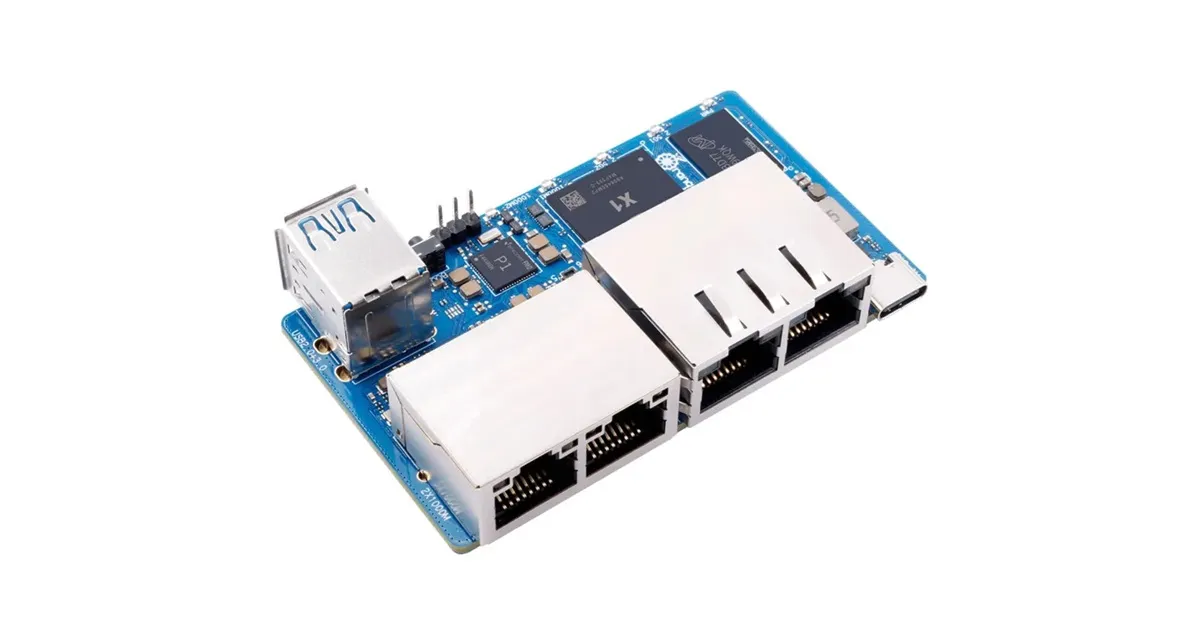
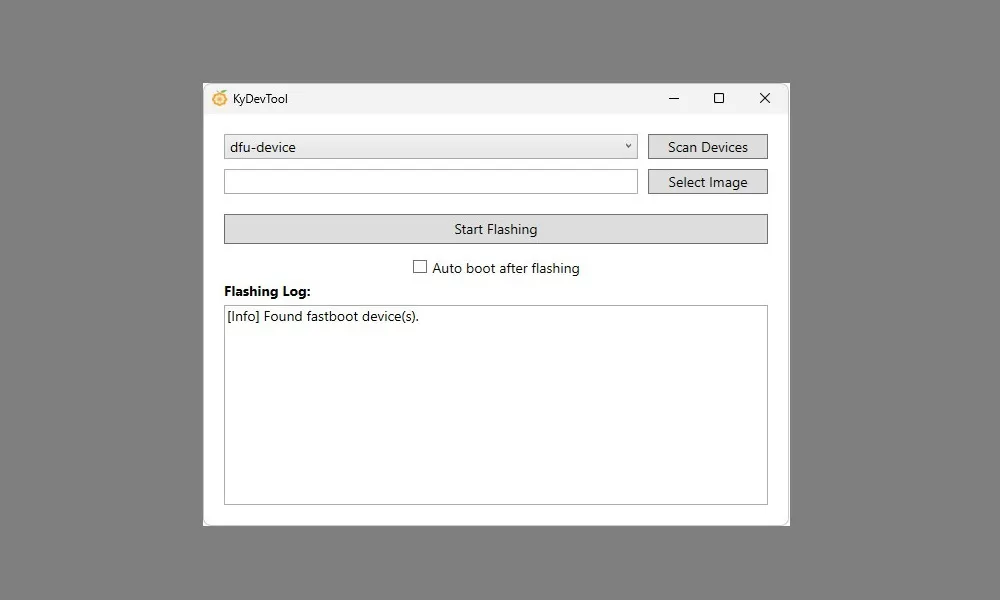
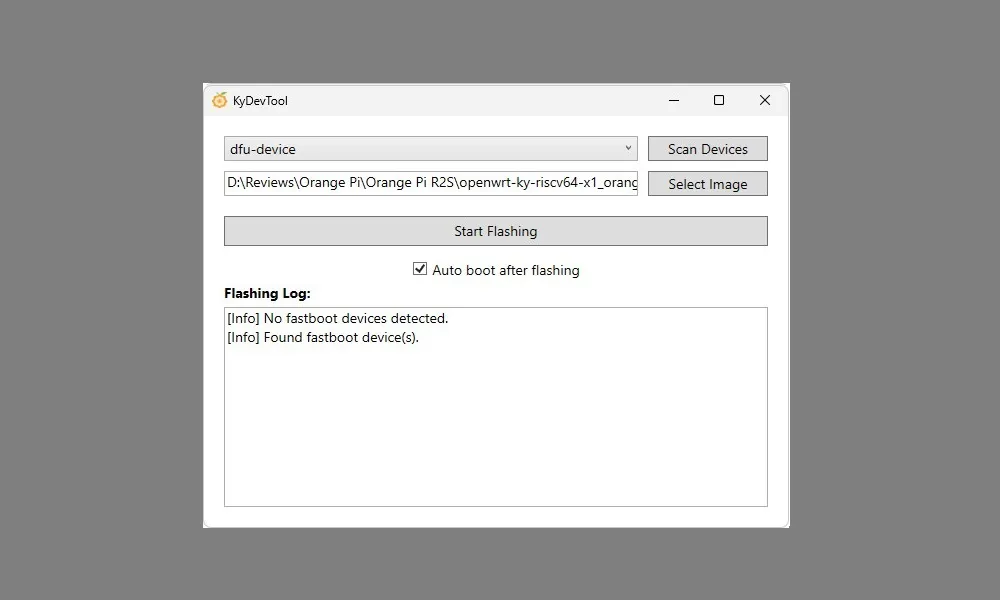
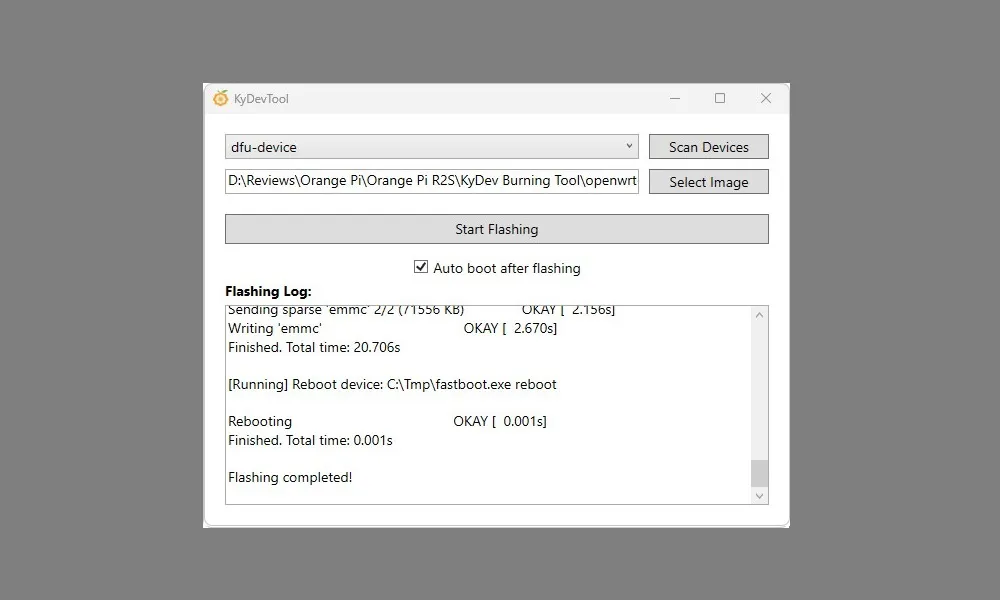
The R2S features 8GB of internal eMMC storage, but it lacks a micro-SD slot. As a result, to burn images, you must install the KyDev Burning Tool, which can be found on the product page, along with the required USB driver. Furthermore, you will need to connect the board to a desktop PC using a USB 2.0 A-male to A-male cable through the white color-coded USB port.
It’s worth noting that there’s also an onboard TF bus interface socket, suggesting that there is an option to use an external Micro SD Card; unfortunately, it’s still uncertain which adapter is compatible with it.
Flashing the OpenWrt Image onto the eMMC (Screenshots)
Recovery/Accessing the Board Through 3PIN debug serial port
For those aiming to create an image or recover data for any purpose, making use of the serial interface to access the board stands out as a good choice. The most straightforward way to access the board with root privileges is by utilizing a terminal application, such as PuTTY, to establish an SSH connection via its IP address, which is normally 192.168.2.1. It’s important to highlight that the R2S comes pre-installed with Bianbu Linux distribution, a slim operating system based on Ubuntu fork that has also been developed by SpacemiT, the same company responsible for the SoC design of the R2S board.
Connecting to the R2S using the 3PIN debug serial port.
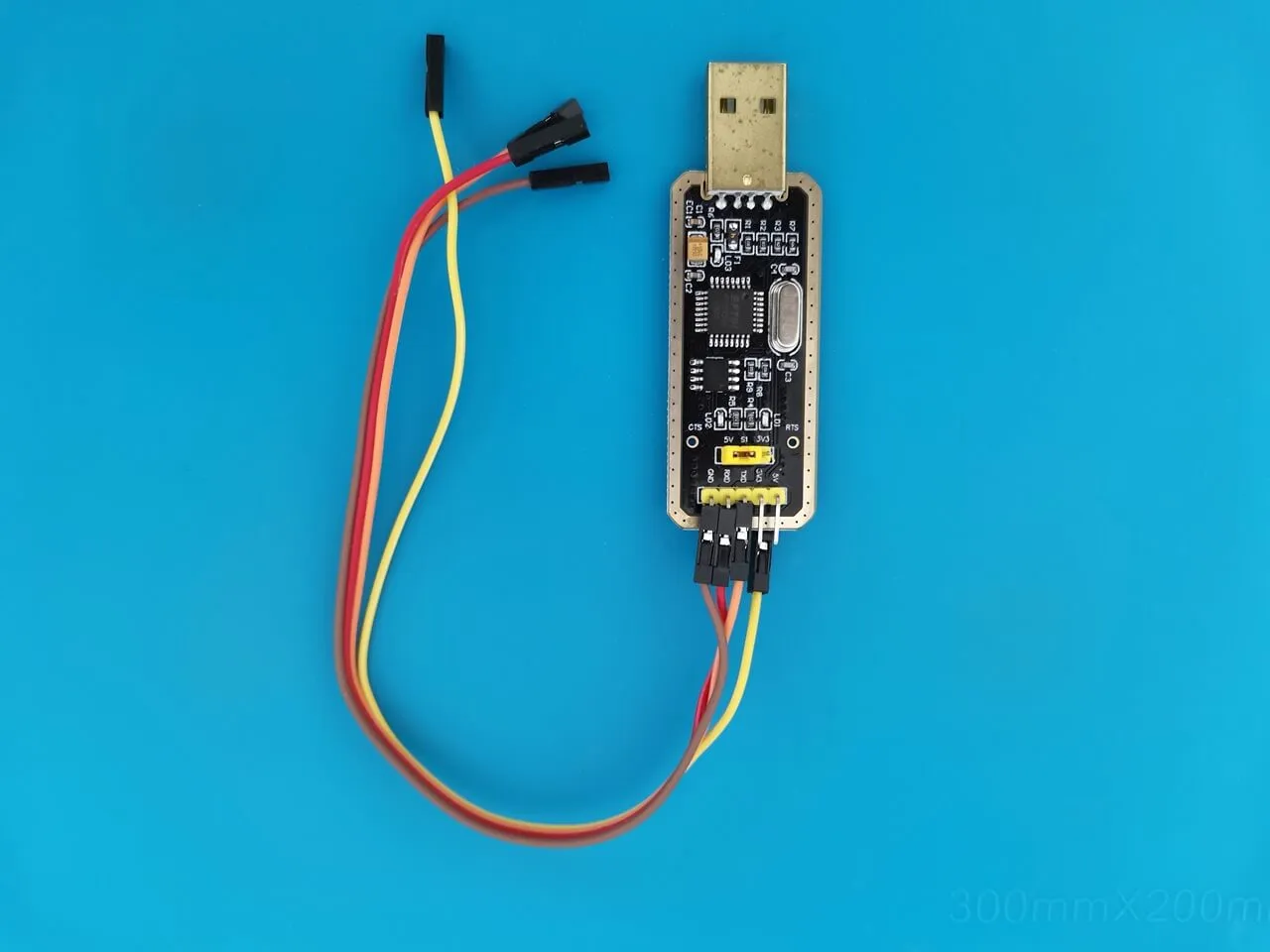
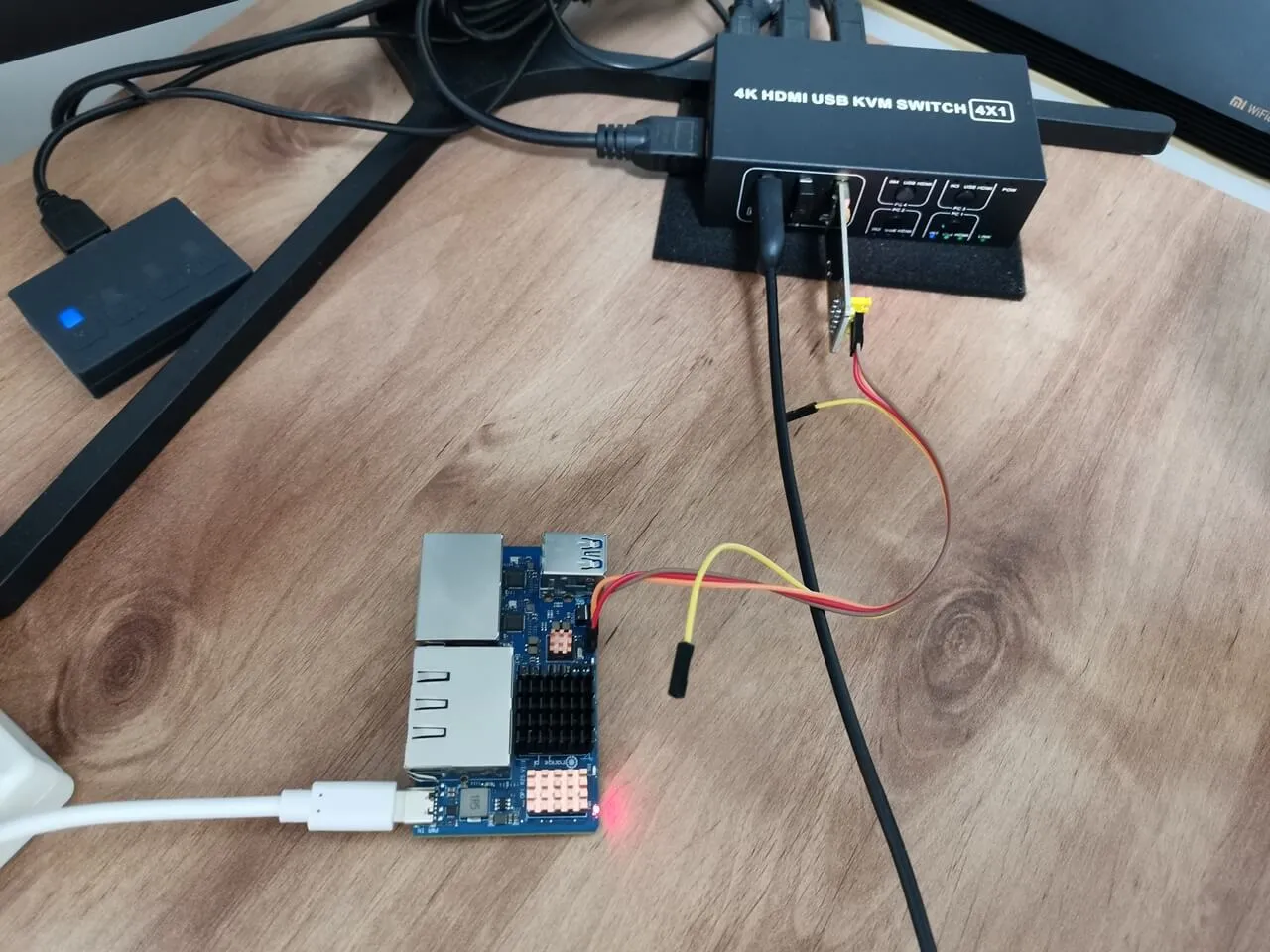
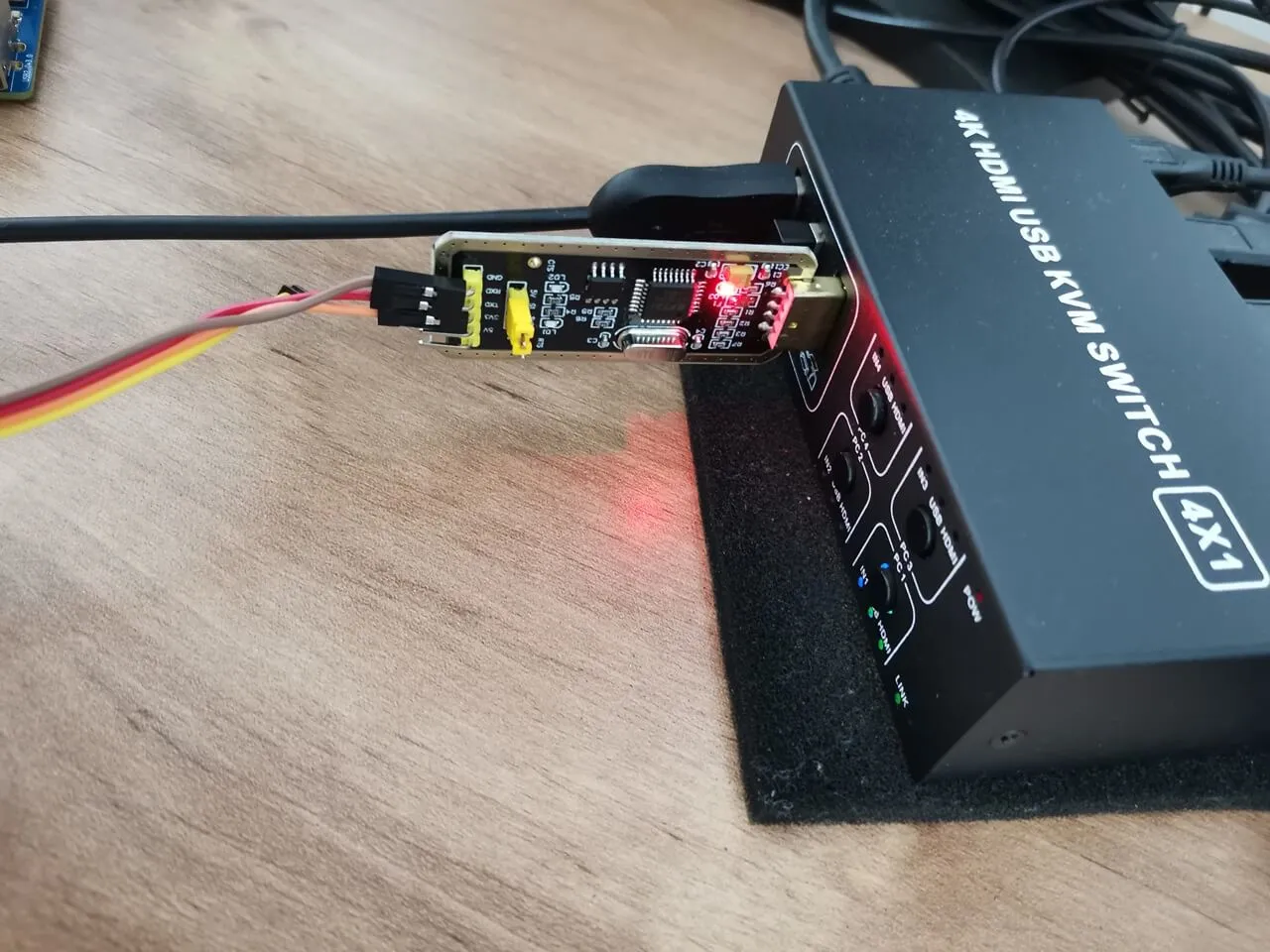
The R2S is expected to be delivered with OpenWrt pre-installed. However, if that is not the case, and the board comes installed with Binabu Linux, you can access the board through either SSH or serial port methods. Use the username: root and the password: bianbu or consult the board manual for the correct credentials.
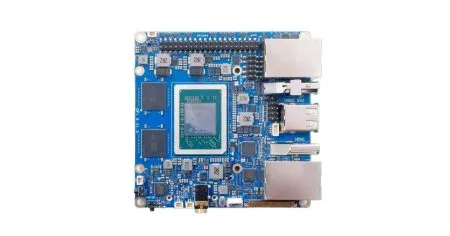
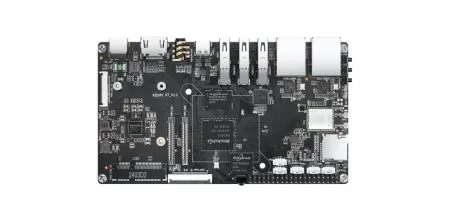
Where did you get the case? I’ve looked everywhere on AliExpress (well, not *everywhere*) but have not been able to find any suitable case or even a drawing for a 3d printer.
It’s not a perfect fit. You will find it on AliExpress. just search for “acrylic case orange pi 4a”.
Thanks for the tip but I can’t find the case under that name, also the pi4a has a whole other ports layout. Would you have a direct link?
The Orange Pi R2S Case is currently in production. If you were referring to the case for the RV Board, I’ve updated the article to include a direct purchase link from AliExpress.
I’m still looking for that case and can’t find it in your article? Can you just give me a link? Thanks
I’ll check with the company and get back to you with an answer in a few days, as it’s currently Chinese National Day.