Close Menu
  • Home
  • About
  • Wearables
  • Earbuds
  • Computer Accessories
    • Routers
    • Remotes
  • Embedded
    • Single Board Computers
    • Addon Boards
    • Raspberry Pi
  • Wireless Routers
  • Contact
Facebook X (Twitter) Instagram Threads
Trending
  • Banana Pi BPI-R4 Pro Review: The Best WiFi 7 OpenWrt Router? We Checked!
  • CamThink NeoEyes NE301: An Ultra-Low Power Edge AI Camera with STM32N6 MCU (Review)
  • AliExpress New Promotions: Country-specific Promo Codes
  • Kickpi K7C RK3576 Edge AI SBC Launches with 6 TOPS AI Power & Dual Gigabit Ethernet
  • Raspberry Pi 5 vs Orange Pi 6: Which SBC is Best in 2026?
  • Ugoos SK4 Review (2025): The Best Mid-Range Android TV Box for Value & Features
  • Orange Pi 6 Unveiled: The Affordable, Slimmed-Down SBC Alternative to the 6 Plus
  • Orange Pi 6 Plus Review: A 12-Core SBC Powerhouse (Benchmarks, Specs, and Pricing)
AndroidPIMP
Facebook X (Twitter) Instagram
  • Home
  • About
  • Wearables
  • Earbuds
  • Computer Accessories
    • Routers
    • Remotes
  • Embedded
    • Single Board Computers
    • Addon Boards
    • Raspberry Pi
  • Wireless Routers
  • Contact
AndroidPIMP
Raspberry Pi

Raspberry Pi Power Switch Expansion Module

By androidpimpApril 14, 2017Updated:March 26, 2025No Comments6 Mins Read
Facebook Twitter Pinterest LinkedIn Tumblr Email
Follow Us
Google News Flipboard
52Pi Raspberry Pi Power Switch

Product Introduction

Everyone at some point recognizes that the Raspberry Pi’s downside is that it’s missing any kind of a power button. The only way to power the Raspberry board off is by unplugging it from the power supply. What can sometimes corrupt data stored on the SD card if the device is suddenly powered off during operation? To solve this problem, 52Pi company came out with an intelligent solution in a form of a special expansion board that connects to the raspberry 40 GPIO pin header and lets you turn on/off the Pi board remotely via the IR remote control unit and the expansion board power button.

When you power the Raspberry with this expansion board, it doesn’t only power it off but also sends a signal to the board and gives a few seconds delay to initialize a proper shutdown to the Pi Board, which assures that stored data is not damaged in any way.

This power expansion board could be very particle for hobbyists that use the Raspberry Pi boards as a type of a home media player center, to stream content from the internet, or just users that need to have the remote option for specific DIY projects, For example when designing Alarm systems, Smart home solutions. For further information about the product, price, and specifications, you are welcome to visit the company’s official AliExpress store link posted below:

Buy it from 52Pi Aliexpress Store

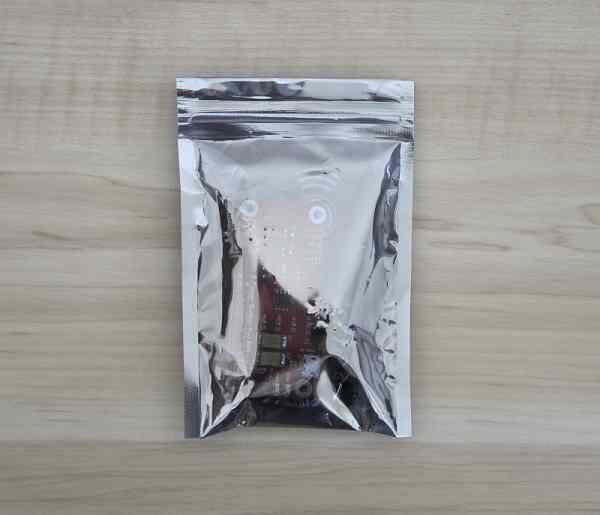
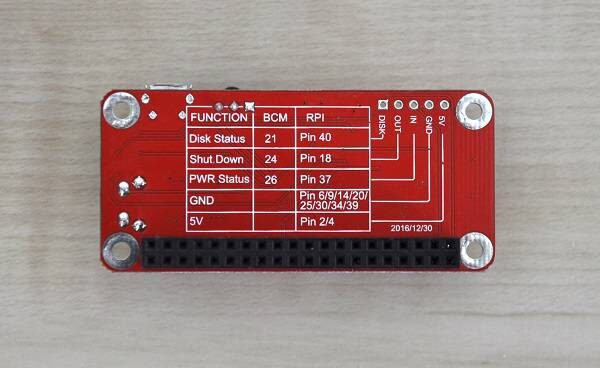
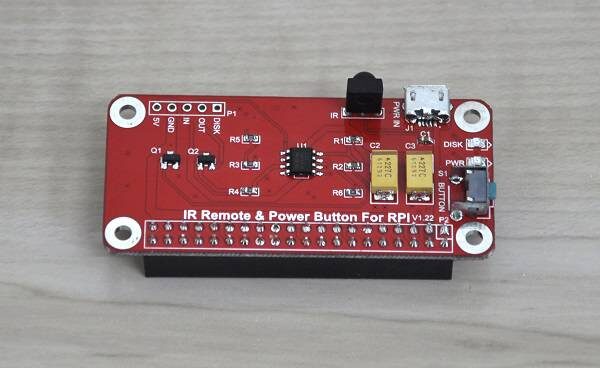
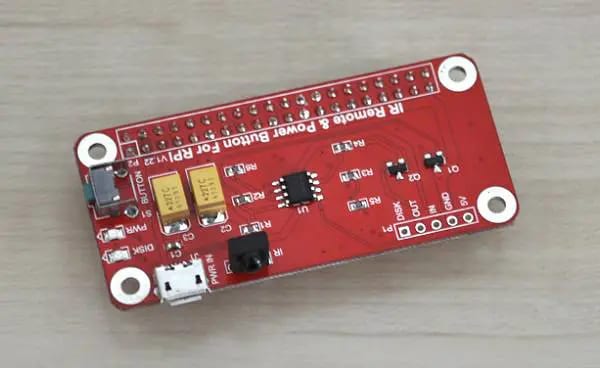
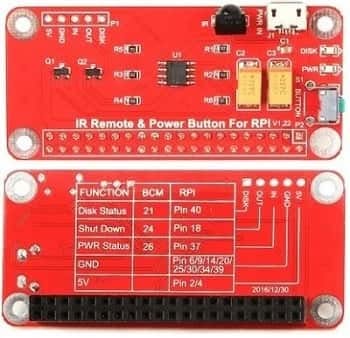
Expansion Board | Front & Rear Views  
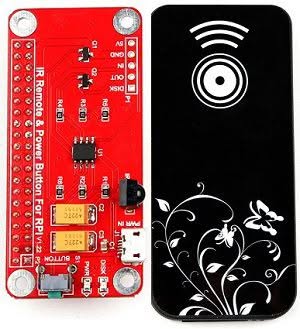
Expansion Board & IR Remote
Review TOC:

  1. Product Introduction
  2. Specifications
  3. Package
  4. Packaging and accessories supplied
  5. a closer look at the Board
  6. Hardware Compatibility
  7. Operation & Setup
  8. Final Verdict (Pros / Cons)

Features:

The Power Button provides a small circuit that includes the following features:

  • Sending a shutdown signal to the Raspberry if the Shutdown Button is pressed
  • Time delay function – waiting for the Raspberry to shut down
  • Powering off the Raspberry after saving data
  • Powering on the Raspberry after the Button is pressed again
  • LED light indicating the current state: On / Shutdown / Off
  • Dimension: 65 mm x 30 mm x 20 mm
  • Easy to setup

Package Contents :

  • 1x Switch Remote Control Module
  • 1x IR Remote controller.

 Package

Unpacking all Items

  • 1x Switch Remote Control Module
  • 1x IR Remote Controller (Battery not included)
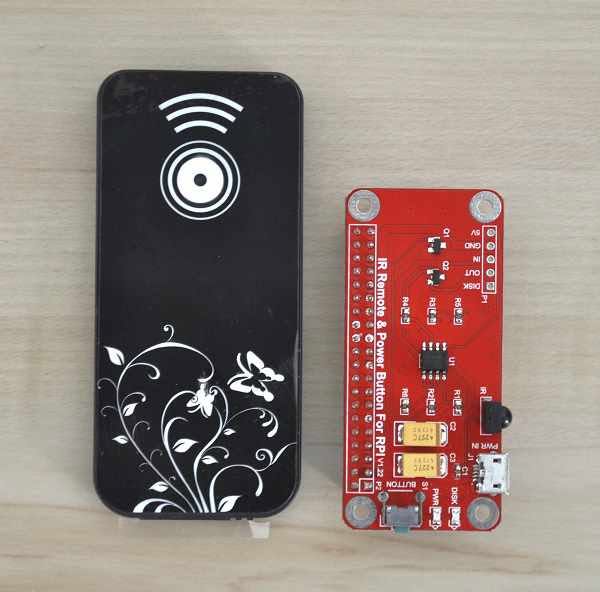
Accessories supplied

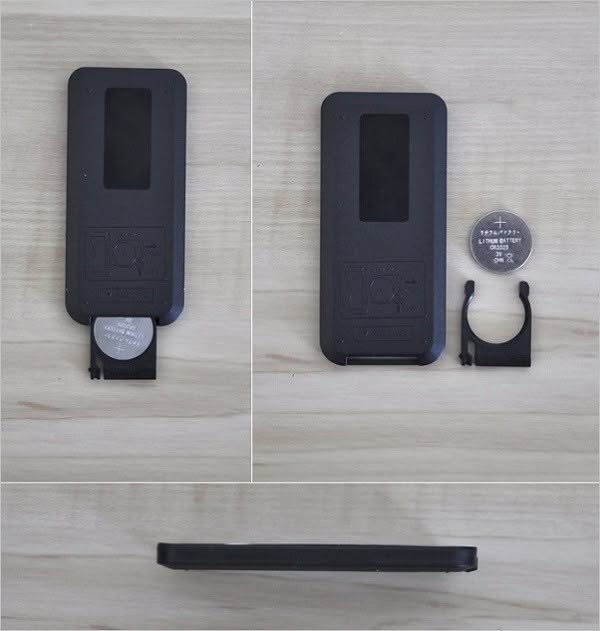
52Pi power switch expansion board came with a simple ON/OFF IR remote control unit in decent quality. Cables for operating this board are not needed because the power is provided using the Pi power adapter via the power switch Micro USB interface. Controlling the Pi board on/off modes is completely done using the GPIO interface pins. Also important to mention is that the package does not include a battery necessary for the remote control unit. Therefore, you will need to buy a 3V cr2025 lithium battery.

52Pi power switch IR Remote Control with Battery | Back View
a closer look at the Board

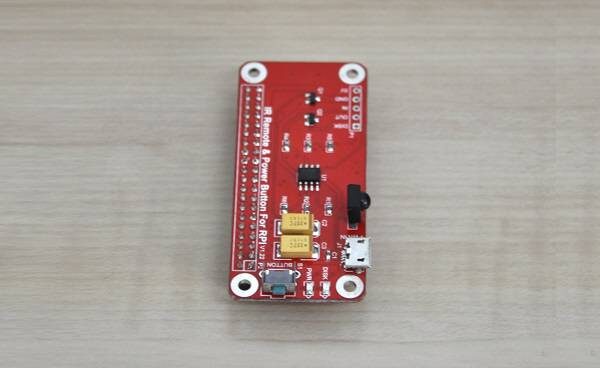
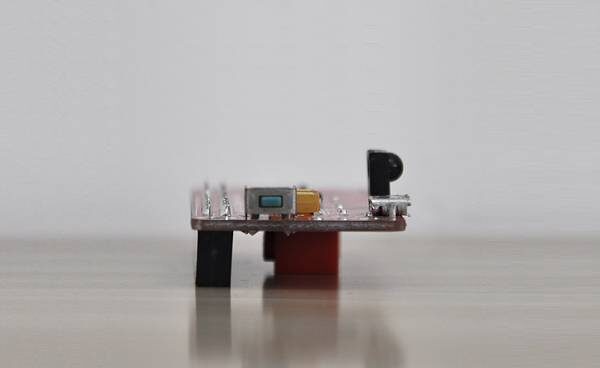
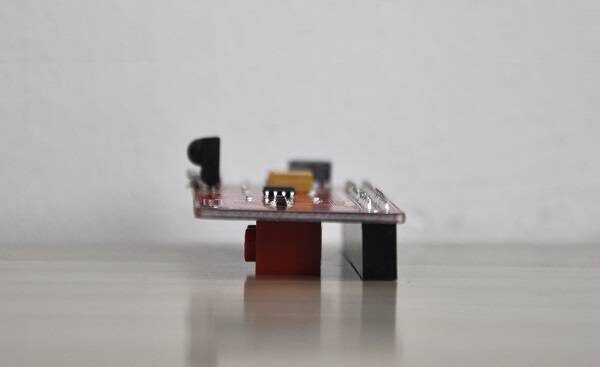
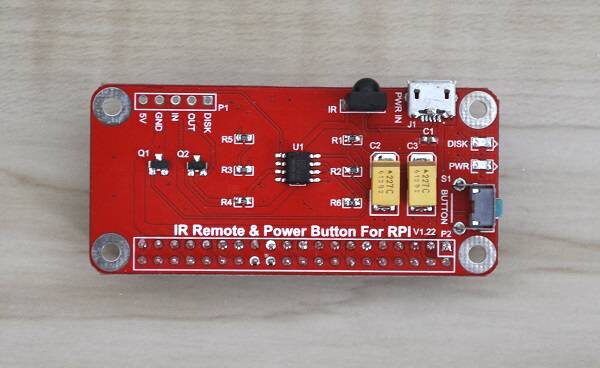
As explained in the product intro, The Pi boards don’t have any Onboard power button. The power switch expansion board provides two powering methods. It has an onboard power button that lets you manually switch the Pi board on & off. The second option, with an Onboard IR Receiver that enables you to power the unit remotely via a primary IR remote control equipped with a simple ON/OFF button.

52Pi Power Switch Expansion Board
  • Raspberry Pi Supply Switch 1
  • Raspberry Pi Supply Switch 2
  • Raspberry Pi Supply Switch 4
  • Raspberry Pi Supply Switch 5
  • Raspberry Pi Supply Switch 6
  • Raspberry Pi Supply Switch 8

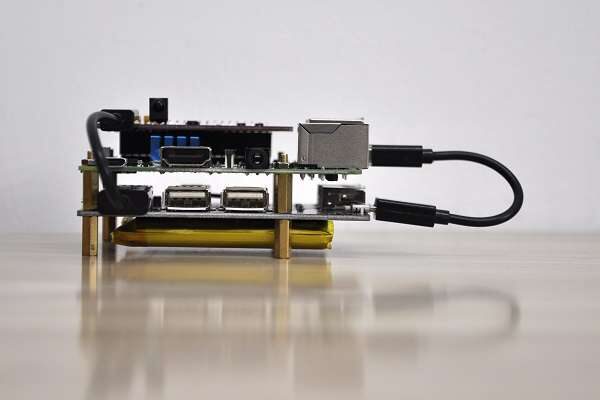
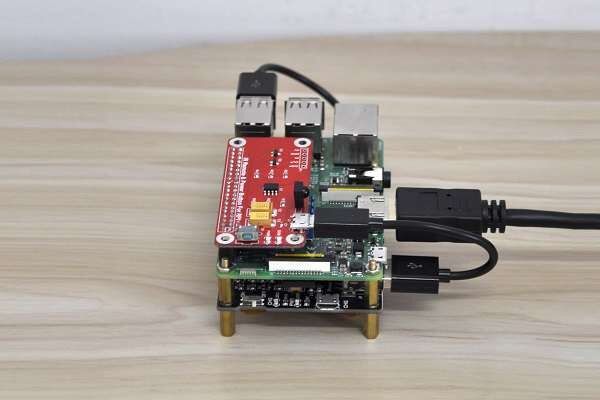
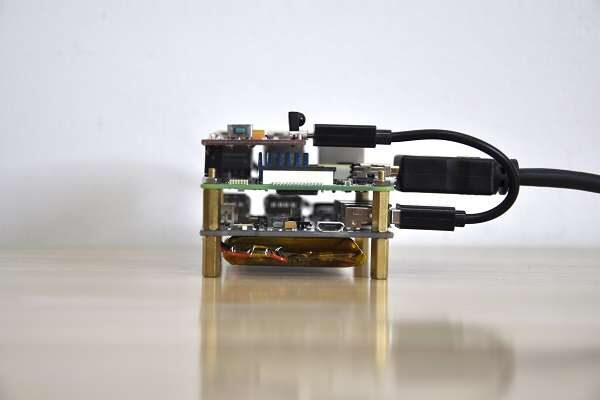
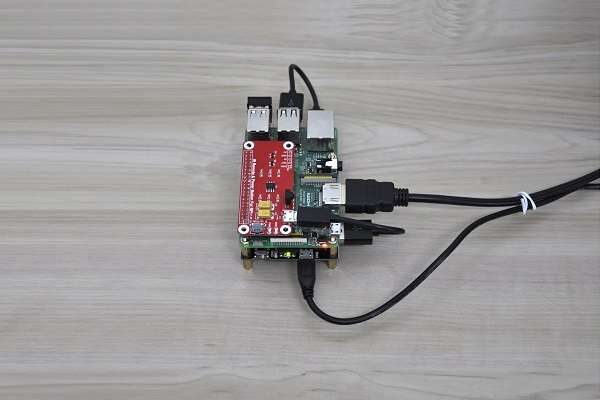
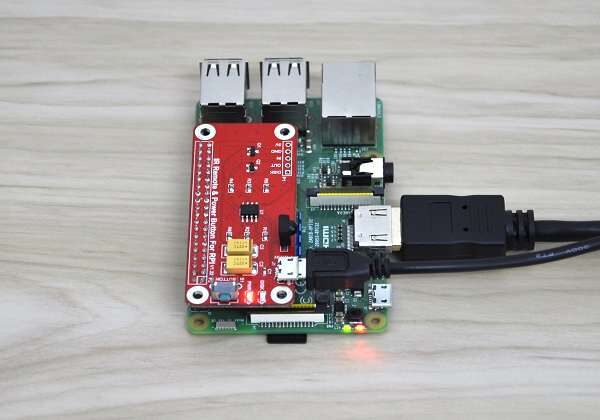
 – Configuration #1 –

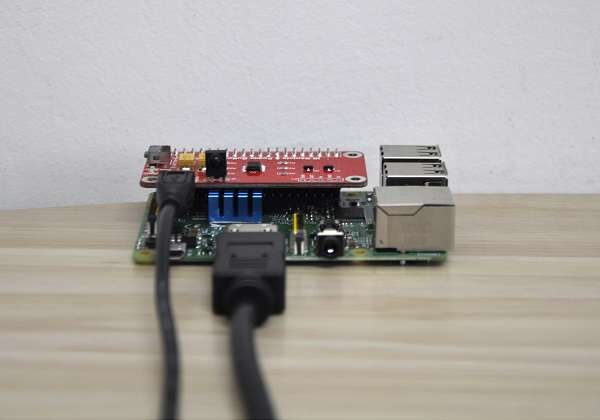
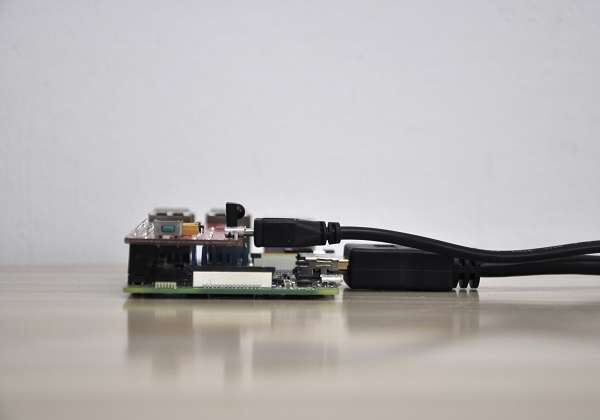
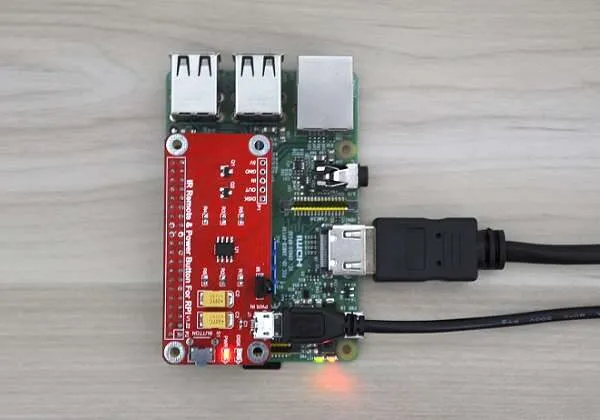
Raspberry Pi 3 + Power Switch Card
  • Power Switch Raspberry Pi 3 02
  • Power Switch Raspberry Pi 3 03
  • Power Switch Raspberry Pi 3 04
  • Power Switch Raspberry Pi 3 01

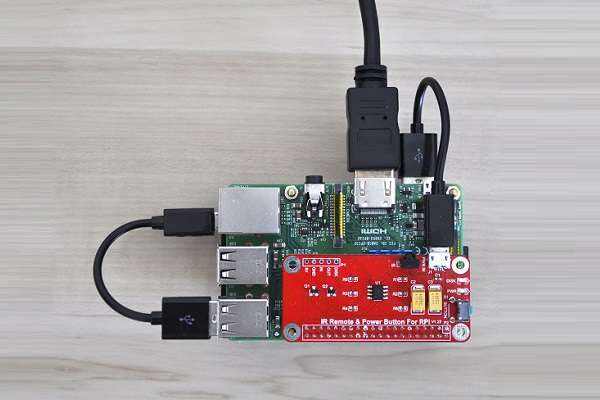
 – Configuration #2 –

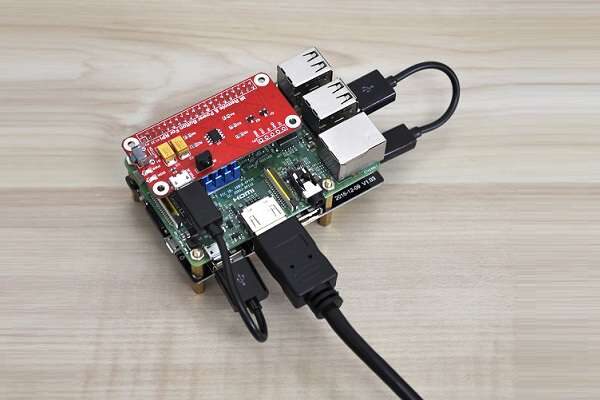
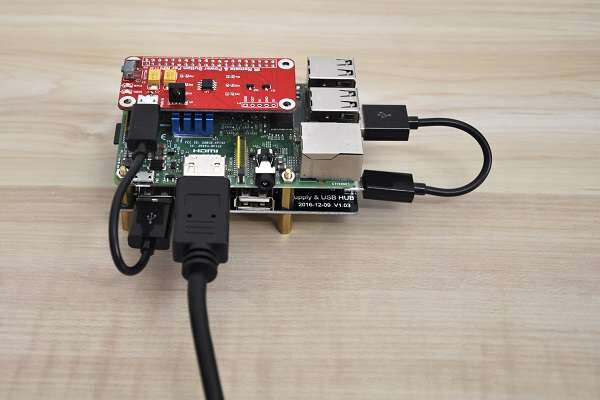
Raspberry Pi 3 + Power Switch Card + 7 Port Self Powered USB Hub
Power Switch Hub Raspberry Pi 3 1 Power Switch Hub Raspberry Pi 3 2 Power Switch Hub Raspberry Pi 3 3 Power Switch Hub Raspberry Pi 3 4 Power Switch Hub Raspberry Pi 3 5 Power Switch Hub Raspberry Pi 3 6 Power Switch Hub Raspberry Pi 3 7

Hardware Compatibility

The power switch expansion board is compatible with Raspberry Pi 2, 3, and the Zero series boards. Banana Pi and Orange Pi brand boards based on All Winner SoC maybe also work with it. Still, I can’t guarantee %100 compatibilities because it likely depends on the GPIO pin arrangement on the specific board.

It can be an excellent solution for home media players and KODI fans who want to use a remote control with their PI boards instead of powering the Pi board on and off each time by unplugging the Pi power adapter cable hand or using a power socket with a built-in switch. Also, hobbyists using the Pi as a type of workstation and server applications can benefit from having a proper system shutdown.

Operation & Setup

Setting up the board to work with a Raspberry Pi 2, 3 board:

  • Step #1: Hooking the Board it into the Pi 40 GPIO pins interface.
  • Step #2: Modifying the OS Image config file:  /boot/config.txt
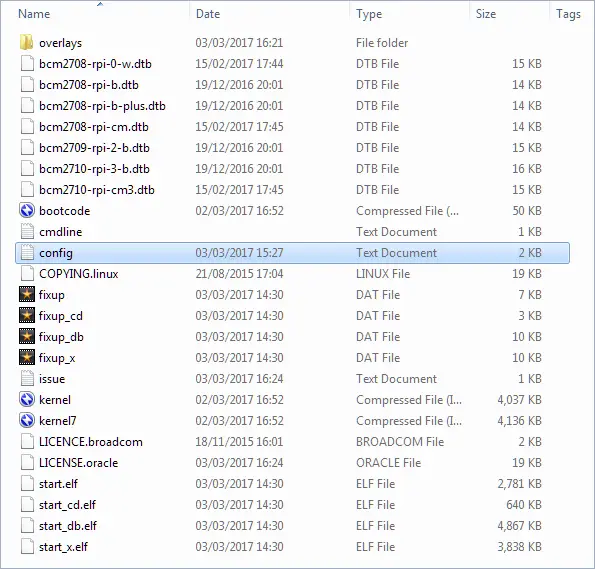
Adding the following lines:

device_tree=bcm2710-rpi-3-b.dtb
dtoverlay=power-off,gpiopin=26
dtoverlay=pi3-act-led,gpio=21

Modifying Config.txt file (Example)

#dtparam=pwr_led_activelow=off

## pwr_led_gpio
##     Set which GPIO to use for the PWR LED
##
##     In case you want to connect it to an external device
##
##     Not available on Model A/B boards.
##
##     Default 35.
##
#dtparam=pwr_led_gpio=35


# Power Switch Settings
device_tree=bcm2710-rpi-3-b.dtb
dtoverlay=power-off,gpiopin=26
dtoverlay=pi3-act-led,gpio=21
  • Step #3: Installing ‘wiringPi’ GPIO library & moving script file to  /etc/init.d/
apt-get install -y wiringPi
cd ~
git clone https://github.com/yoyojacky/powerbutton.git
cd ~/powerbutton
sudo mv ~/powerbutton/gpioshutdown /etc/init.d/
sudo chmod +x /etc/init.d/gpioshutdown

Step # 4: Editing the rc.local file and adding the following lines:

sudo nano /etc/rc.local


# Adding the following lines before exit 0

sudo /etc/init.d/gpioshutdown
gpio mode 25 out
gpio write 25 1

Note: The setup Instructions also can be found on the 52Pi Product wiki page.

Final Verdict (Pros / Cons)

52Pi Power Switch is a lovely addition to the Pi boards, including other SBCs that would like to power their boards remotely via a remote control unit. The only disadvantage I found with this product is that it occupies the Pi GPIO pins, so developers who need access to the pins will find that they are limited and can’t use both.

That said, this board is an excellent and cheap solution when there is a need to turn the Pi board entirely in an organized way without damaging files during device operation. Overall, I think it’s a must-have product.

Pros

  • Works Well
  • Cheap
  • Easy to setup

Cons

  • Occupies GPIO interface.
Share. Facebook Twitter Pinterest LinkedIn Tumblr Email
Previous ArticleSingle Board Computer Asus Thinker Board Killer | Firefly RK3399 Plus
Next Article NanoPi K2 Single Board Computer Review | Raspberry Pi 3 Competitor
androidpimp
  • Website

Related Posts

Raspberry Pi 4 Released

Raspberry Pi 4 Release and Specs Finally Announced!

June 25, 2019
52PI Raspberry Pi USB HUB

Raspberry Pi 3/4 Self Powered USB Hub

March 29, 2019
Raspberry Pi Zero Board LAN Adapter1

Raspberry Pi Zero Board LAN Expansion Board

March 5, 2019
0 0 votes
Article Rating
Subscribe
Notify of
0 Comments
Oldest
Newest Most Voted
Inline Feedbacks
View all comments
Categories
PureVPN
PureVPN Ad Banner
VyprVPN – No. 1 in Anonymity
Vyprvpn 350x260
PrivadoVPN – No. 1 in Parental Control
PrivadoVPN 350x437
Recent Posts
  • Banana Pi BPI-R4 Pro Review: The Best WiFi 7 OpenWrt Router? We Checked!
  • CamThink NeoEyes NE301: An Ultra-Low Power Edge AI Camera with STM32N6 MCU (Review)
  • AliExpress New Promotions: Country-specific Promo Codes
  • Kickpi K7C RK3576 Edge AI SBC Launches with 6 TOPS AI Power & Dual Gigabit Ethernet
  • Raspberry Pi 5 vs Orange Pi 6: Which SBC is Best in 2026?
  • Ugoos SK4 Review (2025): The Best Mid-Range Android TV Box for Value & Features
  • Orange Pi 6 Unveiled: The Affordable, Slimmed-Down SBC Alternative to the 6 Plus
  • Orange Pi 6 Plus Review: A 12-Core SBC Powerhouse (Benchmarks, Specs, and Pricing)
  • LattePanda IOTA Review: 4 Reasons It Beats Raspberry Pi 5
  • Ugoos GaN Fast Chargers (35W, 65W, 140W): USB‑C PD 3.1, Ultra‑Compact, High‑Speed Charging 2026
RSS The Latest RSS Feeds
  • Banana Pi BPI-R4 Pro Review: The Best WiFi 7 OpenWrt Router? We Checked!
  • CamThink NeoEyes NE301: An Ultra-Low Power Edge AI Camera with STM32N6 MCU (Review)
  • AliExpress New Promotions: Country-specific Promo Codes
Facebook X (Twitter) Instagram Pinterest
@2026 - All Right Reserved. Designed by AndroidPIMP

Type above and press Enter to search. Press Esc to cancel.

Accessibility
Accessibility modes
Epilepsy Safe Mode
Dampens color and removes blinks
This mode enables people with epilepsy to use the website safely by eliminating the risk of seizures that result from flashing or blinking animations and risky color combinations.
Visually Impaired Mode
Improves website's visuals
This mode adjusts the website for the convenience of users with visual impairments such as Degrading Eyesight, Tunnel Vision, Cataract, Glaucoma, and others.
Cognitive Disability Mode
Helps to focus on specific content
This mode provides different assistive options to help users with cognitive impairments such as Dyslexia, Autism, CVA, and others, to focus on the essential elements of the website more easily.
ADHD Friendly Mode
Reduces distractions and improve focus
This mode helps users with ADHD and Neurodevelopmental disorders to read, browse, and focus on the main website elements more easily while significantly reducing distractions.
Blindness Mode
Allows using the site with your screen-reader
This mode configures the website to be compatible with screen-readers such as JAWS, NVDA, VoiceOver, and TalkBack. A screen-reader is software for blind users that is installed on a computer and smartphone, and websites must be compatible with it.
Readable Experience
Content Scaling
Default
Text Magnifier
Readable Font
Dyslexia Friendly
Highlight Titles
Highlight Links
Font Sizing
Default
Letter Spacing
Default
Left Aligned
Center Aligned
Right Aligned
Visually Pleasing Experience
Dark Contrast
Light Contrast
Monochrome
High Contrast
High Saturation
Low Saturation
Adjust Text Colors
Adjust Title Colors
Adjust Background Colors
Easy Orientation
Mute Sounds
Hide Images
Hide Emoji
Reading Guide
Stop Animations
Reading Mask
Highlight Hover
Highlight Focus
Big Dark Cursor
Big Light Cursor
Cognitive Reading
Virtual Keyboard
Navigation Keys
Voice Navigation

AndroidPIMP

Accessibility Statement

  • AndroidPIMP.com
  • 10/18/2025

Compliance status

We believe the internet should be open and accessible to everyone, and we’re dedicated to making our website usable for the widest audience possible, no matter their circumstances or abilities.

To achieve this, we follow the World Wide Web Consortium’s (W3C) Web Content Accessibility Guidelines 2.1 (WCAG 2.1) at the AA level as closely as possible. These guidelines outline how to make web content accessible for people with a variety of disabilities. By complying with them, we help ensure our website is usable by everyone, including those who are blind, have motor or visual impairments, cognitive disabilities, and more.

This website uses a range of technologies to stay accessible at all times. An accessibility interface lets people with specific disabilities customize the site’s UI and design to fit their personal needs.

The website also uses an AI-powered application that works in the background to constantly enhance its accessibility. This app fixes the site’s HTML, adjusts its features and behavior for screen readers used by blind users, and optimizes keyboard functions for people with motor impairments.

If you’ve found a malfunction or have ideas for improvement, we’ll be happy to hear from you. You can reach out to the website’s operators by using the following email [email protected]

Screen-reader and keyboard navigation

Our website implements the ARIA attributes (Accessible Rich Internet Applications) technique, alongside various different behavioral changes, to ensure blind users visiting with screen-readers are able to read, comprehend, and enjoy the website’s functions. As soon as a user with a screen-reader enters your site, they immediately receive a prompt to enter the Screen-Reader Profile so they can browse and operate your site effectively. Here’s how our website covers some of the most important screen-reader requirements, alongside console screenshots of code examples:

  1. Screen-reader optimization: we run a background process that learns the website’s components from top to bottom, to ensure ongoing compliance even when updating the website. In this process, we provide screen-readers with meaningful data using the ARIA set of attributes. For example, we provide accurate form labels; descriptions for actionable icons (social media icons, search icons, cart icons, etc.); validation guidance for form inputs; element roles such as buttons, menus, modal dialogues (popups), and others. Additionally, the background process scans all the website’s images and provides an accurate and meaningful image-object-recognition-based description as an ALT (alternate text) tag for images that are not described. It will also extract texts that are embedded within the image, using an OCR (optical character recognition) technology. To turn on screen-reader adjustments at any time, users need only to press the Alt+1 keyboard combination. Screen-reader users also get automatic announcements to turn the Screen-reader mode on as soon as they enter the website.

    These adjustments are compatible with all popular screen readers, including JAWS and NVDA.

  2. Keyboard navigation optimization: The background process also adjusts the website’s HTML, and adds various behaviors using JavaScript code to make the website operable by the keyboard. This includes the ability to navigate the website using the Tab and Shift+Tab keys, operate dropdowns with the arrow keys, close them with Esc, trigger buttons and links using the Enter key, navigate between radio and checkbox elements using the arrow keys, and fill them in with the Spacebar or Enter key.Additionally, keyboard users will find quick-navigation and content-skip menus, available at any time by clicking Alt+1, or as the first elements of the site while navigating with the keyboard. The background process also handles triggered popups by moving the keyboard focus towards them as soon as they appear, and not allow the focus drift outside it.

    Users can also use shortcuts such as “M” (menus), “H” (headings), “F” (forms), “B” (buttons), and “G” (graphics) to jump to specific elements.

Disability profiles supported in our website

  • Epilepsy Safe Mode: this profile enables people with epilepsy to use the website safely by eliminating the risk of seizures that result from flashing or blinking animations and risky color combinations.
  • Visually Impaired Mode: this mode adjusts the website for the convenience of users with visual impairments such as Degrading Eyesight, Tunnel Vision, Cataract, Glaucoma, and others.
  • Cognitive Disability Mode: this mode provides different assistive options to help users with cognitive impairments such as Dyslexia, Autism, CVA, and others, to focus on the essential elements of the website more easily.
  • ADHD Friendly Mode: this mode helps users with ADHD and Neurodevelopmental disorders to read, browse, and focus on the main website elements more easily while significantly reducing distractions.
  • Blindness Mode: this mode configures the website to be compatible with screen-readers such as JAWS, NVDA, VoiceOver, and TalkBack. A screen-reader is software for blind users that is installed on a computer and smartphone, and websites must be compatible with it.
  • Keyboard Navigation Profile (Motor-Impaired): this profile enables motor-impaired persons to operate the website using the keyboard Tab, Shift+Tab, and the Enter keys. Users can also use shortcuts such as “M” (menus), “H” (headings), “F” (forms), “B” (buttons), and “G” (graphics) to jump to specific elements.

Additional UI, design, and readability adjustments

  1. Font adjustments – users, can increase and decrease its size, change its family (type), adjust the spacing, alignment, line height, and more.
  2. Color adjustments – users can select various color contrast profiles such as light, dark, inverted, and monochrome. Additionally, users can swap color schemes of titles, texts, and backgrounds, with over seven different coloring options.
  3. Animations – person with epilepsy can stop all running animations with the click of a button. Animations controlled by the interface include videos, GIFs, and CSS flashing transitions.
  4. Content highlighting – users can choose to emphasize important elements such as links and titles. They can also choose to highlight focused or hovered elements only.
  5. Audio muting – users with hearing devices may experience headaches or other issues due to automatic audio playing. This option lets users mute the entire website instantly.
  6. Cognitive disorders – we utilize a search engine that is linked to Wikipedia and Wiktionary, allowing people with cognitive disorders to decipher meanings of phrases, initials, slang, and others.
  7. Additional functions – we provide users the option to change cursor color and size, use a printing mode, enable a virtual keyboard, and many other functions.

Browser and assistive technology compatibility

We aim to support the widest array of browsers and assistive technologies as possible, so our users can choose the best fitting tools for them, with as few limitations as possible. Therefore, we have worked very hard to be able to support all major systems that comprise over 95% of the user market share including Google Chrome, Mozilla Firefox, Apple Safari, Opera and Microsoft Edge, JAWS and NVDA (screen readers).

Notes, comments, and feedback

Despite our very best efforts to allow anybody to adjust the website to their needs. There may still be pages or sections that are not fully accessible, are in the process of becoming accessible, or are lacking an adequate technological solution to make them accessible. Still, we are continually improving our accessibility, adding, updating and improving its options and features, and developing and adopting new technologies. All this is meant to reach the optimal level of accessibility, following technological advancements. For any assistance, please reach out to [email protected]

wpDiscuz