
- Maybe you missed it? Review of the Banana Pi R3.
- Maybe you missed it? Photonicat is a versatile portable OpenWrt router designed for travel.
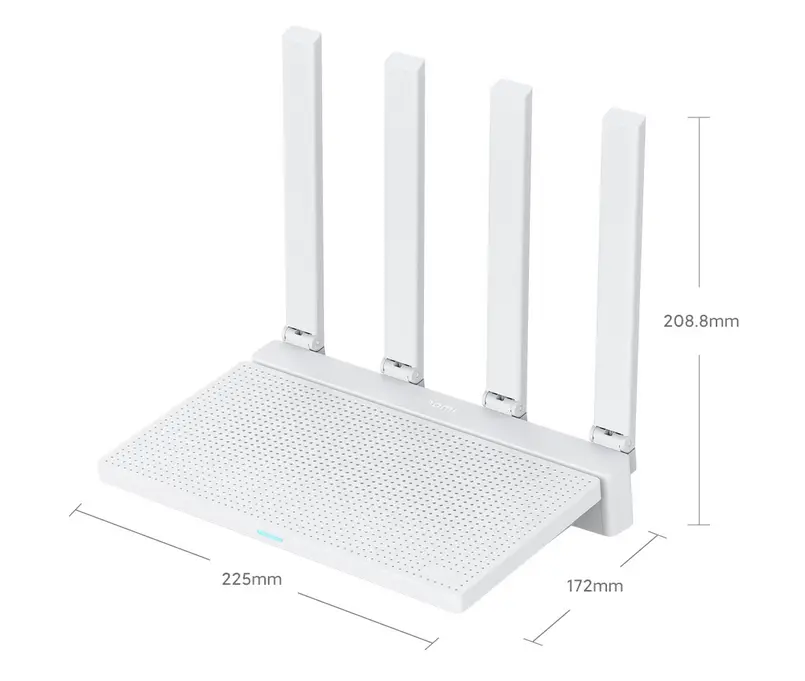
- Xiaomi AX3000T Router: Detailed instructions for installing/flashing the device with OpenWrt.
How to Flash the AX300T firmware with OpenWrt
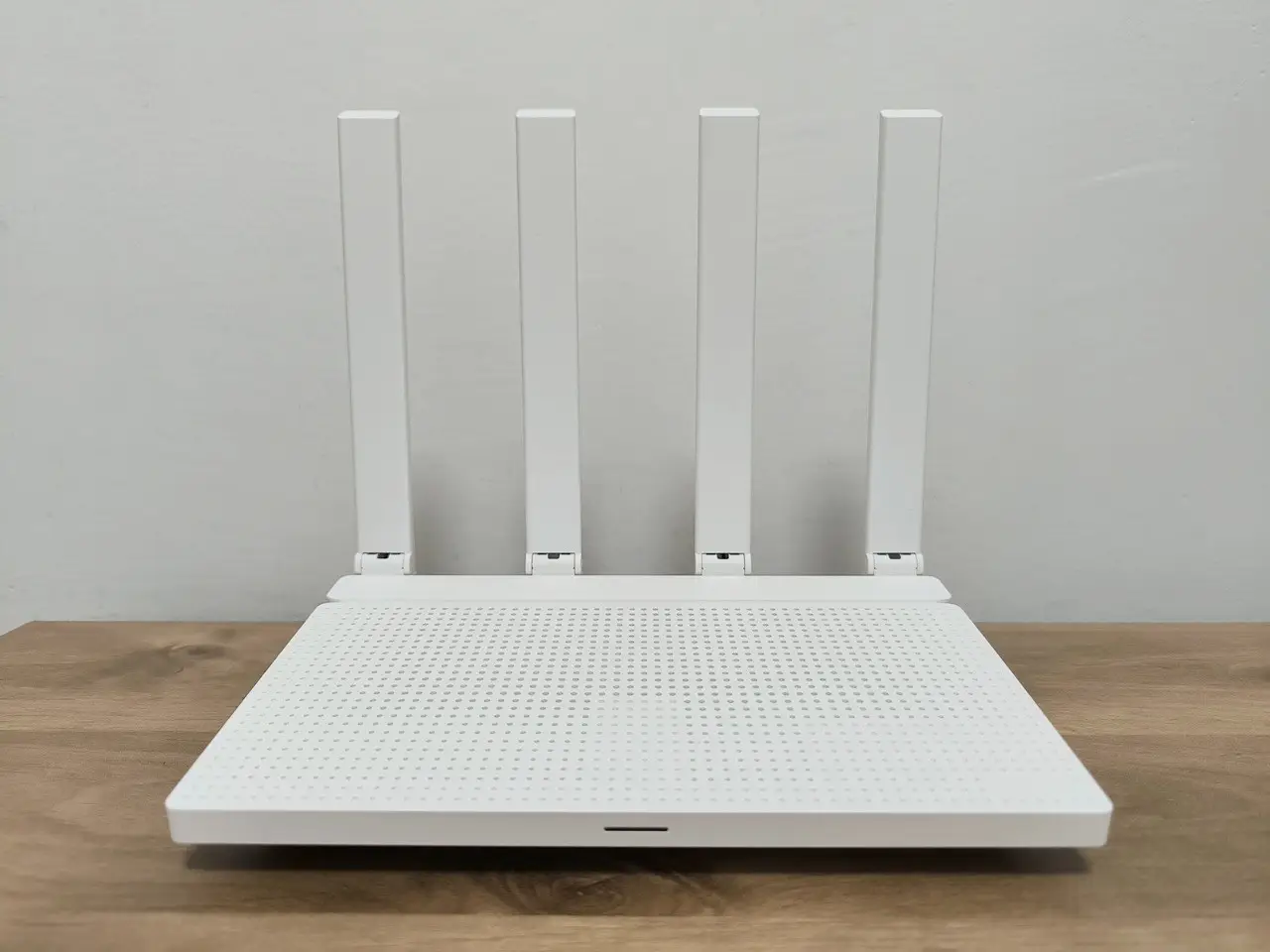
Flashing the AX3000T firmware with OpenWrt
Updating the firmware of the AX3000T to OpenWrt comes with numerous advantages. The standout benefit is the added language support, ensuring a smooth user experience. Beyond that, you gain unparalleled flexibility and regular software updates for your device. With root access, your possibilities expand further, allowing you to unleash the potential of your device by running various services like Ad blocking, internet bandwidth monitoring, samba service, and much more.
While completely damaging your device may seem like a daunting task, there is a solution that can restore it to its original state. By using MIWIFIRepairToot, you can easily flash your device’s firmware back to the factory-installed version. However, it’s crucial to recognize that you assume full responsibility for any potential mishaps that may occur.
Part I: Flashing firmware to Version 1.0.47
Step 1:
Please confirm that your router is operating on firmware version 10.0.47. If you find that you are using a newer version, it is essential to downgrade. You can download the necessary firmware using the link provided:
https://cdn.cnbj1.fds.api.mi-img.com/xiaoqiang/rom/rd03/miwifi_rd03_firmware_ef0ee_1.0.47.bin
Step 2:
In Windows OS, ensure that the built-in firewall and any antivirus programs are temporarily disabled for optimal performance.
Step 3:
- Download MIWIFIRepairTool.x86.exe: http://bigota.miwifi.com/xiaoqiang/tools/MIWIFIRepairTool.x86.zip
Step 4:
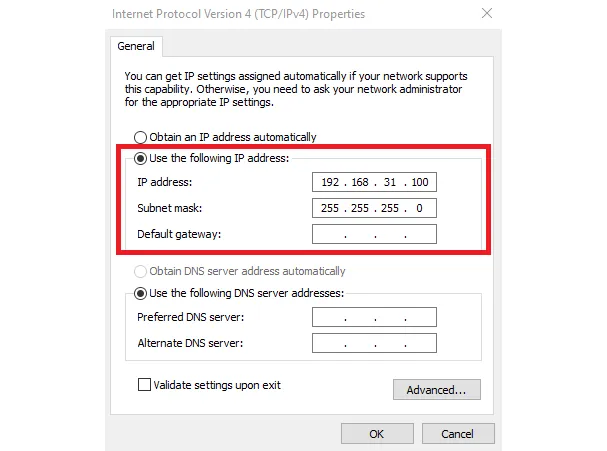
- Set static IP to your computer.
Step 5:
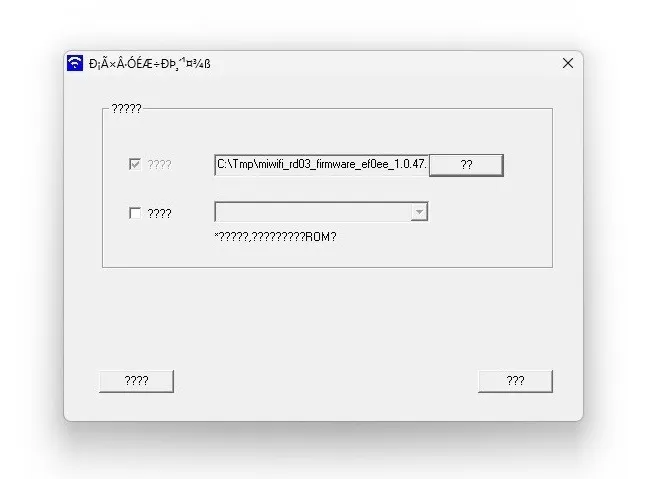
- Run MIWIFIRepairTool.x86.exe
Step 6:
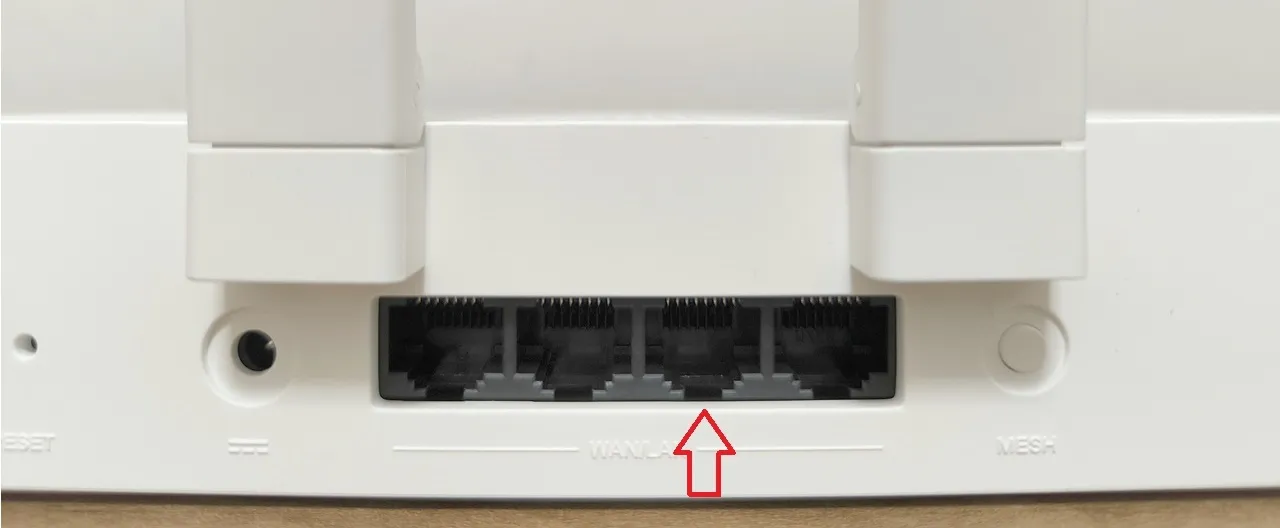
- Disconnect WAN cable and connect a network cable from your PC to Router LAN port.
Step 7:
- Use a paper clip, hold down the reset button and power on the router then release it after 8 sec and wait for the router to flash the firmware.
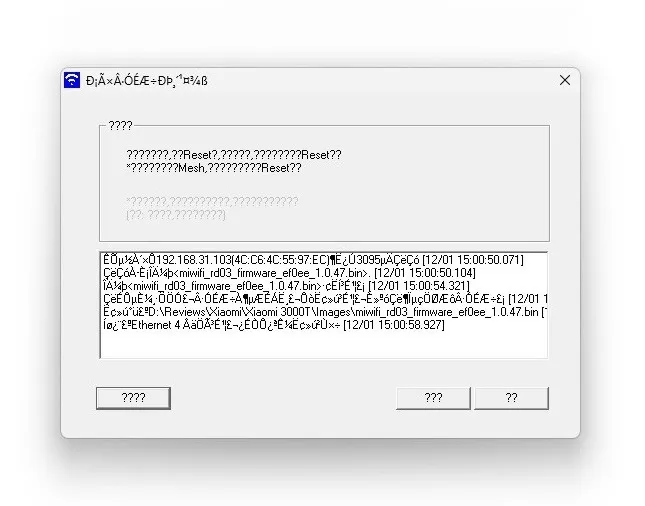
- Once the status lights of the router blink in orange color, click on the continue/approve button on the MIWIFIRepairTool.
and the updating process will start.
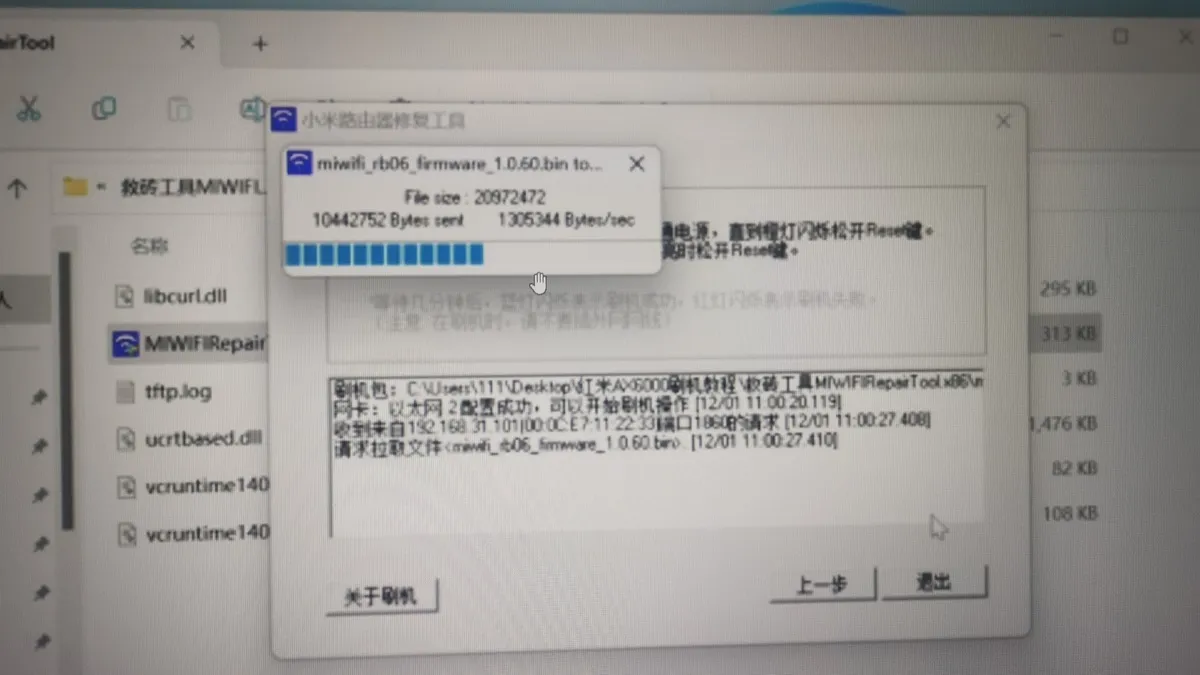
- Wait few minutes until the status light turns blue and re-power the router.
Part II: Obtaining Administrative Privileges (Root Access)
Step 1:
- Login your MiWiFi router admin area using your password and user. You should see a URL on your browser address:
http://192.168.31.1/cgi-bin/luci/;stok=41afb7bbc450ceafe12b39077dedbbd1/web/setting/upgrade
Step 2:
- Copy the strok 32-character number:
- strok=xxxxxxxxxxxxxxxxxxxxxxxx line from the browser URL.
Step 3:
- On Windows, run CMD and execute the following commands in sequence by replacing the 32-charecters stok number with your URL. If the run is successful, you should get a “code”: 0 output after running each command.
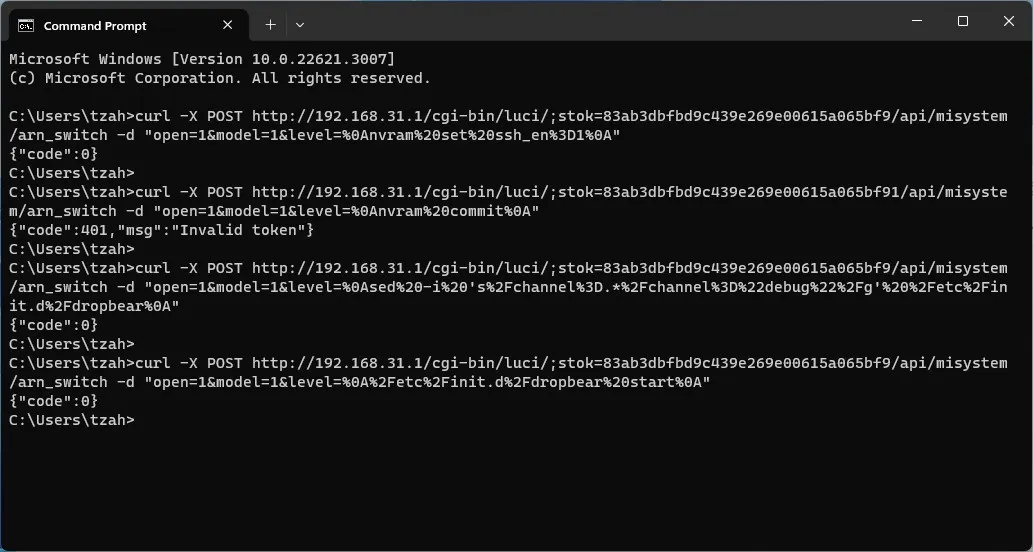
curl -X POST http://192.168.31.1/cgi-bin/luci/;stok=xxxxxxxxxxxxxxxxxxxxxxxx/api/misystem/arn_switch -d "open=1&model=1&level=%0Anvram%20set%20ssh_en%3D1%0A"curl -X POST http://192.168.31.1/cgi-bin/luci/;stok=xxxxxxxxxxxxxxxxxxxxxxxx/api/misystem/arn_switch -d "open=1&model=1&level=%0Anvram%20commit%0A"curl -X POST http://192.168.31.1/cgi-bin/luci/;stok=xxxxxxxxxxxxxxxxxxxxxxxx/api/misystem/arn_switch -d "open=1&model=1&level=%0Ased%20-i%20's%2Fchannel%3D.*%2Fchannel%3D%22debug%22%2Fg'%20%2Fetc%2Finit.d%2Fdropbear%0A"curl -X POST http://192.168.31.1/cgi-bin/luci/;stok=xxxxxxxxxxxxxxxxxxxxxxxx/api/misystem/arn_switch -d "open=1&model=1&level=%0A%2Fetc%2Finit.d%2Fdropbear%20start%0A"curl -X POST "http://192.168.31.1/cgi-bin/luci/;stok=xxxxxxxxxxxxxxxxxxxxxxxx/api/misystem/arn_switch" -d "open=1&model=1&level=%0Apasswd%20-d%20root%0A"After entering each command and pressing Enter, {code: 0} will pop up. At this point, ssh has been unlocked successfully!
Step 4:
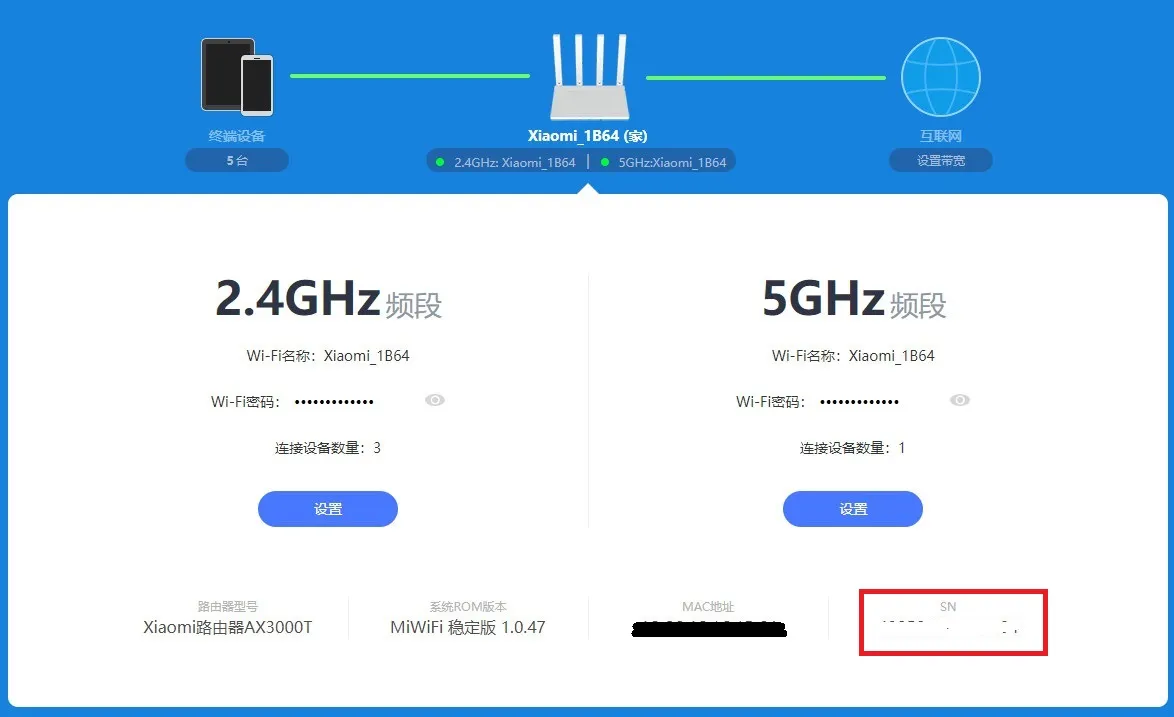
- Go to the router MiWiFi web admin management area:
- Copy the SN number next to the MAC address
Step 5:
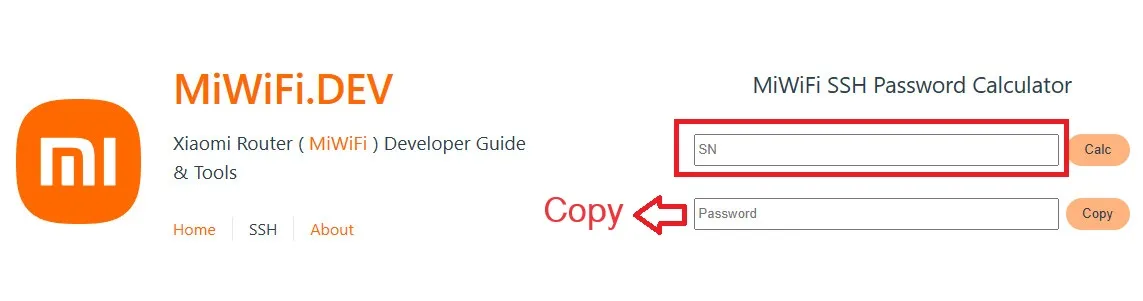
- Got to https://miwifi.dev/ssh.
- Enter paste the SN to generate your ROOT password.
Step 6:
- Download PuTTY or other SSH client of your choosing.
- SSH to 192.168.31.1 port 22 with the following account details:
User: root
Password: The generated password that was created in step 5.
Part III: Backing Up Partitions and Flashing Openwrt
Step 1:
- Enter the commands to back up all the partitions before flashing the uboot.
nanddump -f /tmp/BL2.bin /dev/mtd1
nanddump -f /tmp/Nvram.bin /dev/mtd2
nanddump -f /tmp/Bdata.bin /dev/mtd3
nanddump -f /tmp/Factory.bin /dev/mtd4
nanddump -f /tmp/FIP.bin /dev/mtd5
nanddump -f /tmp/ubi.bin /dev/mtd8
nanddump -f /tmp/KF.bin /dev/mtd12
Step 2:
- Getting firmware information
cat /proc/cmdlineStep 3:
- Changing directory to /tmp
- Downloading openwrt-mediatek-filogic-xiaomi_mi-router-ax3000t-initramfs-factory.ubi
cd /tmp

curl -o https://downloads.openwrt.org/snapshots/targets/mediatek/filogic/openwrt-mediatek-filogic-xiaomi_mi-router-ax3000t-initramfs-factory.ubi
Step 4:
- If firmware=0 run the following commands:
ubiformat /dev/mtd9 -y -f /tmp/openwrt-mediatek-filogic-xiaomi_mi-router-ax3000t-initramfs-factory.ubi
nvram set boot_wait=on
nvram set uart_en=1
nvram set flag_boot_rootfs=1
nvram set flag_last_success=1
nvram set flag_boot_success=1
nvram set flag_try_sys1_failed=0
nvram set flag_try_sys2_failed=0
nvram commit
reboot- If firmware=1 run the following commands:
ubiformat /dev/mtd8 -y -f /tmp/openwrt-mediatek-filogic-xiaomi_mi-router-ax3000t-initramfs-factory.ubi
nvram set boot_wait=on
nvram set uart_en=1
nvram set flag_boot_rootfs=0
nvram set flag_last_success=0
nvram set flag_boot_success=1
nvram set flag_try_sys1_failed=0
nvram set flag_try_sys2_failed=0
nvram commit
reboot
After reboot SSH to 192.168.1.1 port 22, Now it should boot to the OpenWrt initramfs system.Step 5:
- Downloading openwrt-mediatek-filogic-xiaomi_mi-router-ax3000t-squashfs-sysupgrade.bin to /tmp directory and flashing
wget -P /tmp https://downloads.openwrt.org/snapshots/targets/mediatek/filogic/openwrt-mediatek-filogic-xiaomi_mi-router-ax3000t-initramfs-factory.ubi

sysupgrade -n /tmp/openwrt-mediatek-filogic-xiaomi_mi-router-ax3000t-squashfs-sysupgrade.bin
Change to OpenWrt U-Boot (Optional)
- After reboot, SSH to 192.168.1.1 port 22
- Flash openwrt-mediatek-filogic-xiaomi_mi-router-ax3000t-ubootmod-initramfs-recovery.itb and reboot your system.
ubiformat /dev/mtd8 -y -f /tmp/openwrt-mediatek-filogic-xiaomi_mi-router-ax3000t-ubootmod-initramfs-recovery.itb

reboot- Now you can select DHCP settings on your network card.
- SSH to 192.168.1.1 port 22
- Install kmod-mtd-rw
opkg update && opkg install kmod-mtd-rw

insmod /lib/modules/$(uname -r)/mtd-rw.ko i_want_a_brick=1- Format ubi and create new ubootenv volume
ubidetach -p /dev/mtd8; ubiformat /dev/mtd8 -y; ubiattach -p /dev/mtd8
ubimkvol /dev/ubi0 -n 0 -N ubootenv -s 128KiB
ubimkvol /dev/ubi0 -n 1 -N ubootenv2 -s 128KiB- (Optional -10Mb free space) Add recovery boot feature.
ubimkvol /dev/ubi0 -n 2 -N recovery -s 10MiB
ubiupdatevol /dev/ubi0_2 /tmp/openwrt-mediatek-filogic-xiaomi_mi-router-ax3000t-ubootmod-initramfs-recovery.itb- Flash Openwrt U-Boot
mtd write /tmp/openwrt-mediatek-filogic-xiaomi_mi-router-ax3000t-ubootmod-preloader.bin BL2
mtd write /tmp/openwrt-mediatek-filogic-xiaomi_mi-router-ax3000t-ubootmod-bl31-uboot.fip FIP- Flash openwrt-mediatek-filogic-xiaomi_mi-router-ax3000t-ubootmod-squashfs-sysupgrade.itb
sysupgrade -n /tmp/openwrt-mediatek-filogic-xiaomi_mi-router-ax3000t-ubootmod-squashfs-sysupgrade.itbXiaomi Router AX3000T Price and Availability
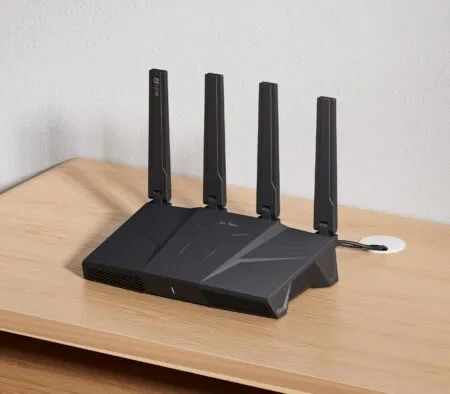
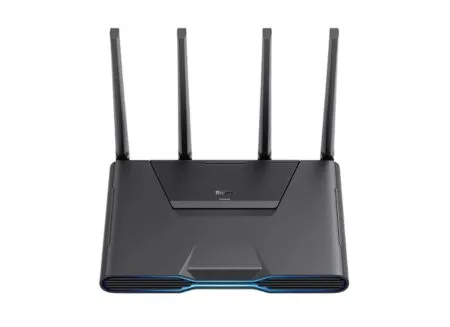
Xiaomi has recently announced on Weibo that pre-orders for the Xiaomi Router AX3000T have been officially opened in China, at a compelling price of 189 yuan ($26). This high-performance router is now available for purchase on leading e-commerce platforms including Xiaomi Mall, Xiaomi Youpin, JD.com, Tmall, and Pinduoduo. Moreover, it can be acquired for $38-42 on different AliExpress stores, making it an irresistible offer.
Before buying, please confirm that the device’s chipset is compatible with this update. We strongly recommend contacting the store owner via message for clarification.
Price and Availability


Thank you for the tutorial, but in Part III, Step 5, there’s an error. It downloads the openwrt-mediatek-filogic-xiaomi_mi-router-ax3000t-initramfs-factory.ubi, when it should actually be the openwrt-mediatek-filogic-xiaomi_mi-router-ax3000t-squashfs-sysupgrade.bin.
I will check thanks