

- Maybe you missed it? LattePanda Mu x86 Compute Module.
- LattePanda IOTA Review: A compact palm-sized X86 single-board computer featuring an integrated Raspberry Pi RP2040 microcontroller.
The board stands out with its good performance and affordable price tag. An added bonus is the availability of extra accessories to upgrade the hardware, along with the Raspberry co-processor chip which is a big plus for developers. Let’s dive into what it excels at and where it might have some shortcomings.
- Good performance and cooling.
- Wi-Fi is upgradable via M.2 E key Slot.
- 3 x USB 3.2 Gen 2 Type-A ports.
- Onboard eDP display interface.
- A broad variety of accessories.
- Able to play 4K videos seamlessly.
- Above decent documentation.
- Integrated Raspberry Pi RP2040 co-processor.
- GPIO Header interface.
- One Ethernet LAN port
Part 1: Product Introduction
A new X86 SBC, offering endless possibilities for creativity and innovation in DIY projects.
At 11:59 PM China Standard Time on Tuesday, September 17, DFRobot officially launched the new LattePanda IOTA, a compact x86 single-board computer available with 8GB or 16GB of LPDDR5 memory and 64GB or 128GB of eMMC storage options. The device is equipped with an Intel N150 quad-core processor, delivering 2-3 times faster CPU performance and 10-30 times better GPU capabilities compared to the Raspberry Pi 5, making it a great choice for users looking for an all-in-one, affordable mini-PC and development board.
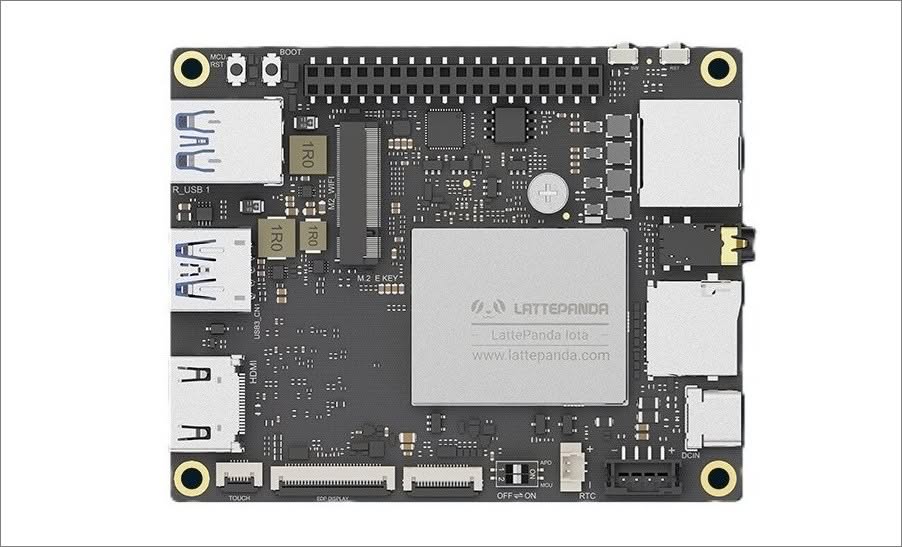
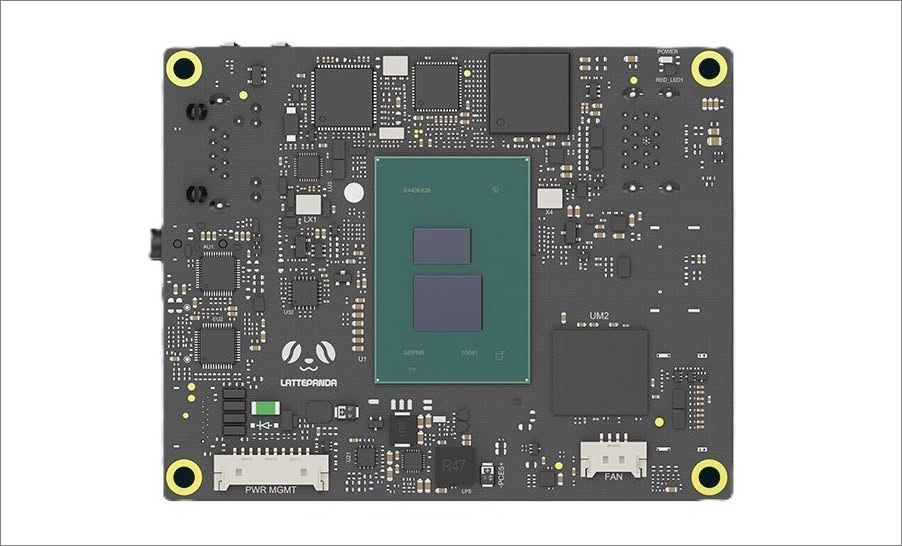
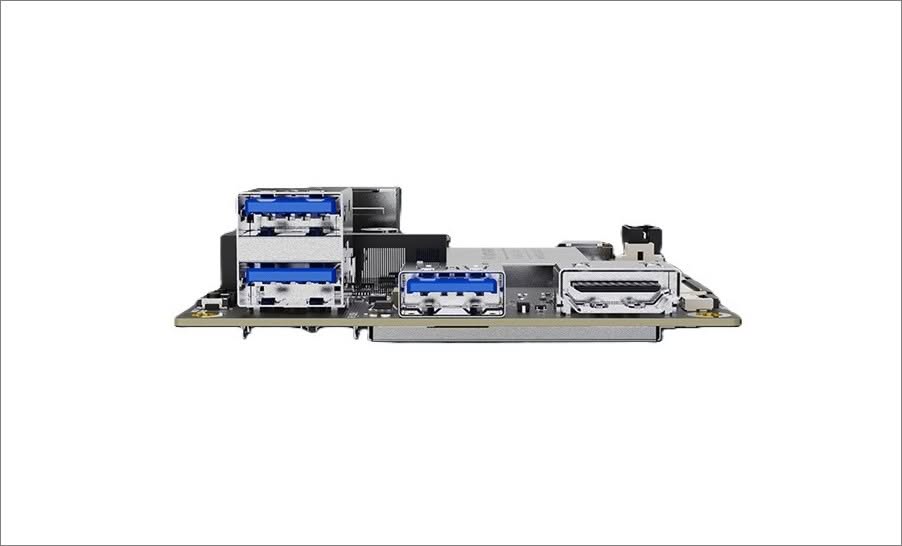
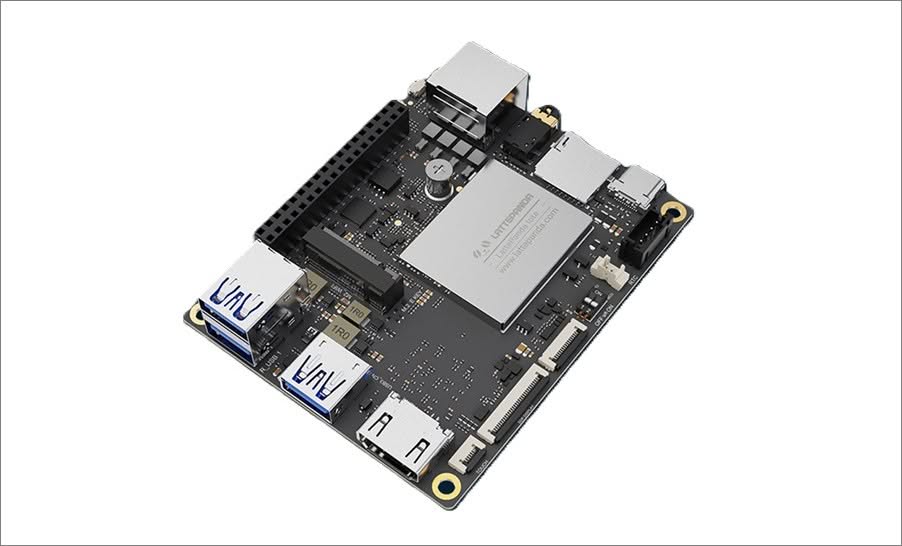
A closer view of the board.
A product introduction video.
An enhanced version of the LattePanda V1 Board.
This new board is a smooth upgrade from the classic LattePanda V1 model, which was powered by the Intel Atom x5-Z8360, a low-power quad-core processor and comes equipped with the faster Intel N150 quad-core processor that can reach up to clock frequency of up to 3.4GHz.
Form factor
The company kept the same form factor to ensure full compatibility with dimensions, interfaces, and mounting holes, while delivering a big boost in performance and expandability. Essentially, maintaining the size, shape, and design of the external interfaces unchanged makes it simpler to ensure compatibility with older V1 accessories.
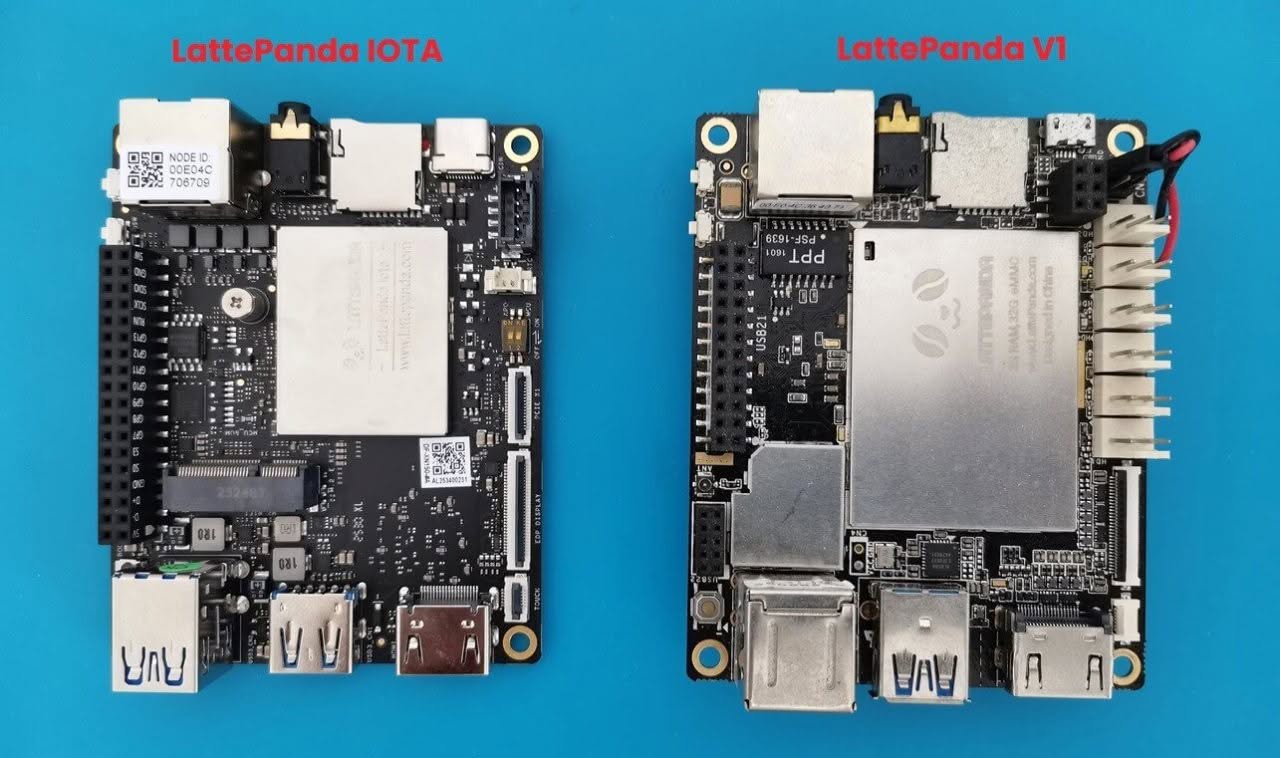
LattePanda V1 vs LattePanda IOTA — Specification Comparison
Which is better for makers: LattePanda IOTA or Raspberry Pi 5? A comparison. Here’s a detailed comparison between both of the SBCs.
| Feature | LattePanda V1 | LattePanda IOTA |
|---|---|---|
| Processor | Intel Atom x5-Z8350 (1.44–1.92 GHz) | Intel N150 Quad-Core (Up to 3.6 GHz) |
| TDP | ~2W-6W | 6W–15W (adjustable BIOS settings) |
| Memory | 2GB / 4GB DDR3L | 8GB / 16GB LPDDR5 @ 4800MT/s |
| Memory ECC Support | ❌ | ✔ |
| Storage | 32GB / 64GB eMMC | 64GB / 128GB eMMC 5.1 |
| Graphics | Intel HD Graphics | Intel Integrated Graphics |
| Display Output | HDMI 1.4 (up to 1080p@60Hz) MIPI-DSI (4-lane, 1080P) | HDMI 2.1 (up to 4K@60Hz) eDP 1.4b (1080p@60Hz) |
| USB Ports | 1x USB 3.0 2x USB 2.0 | 3x USB 3.2 Gen2 1x USB 2.0 header 1x USB-C PD |
| Networking | 100Mbps Ethernet + Integrated WiFi (802.11n) | Gigabit Ethernet, WiFi via M.2 module |
| Expansion Slots | None | M.2 E Key, PCIe FPC, TF Card Slot |
| Co-Processor | Arduino-compatible ATmega32u4 | Raspberry Pi RP2040 MCU |
| Audio | 3.5mm jack | 3.5mm mic/headphone combo jack |
| Power Supply | 5V/2A via micro USB | USB-C PD (15V), PH2.0-4Pin (10–15V DC) |
| Operating System | Windows 10, Ubuntu | Windows 10/11, Ubuntu 22.04/24.04 |
| Dimensions | 88mm × 70mm × 22mm | 88mm x 70mm x 19mm |
| Geekbench Multi-Core Score | 240 | 1862 |
Main distinctions.
- Performance Leap: IOTA’s Intel N150 offers significantly better CPU and GPU performance.
- Memory & Storage: IOTA supports faster LPDDR5 and larger eMMC options.
- Connectivity: IOTA adds USB 3.2 Gen2, PCIe expansion, and modern display outputs.
- Co-Processor Upgrade: RP2040 on IOTA is more versatile than the Arduino chip on V1.
- Power Efficiency: V1 is ultra-low power, while IOTA balances power and performance.
🧠 LattePanda IOTA vs. Raspberry Pi 5: Hardware Specs & Benchmarks
Here’s a thorough comparison of the LattePanda IOTA and Raspberry Pi 5, focusing on their specifications and benchmark results:
| Feature | LattePanda IOTA | Raspberry Pi 5 |
|---|---|---|
| CPU | Intel N150 (4 Gracemont E-cores, up to 3.6 GHz) | Broadcom BCM2712 (Quad-core ARM Cortex-A76, up to 2.4 GHz) |
| Architecture | x86 | ARM |
| RAM | Up to 16 GB ECC LPDDR5 | 4 GB or 8 GB LPDDR4X |
| Storage | Up to 128 GB eMMC 5.1 | microSD + optional NVMe via PCIe |
| GPU | Intel UHD Graphics | VideoCore VII |
| Connectivity | 3× USB 3.2 (10 Gbps), HDMI 2.1, Gigabit Ethernet | 2× USB 3.0, 2× USB 2.0, HDMI 2.0, Gigabit Ethernet |
| Co-Processor | RP2040 for real-time tasks | None |
| Power Consumption | ~15W | ~10W |
| Operating System Support | Windows 10/11, Linux | Raspberry Pi OS, Linux |
| Form Factor | Palm-sized, same as LattePanda V1 | Standard Raspberry Pi board |
| Geekbench 6 (Single-Core) | 1198 | 750 |
| Geekbench 6 (Multi-Core) | 2820 | 1550 |
| Price (16GB RAM edition) | $129.00 (Board Only) | ~$120.00 (Board Only) |
Summary
- Hardware: Thanks to its ample memory capacity and x86 compatibility, it’s ideal for handling complex computing tasks and Windows-based projects. Additionally, the popular and upgradeable OS enhances its versatility, while the device also serves as a compact mini-PC.
- x86 Compatibility: The Intel N150 is a modern, energy-efficient x86 chip capable of running full desktop operating systems like Windows 11 and standard Ubuntu right out of the box. This offers a significant advantage in software compatibility for traditional applications not built for ARM.
Interfaces and ports
The board comes equipped with all the essential interfaces an everyday user might need, including HDMI 2.1 and eDP display outputs, USB 3.2 Gen2, Gigabit Ethernet, an M.2 expansion slot, and a GPIO header with UART, I2C, and USB 2.0. It also features a built-in RP2040 co-processor, making it highly versatile for various DIY applications.
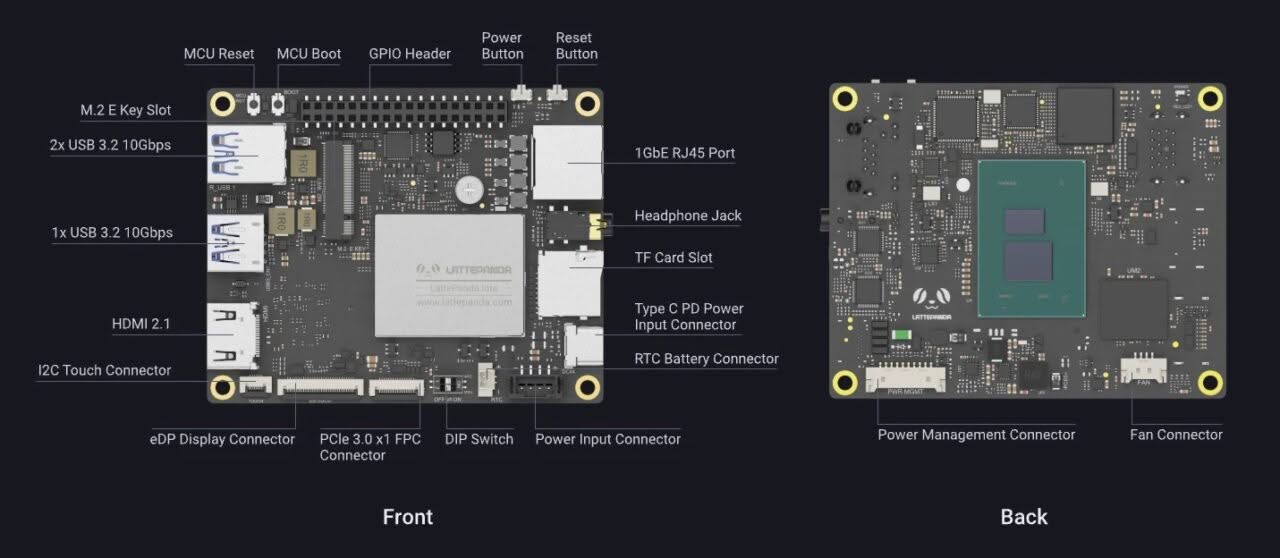
Keeping the board components cool.
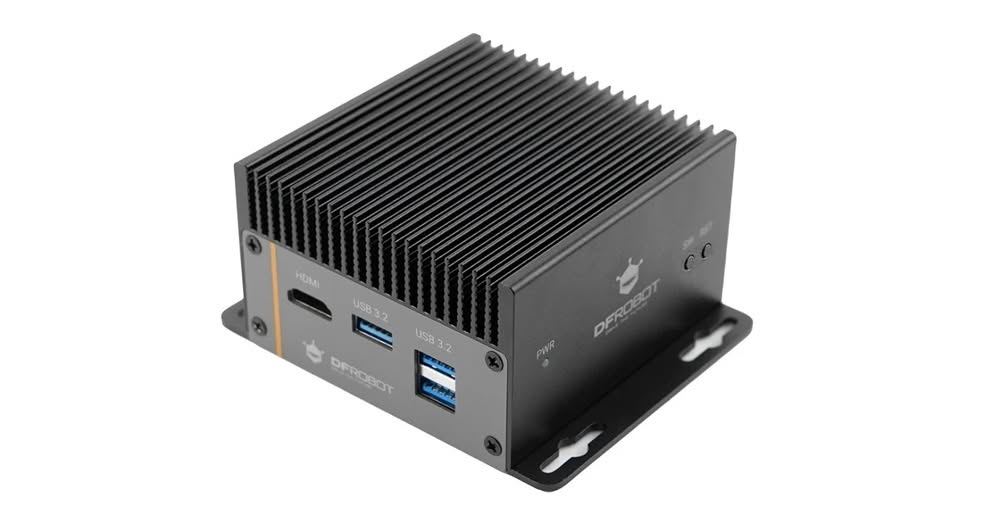
DFRobot has introduced some cooling solutions to meet various user needs and project demands. Their lineup offers three key choices: an active cooler and a passive heatsink that are mounted on the rear side of the board. There’s also an option for a sturdy, closed aluminum case that provides maximum protection for the PCB and is very suitable for use in industrial, home, or office environments.
With the significant boost in performance, power consumption and heat generation have also increased. You can select one of the two heatsinks displayed in the photo below.

A durable metal case (Optional)
🧠 Specifications
| Category | Specification |
|---|---|
| CPU | Intel® Processor N150, 4 Cores / 4 Threads, Up to 3.6 GHz |
| TDP | 6W-15W |
| Graphics | Intel® Integrated Graphics |
| Memory | 8GB or 16GB LPDDR5 @ 4800MT/s with In-band ECC |
| Storage | 64GB or 128GB eMMC 5.1 |
| Display Output | – 1x HDMI 2.1: Up to 4096 × 2160 @ 60Hz – 1x eDP 1.4b (2 lanes): Up to 1920 × 1080 @ 60Hz |
| USB Ports | – 3x USB 3.2 Gen 2 Type-A (10Gbps) – 1x USB 2.0 Pin Header – 1x USB Type-C PD (Power Input Only) |
| Networking | 1GbE RJ45 Port (Supports Wake-on-LAN) |
| Expansion Slots | – M.2 E Key 2230 (PCIe/CNVio) – TF Card Slot (USB 2.0) – PCIe FPC Connector (PCIe 3.0 x1, 0.5mm 16Pin) |
| Co-Processor | RP2040 MCU (Raspberry Pi Microcontroller) |
| Audio | 3.5mm Microphone/Headphone Combo Jack |
| Power Supply | – USB Type-C: PD 15V – PH2.0-4Pin: 10–15V DC |
| Operating System | Windows 10 & 11, Ubuntu 22.04 & 24.04 |
| Dimensions | 88mm × 70mm |
🧠Featuring a Raspberry Pi RP2040 microcontroller – what’s it all about?
The RP2040, developed by Raspberry Pi Ltd, is a 32-bit dual-core ARM Cortex-M0+ microcontroller. Introduced in January 2021 as the heart of the Raspberry Pi Pico board, it combines high performance with affordability, making it ideal for both hobbyists and professionals.
🔧 Key Specs:
- Processor: Dual-core ARM Cortex-M0+ @ 133 MHz
- Memory: 264KB SRAM
- Storage: No onboard flash (external flash required)
- I/O: 30 GPIO pins, including SPI, I2C, UART, PWM, and USB 1.1
- Programmable I/O (PIO): 8 state machines for custom peripherals
- Package: QFN-56, 7×7 mm
- Manufacturing Process: 40nm by TSMC
The benefits
As a co-processor, the RP2040 enhances the capabilities of a main processor, such as an x86 or ESP32. It’s commonly found in boards like the LattePanda IOTA, where it supports the main CPU by managing low-level tasks.
🛠️ Co-Processor Roles:
- USB to Serial Conversion: Acts as a dual USB-to-serial bridge
- I2C Slave: Communicates with the main processor to relay sensor data or control signals
- GPIO Expansion: Adds extra I/O capabilities for controlling LEDs, buttons, or other peripherals
- Offloading Tasks: Handles time-sensitive operations like LED blinking or signal generation via PIO, freeing up the main CPU
PIO subsystem
Let’s explore the RP2040’s PIO subsystem, one of its most interesting and unique features is the PIO, or Programmable Input/Output. This hardware subsystem on the RP2040 lets you design custom digital interfaces—such as SPI, I2C, UART, or even VGA—entirely in software, while maintaining hardware-level timing precision.
Rather than depending on the CPU to “bit-bang” signals, which is both slow and imprecise, PIO allows you to create small programs that run on dedicated state machines. This frees up the main processor while providing precise, cycle-accurate control of GPIO pins.
Key Components of PIO
The RP2040 features 2 PIO blocks, each containing 4 state machines, for a total of 8. Each state machine includes:
- GPIO Control: Direct manipulation of pin states
- Instruction Memory: Stores your custom PIO program
- Shift Registers: For serial-to-parallel and parallel-to-serial conversion
- FIFOs: Buffers for sending/receiving data to/from the CPU or DMA
- Clock Divider: Allows precise timing control
💡 Why It’s Game-Changing
- Timing Precision: PIO runs at system clock speed (e.g., 125 MHz), so you get nanosecond-level control.
- CPU Offload: Once programmed, PIO runs independently—no CPU cycles needed.
- Protocol Emulation: You can emulate nearly any digital protocol, even obscure or proprietary ones.
- Parallelism: Multiple state machines can run different programs simultaneously.
What can be accomplished with PIO?
Here are a few practical examples of what PIO makes possible:
| Use Case | Description |
|---|---|
| WS2812 LED Control | Generate precise timing signals for NeoPixel LEDs |
| Custom UART/SPI/I2C | Implement serial protocols not natively supported or with custom behavior |
| Quadrature Encoders | Read rotary encoders with high accuracy |
| VGA Signal Generation | Output video signals directly from GPIO pins |
| PWM with Deadband | Create advanced PWM signals with timing gaps for motor control |
Practical Applications
Powered by the Intel N150 platform’s AI inference capabilities, this board delivers local, real-time intelligence, making it ideal for smart access control, telematics systems, interactive displays, and off-grid monitoring. With its strong performance, extensive connectivity, and dependable design, this SBC is a forward-thinking choice for embedded applications.
With support for ultra-thin eDP touch displays and UPS modules, this board is perfect for portable medical devices, field research kits, and mobile data loggers. It enables developers to quickly prototype and ensures reliable performance, even in tough conditions.
When you installed the IOTA Active Cooler, was there a gap between the CPU and the cooler? Mine seems to have an air gap that can’t be overcome with thermal paste.
Maybe, but I can’t say for sure. The thermal paste should help, even if there is a very small gap.
If you’re really annoyed with the gap, you can always try adding a thermal pad. What you should focus on is checking the temperatures to see if they are stable. If they are stable and reasonable in range, then everything is working as it should.