
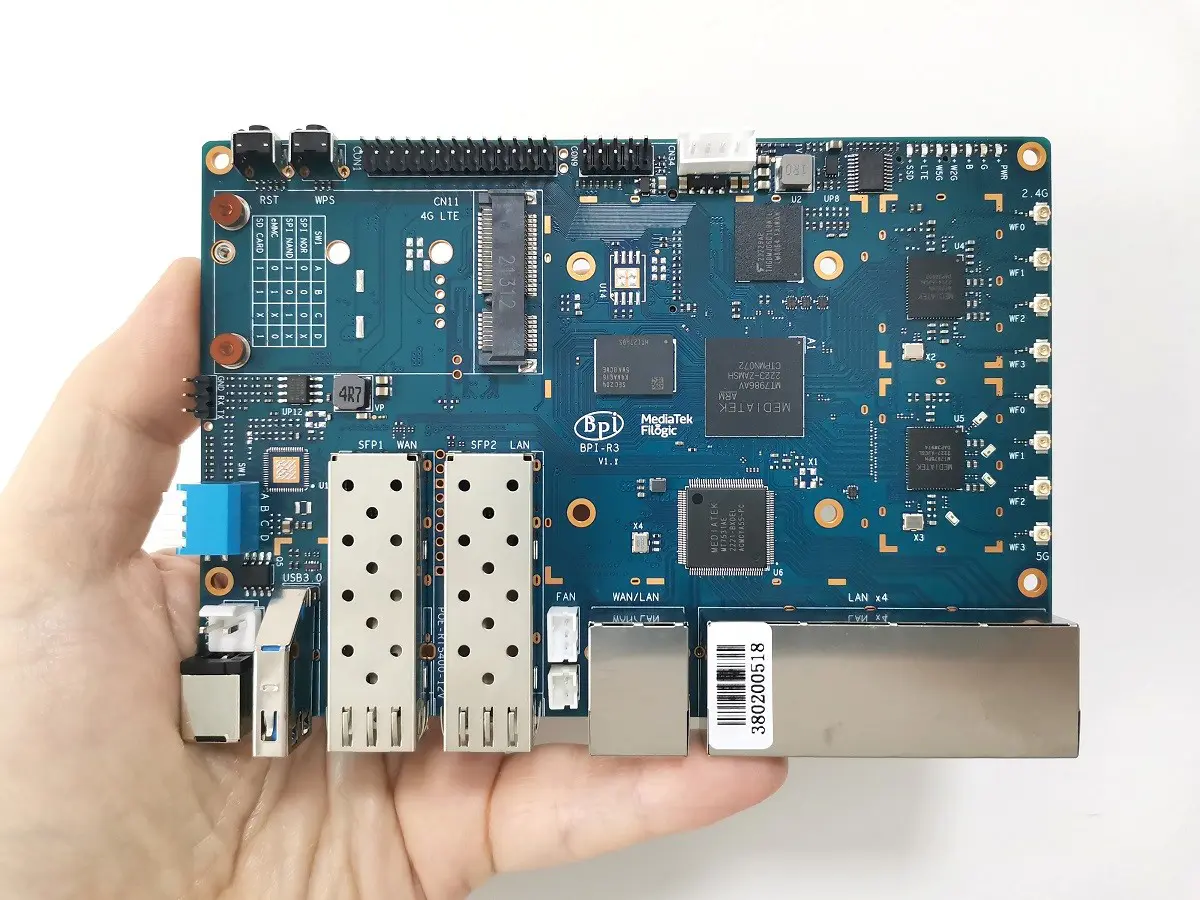
- Banana Pi BPI-R3 board
- Banana Pi BPI-R3
- Specifications
- Key Features
- Real-World Applications
- Improved Cooling
- A Quick Product Demo
- Banana Pi BPI-R3 Board Layout
- Hardware
- Storage Interfaces
- Connectivity
- Wi-Fi 6 Ready
- Misc & Other Interfaces
- Part 1: Package Contents, Unboxing, and Hardware
- Package Contents:
- Unboxing All Items
- The Banana Pi R3 Board
- Unboxing the Banana Pi R3 Case – 1 of 2
- Unboxing the Banana Pi R3 Case – 2 of 2
- Power Supply
- Antennas
- Part 2: Case Design
- Great Design but not flawless
- Part 3: Operation
- Downloading OpenWrt image file
- Flashing and Booting From eMMC
- Bootstrap switch
- Flashing OS files via USB Serial Module
- How to Install an M.2 NVMe SSD
- Installing an SSD Card With a Heatsink
- NVMe Performance Testing
- (Read/Write) SSD Performance Test
- Part 4: Installing a Fan-Cooled Heat Sink
- FAN Wiring Configurations (Options)
- Configuration Option No. 1 (Passive Cooling)
- Cooled FAN Heatsink
- Preparing Conductive Silicone Thermal Pad
- Configuration Option No. 2
- Connecting 4 Pins Cooled Heatsink wires w/ the XH2.54 4 PIN wires
- Final Step (Powering/Operating the FAN)
- How to Automatically load the script
- Configuration Option No. 3
- Connecting 4 Pins Cooled Heatsink wires w/ the VH3.96-2PIN wires
- Configuration Option No. 3 (With Support for PWM)
- Configuration Option No. 4 (Without PWM Support)
- Adjusting these trip points
- Controlling the fan rotation speeds:
- Part 5: Checking Temperatures
- Testing another Cooling Configuration.
- Part 6: WiFi Antennas Installation (Best Practices)
- Antennas Arrangement & Installation
- Installation tips!
- Installing a Wi-Fi 6E Expansion Network Card
- Part 7: Adding a 2.5G Network Card (Optional Configuration)
- Part 8: Setting up a NAS Server (Optional Configuration)
- How to set up a NAS device (Optional Configuration, DIY Style)
- Part 9: Connectivity
- Network Throughput Testing using iPerf
- What WIFI throughput speeds should you expect?
- iPerf Test: 2.5 SFP RJ45 LAN Speed Test
- Banana Pi R3 (Back view)
- iPerf Test: Wireless (WiFi) Speed Test
- Tweaking Network Performance
- Final Thoughts
- Should You Buy it?
- Price and Availability
Part 9: Connectivity
Network Throughput Testing using iPerf
Thie R3 incorporates two MediaTek chips. One 2.4G band MT7975N Chip supporting AX 802.11bgnax standards that is ideal for usage in considerable distances. Next to it, you got a 5G MT7975P Chip that supports 802.11anac/ax. When both bands are combined, It’s possible to reach a wide channel bandwidth range between 20MHz to 160MHz.
The banana Pi R3 also comes with eight Wifi antennas operating in a 4T4R antenna array, which refers to a system with four antennas for transmitting and four for receiving data, significantly improving network throughput speeds.
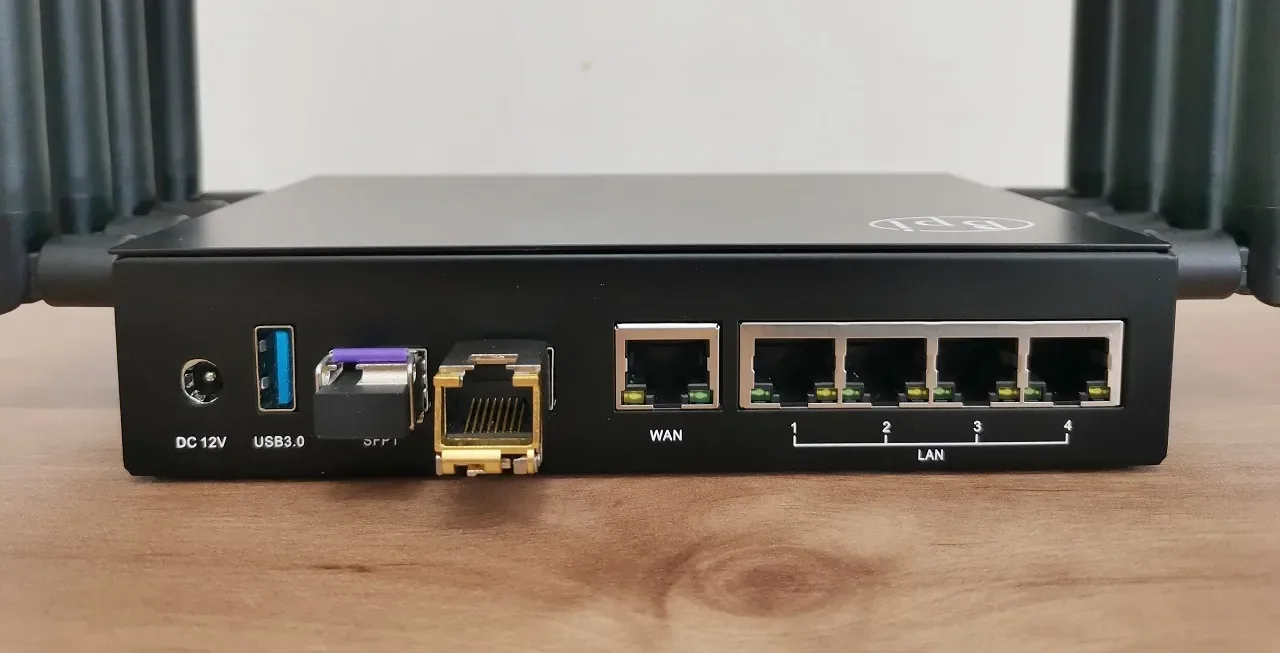
There are also two SFP Fiber optic cages, supporting up to speeds of 2.5Gbps. Assuming you got a high-quality 2.5G internet connection, it’s possible to take advantage of higher transfer speeds of up to 2.5Gbps. Another big plus for fiber internet users is that they can say goodbye to their existing Media converter unit. There is no need to keep a separate unit with the R3 board built-in optical ports.
Users that don’t want to use a fiber internet connection can install a pair of 2.5 SFP RJ45 modules. With this arrangement, you get an additional 2.5Gbps LAN port for a standard wired network connection.
What WIFI throughput speeds should you expect?
The actual WIFI throughput speed of the Banana Pi R3 would depend on various factors such as the environment, the WIFI standard used is 802.11n/802.11ac/802.11ax, the frequency band used is 2.4GHz or 5GHz. However, in general, the WIFI throughput speed, according to our test, ranges around 250-500Mbps, which is fair and reasonable for most home users. About 1.4Gb for an 802.11ac connection in optimal conditions at a distance of about 1m from the R3 Router. Remember that with common obstructions such as doors and walls, you can expect the wifi speed to drop to about 100Mbps+ range.
iPerf Test: 2.5 SFP RJ45 LAN Speed Test
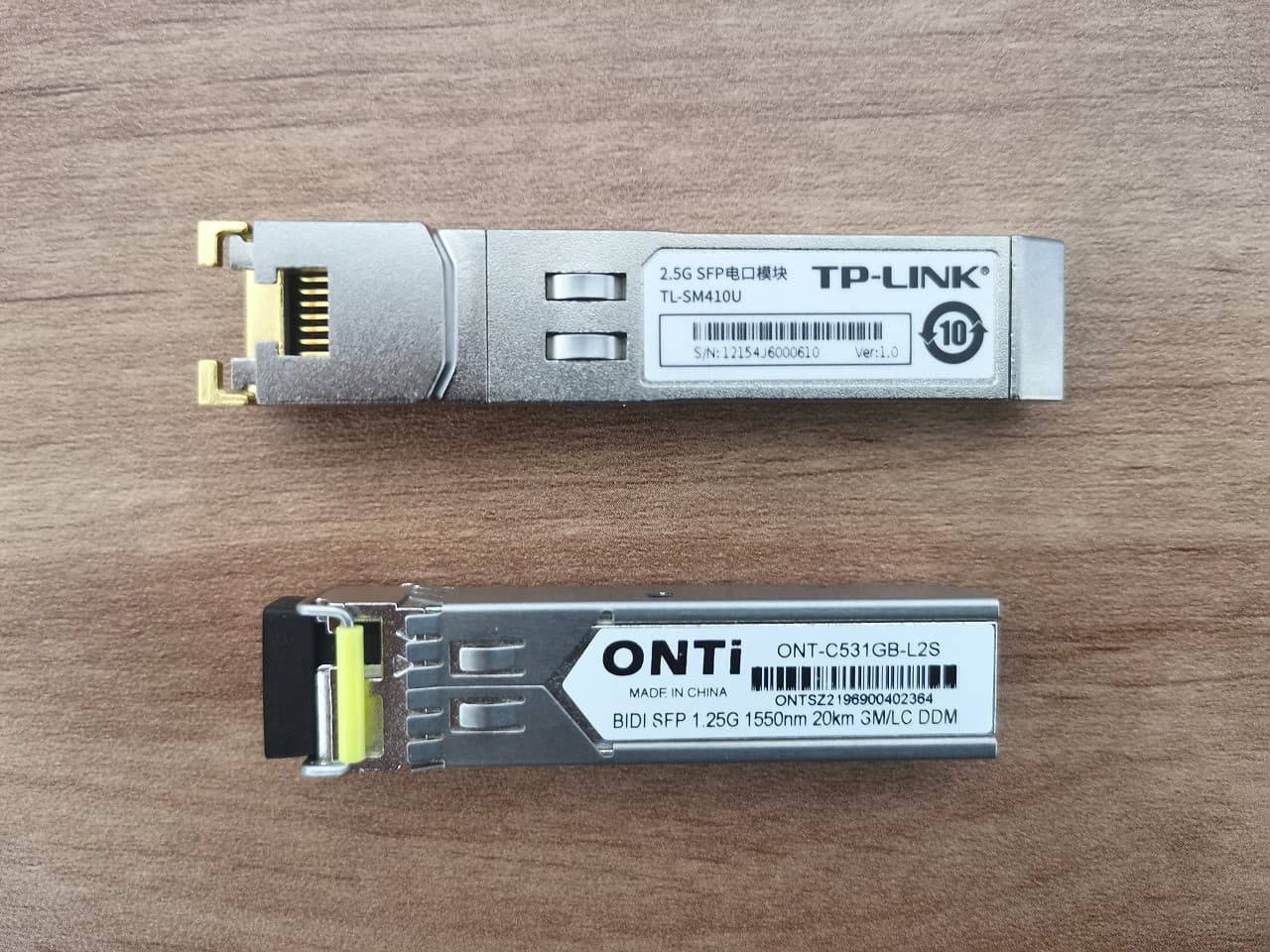
In our test, we plugged a TP-Link 2.5G SFP Module with an RJ45 interface into the SFP2 Cage. We connected the router to our Desktop computer and our Dual 2.5G Ethernet network card using a CAT6 cable and ran the test twice. Once, the desktop computer was the primary server; a second time, the Banana Pi R3 ran as the primary server.
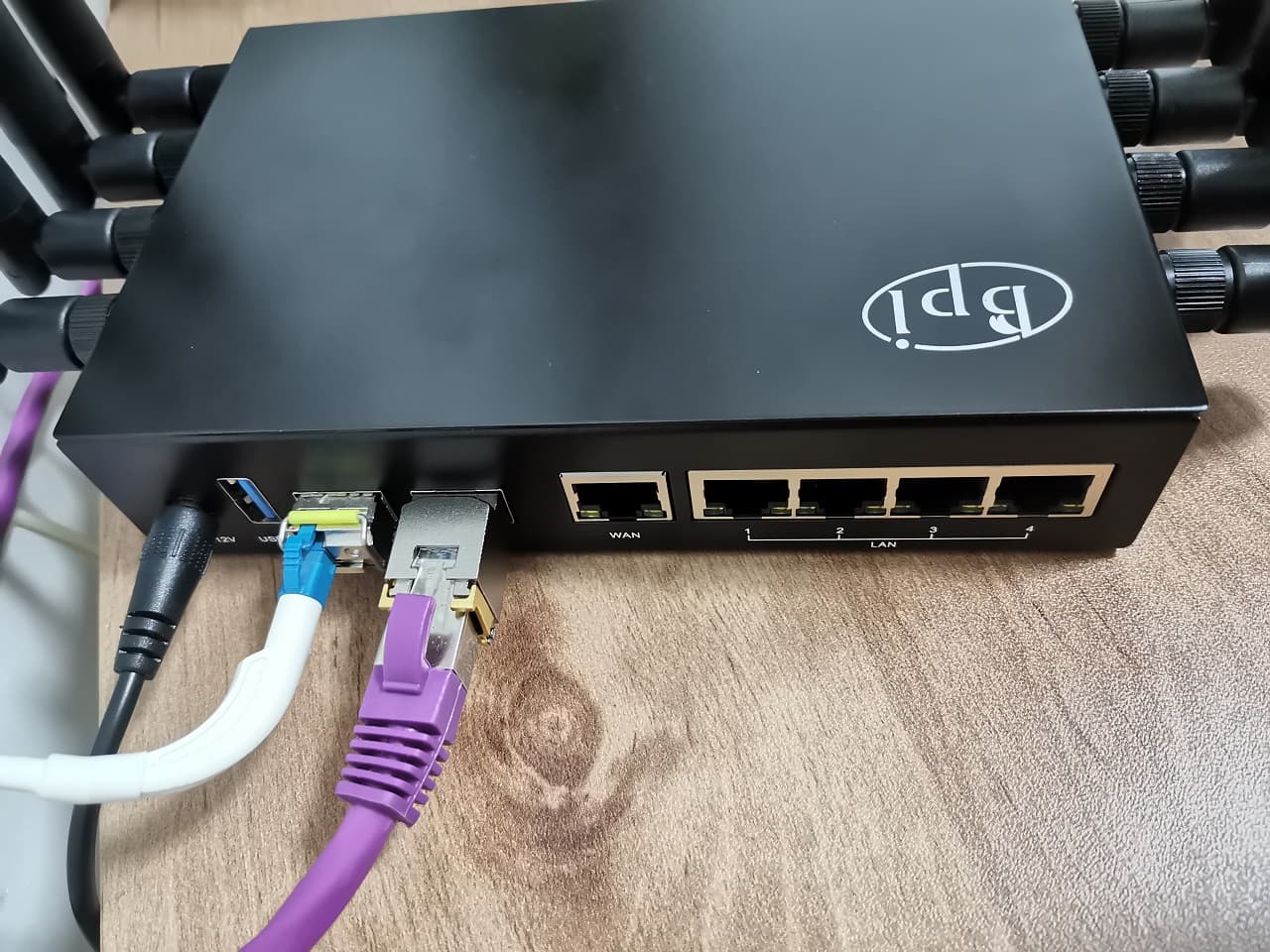
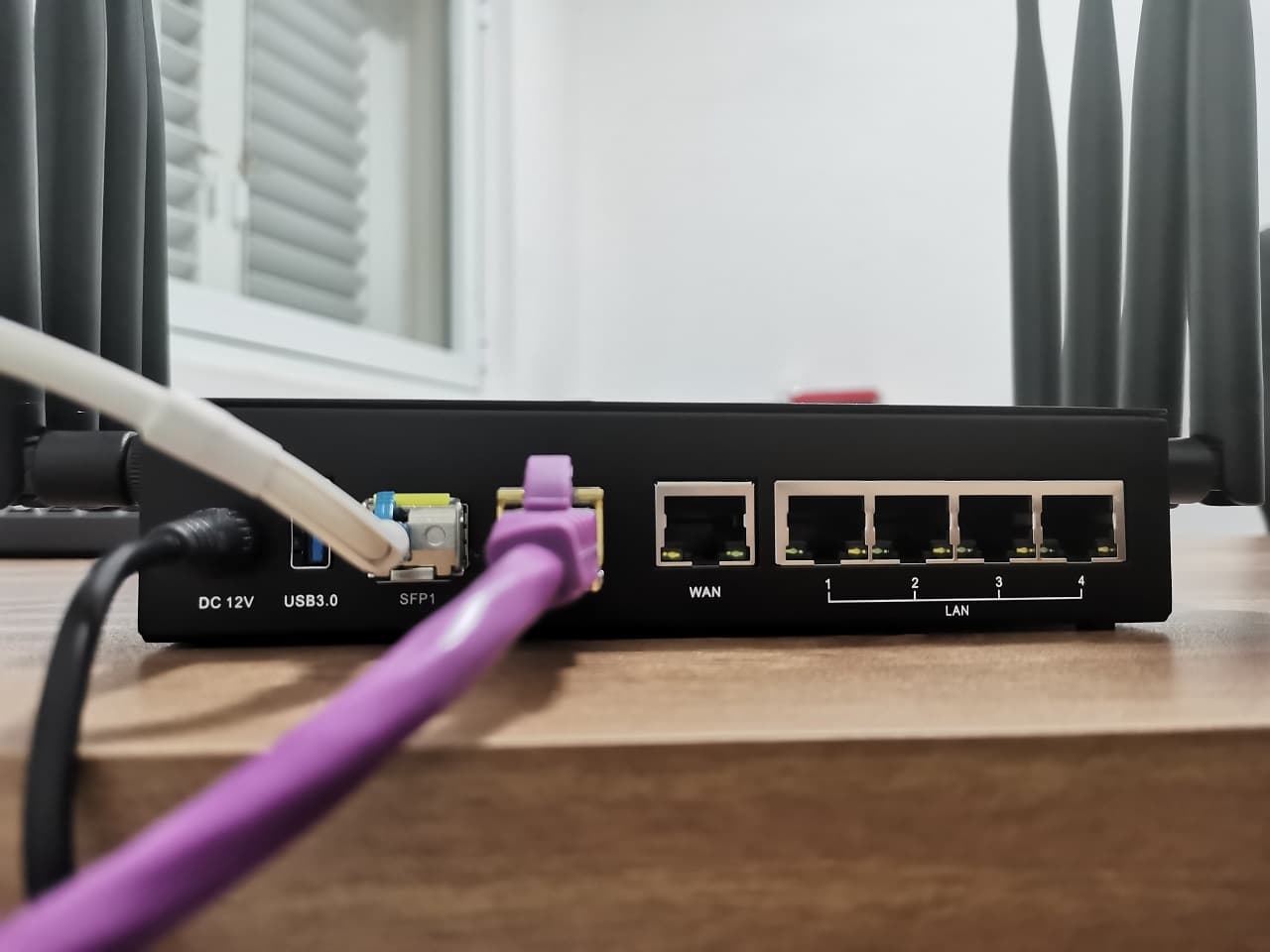
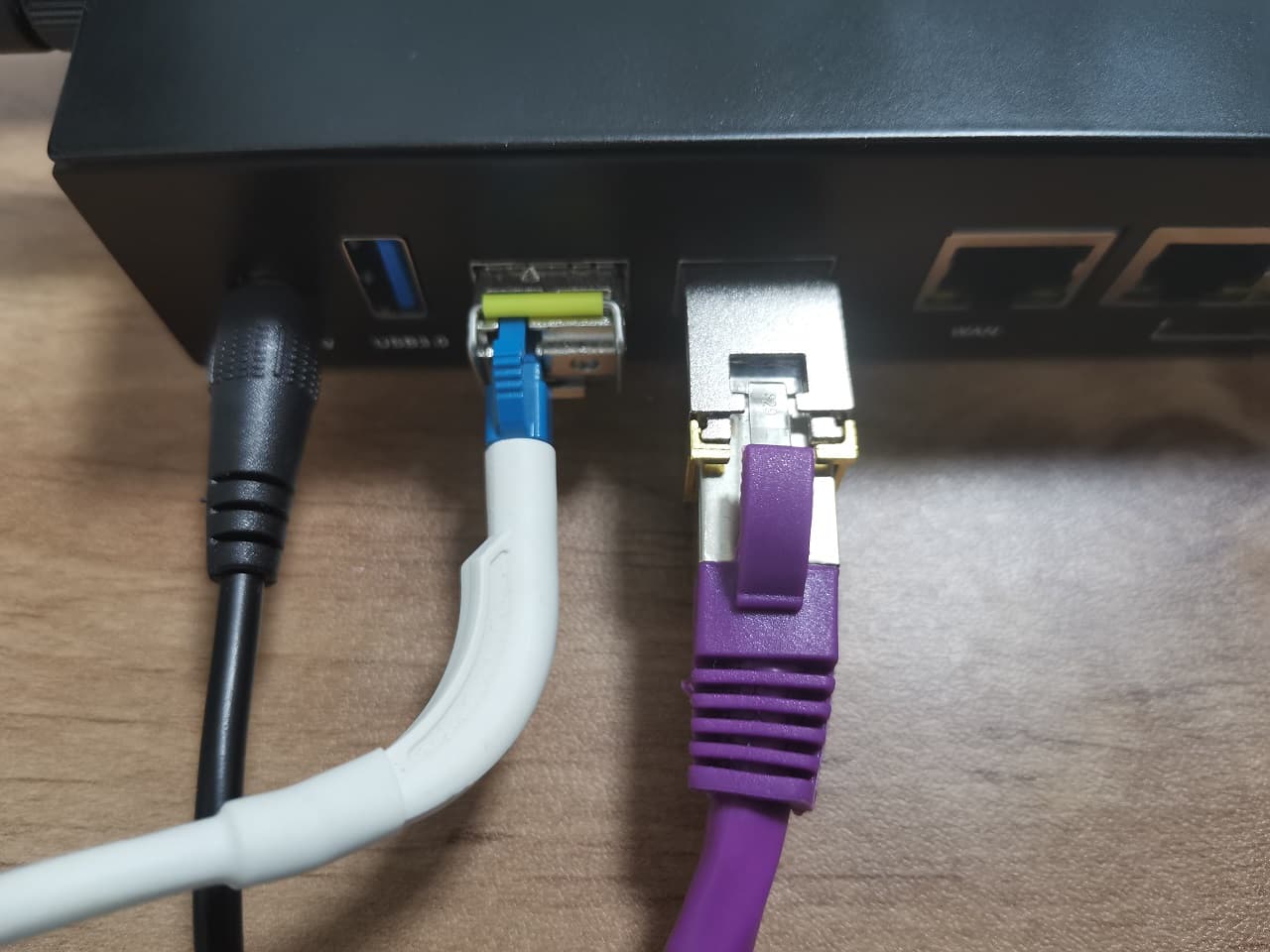
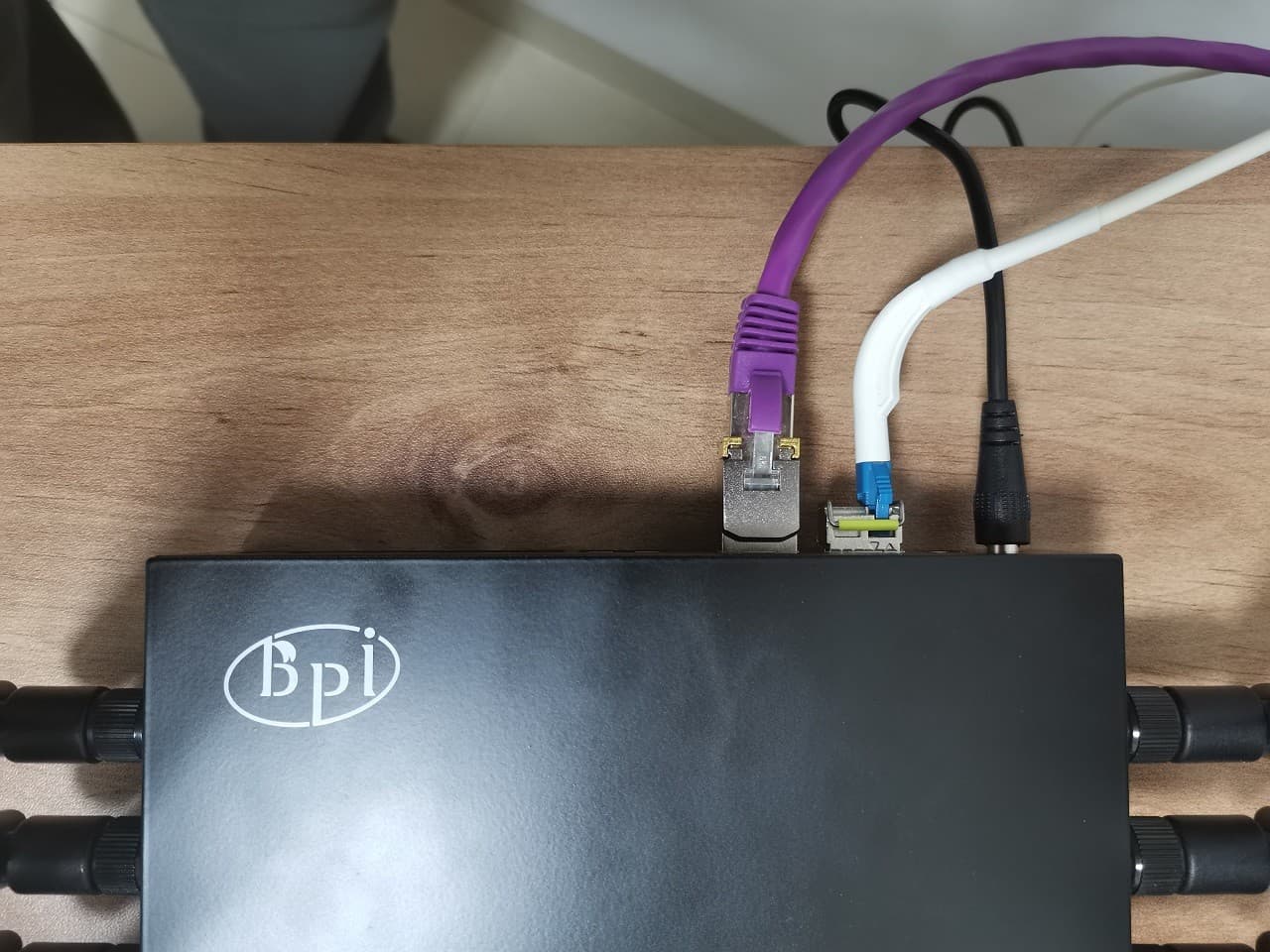
Banana Pi R3 (Back view)
In the case that SFP transceivers with an optical interface aren’t necessary, you can install SFP to RJ45 modules and connect them with standard Ethernet cables.
| Device No. 1 | Banana Pi R3 |
| OS | OpenWrt |
| SFP1 | Brand: TP-Link Model: FP-2.5GE-RJ45 2.5G RJ45 SFP Module |
| SFP2 | Brand: ONTi Model: ONT-C531GB-L2S 1) Up to 1.25Gb/s Data Links 2) BiDi SFP Tx1550nm 20km |
| Device No. 2 | Windows Workstation (PC) |
| OS | Windows 11 |
| Configuration | CPU: Intel Core i5-4690 GPU: GeForce GTX 750 Ti Motherboard: ASUS B85-PRO GAMER RAM 16GB DDR3 |
| Network Card | Brand: IOCREST 2.5G Gigabit Dual Ports Network Card |
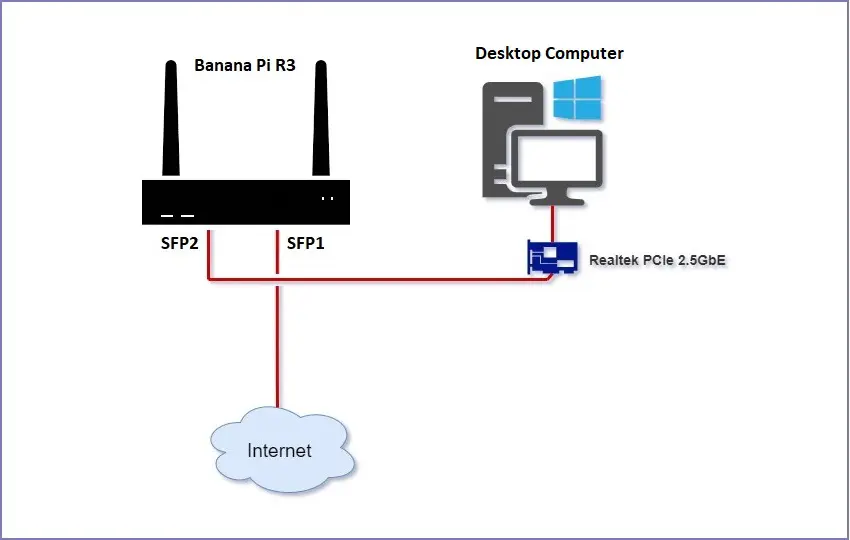
- Client-side: Desktop Computer (PC)
C:\Temp>iperf3 -c 192.168.1.1
Connecting to host 192.168.1.1, port 5201
[  4] local 192.168.1.22 port 63246 connected to 192.168.1.1 port 5201
[ ID] Interval           Transfer     Bandwidth
[  4]   0.00-1.00   sec   273 MBytes  2.29 Gbits/sec
[  4]   1.00-2.00   sec   276 MBytes  2.32 Gbits/sec
[  4]   2.00-3.00   sec   273 MBytes  2.29 Gbits/sec
[  4]   3.00-4.00   sec   273 MBytes  2.29 Gbits/sec
[  4]   4.00-5.00   sec   272 MBytes  2.28 Gbits/sec
[  4]   5.00-6.00   sec   272 MBytes  2.28 Gbits/sec
[  4]   6.00-7.00   sec   273 MBytes  2.29 Gbits/sec
[  4]   7.00-8.00   sec   272 MBytes  2.28 Gbits/sec
[  4]   8.00-9.00   sec   272 MBytes  2.29 Gbits/sec
[  4]   9.00-10.00  sec   276 MBytes  2.32 Gbits/sec
- - - - - - - - - - - - - - - - - - - - - - - - -
[ ID] Interval           Transfer     Bandwidth
[  4]   0.00-10.00  sec  2.67 GBytes  2.29 Gbits/sec                  sender
[  4]   0.00-10.00  sec  2.67 GBytes  2.29 Gbits/sec                  receiver

iperf Done.
Server-side: Banana Pi R3
root@OpenWrt:~# iperf3 -s
-----------------------------------------------------------
Server listening on 5201 (test #1)
-----------------------------------------------------------
Accepted connection from 192.168.1.22, port 63245
[  5] local 192.168.1.1 port 5201 connected to 192.168.1.22 port 63246
[ ID] Interval           Transfer     Bitrate
[  5]   0.00-1.00   sec   267 MBytes  2.24 Gbits/sec
[  5]   1.00-2.00   sec   277 MBytes  2.32 Gbits/sec
[  5]   2.00-3.00   sec   273 MBytes  2.29 Gbits/sec
[  5]   3.00-4.00   sec   273 MBytes  2.29 Gbits/sec
[  5]   4.00-5.00   sec   272 MBytes  2.28 Gbits/sec
[  5]   5.00-6.00   sec   272 MBytes  2.28 Gbits/sec
[  5]   6.00-7.00   sec   273 MBytes  2.29 Gbits/sec
[  5]   7.00-8.00   sec   273 MBytes  2.29 Gbits/sec
[  5]   8.00-9.00   sec   273 MBytes  2.29 Gbits/sec
[  5]   9.00-10.00  sec   276 MBytes  2.32 Gbits/sec
[  5]  10.00-10.01  sec  3.46 MBytes  2.36 Gbits/sec
- - - - - - - - - - - - - - - - - - - - - - - - -
[ ID] Interval           Transfer     Bitrate
[  5]   0.00-10.01  sec  2.67 GBytes  2.29 Gbits/sec                  receiver
-----------------------------------------------------------
Server listening on 5201 (test #2)
-----------------------------------------------------------
Server-side: Desktop Computer (PC)
C:\Temp>iperf3 -s
-----------------------------------------------------------
Server listening on 5201
-----------------------------------------------------------
Accepted connection from 192.168.1.1, port 43994
[  5] local 192.168.1.22 port 5201 connected to 192.168.1.1 port 43996
[ ID] Interval           Transfer     Bandwidth
[  5]   0.00-1.00   sec   271 MBytes  2.27 Gbits/sec
[  5]   1.00-2.00   sec   279 MBytes  2.34 Gbits/sec
[  5]   2.00-3.00   sec   264 MBytes  2.22 Gbits/sec
[  5]   3.00-4.00   sec   271 MBytes  2.28 Gbits/sec
[  5]   4.00-5.00   sec   274 MBytes  2.30 Gbits/sec
[  5]   5.00-6.00   sec   274 MBytes  2.30 Gbits/sec
[  5]   6.00-7.00   sec   273 MBytes  2.29 Gbits/sec
[  5]   7.00-8.00   sec   277 MBytes  2.32 Gbits/sec
[  5]   8.00-9.00   sec   277 MBytes  2.32 Gbits/sec
[  5]   9.00-10.00  sec   264 MBytes  2.21 Gbits/sec
[  5]  10.00-10.04  sec  11.0 MBytes  2.25 Gbits/sec
- - - - - - - - - - - - - - - - - - - - - - - - -
[ ID] Interval           Transfer     Bandwidth
[  5]   0.00-10.04  sec  0.00 Bytes  0.00 bits/sec                  sender
[  5]   0.00-10.04  sec  2.67 GBytes  2.29 Gbits/sec                  receiver
-----------------------------------------------------------
Server listening on 5201
-----------------------------------------------------------
Client-side: Banana Pi R3
root@OpenWrt:~# iperf3 -c 192.168.1.22
Connecting to host 192.168.1.22, port 5201
[  5] local 192.168.1.1 port 43996 connected to 192.168.1.22 port 5201
[ ID] Interval           Transfer     Bitrate         Retr  Cwnd
[  5]   0.00-1.00   sec   280 MBytes  2.35 Gbits/sec    0    281 KBytes
[  5]   1.00-2.00   sec   280 MBytes  2.35 Gbits/sec    0    281 KBytes
[  5]   2.00-3.00   sec   264 MBytes  2.21 Gbits/sec    0    281 KBytes
[  5]   3.00-4.00   sec   272 MBytes  2.29 Gbits/sec    0    281 KBytes
[  5]   4.00-5.00   sec   274 MBytes  2.30 Gbits/sec    0    281 KBytes
[  5]   5.00-6.00   sec   274 MBytes  2.30 Gbits/sec    0    281 KBytes
[  5]   6.00-7.00   sec   273 MBytes  2.29 Gbits/sec    0    281 KBytes
[  5]   7.00-8.00   sec   278 MBytes  2.33 Gbits/sec    0    281 KBytes
[  5]   8.00-9.00   sec   277 MBytes  2.33 Gbits/sec    0    281 KBytes
[  5]   9.00-10.00  sec   264 MBytes  2.21 Gbits/sec    0    281 KBytes
- - - - - - - - - - - - - - - - - - - - - - - - -
[ ID] Interval           Transfer     Bitrate         Retr
[  5]   0.00-10.00  sec  2.67 GBytes  2.30 Gbits/sec    0             send                                               er
[  5]   0.00-10.00  sec  2.67 GBytes  2.29 Gbits/sec                  rece                                               iver
Test Result
Our test results were satisfactory. We got a maximum throughput speed of 2.3Gbps from the 2.5Gbps “declared on paper” theoretical speed.
Broadband Speed Test
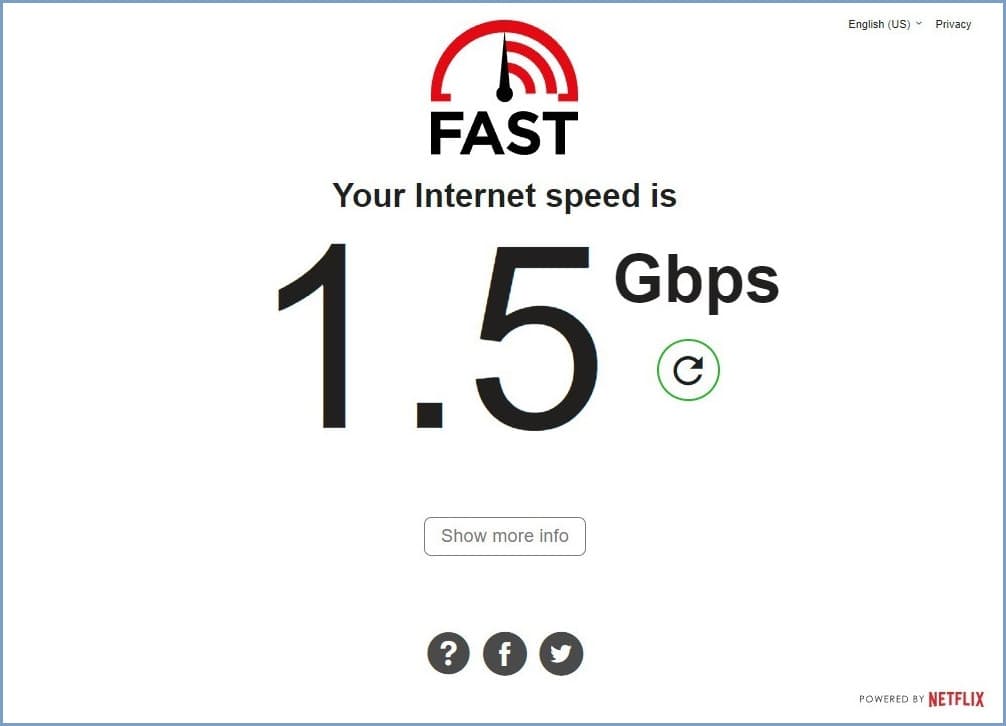
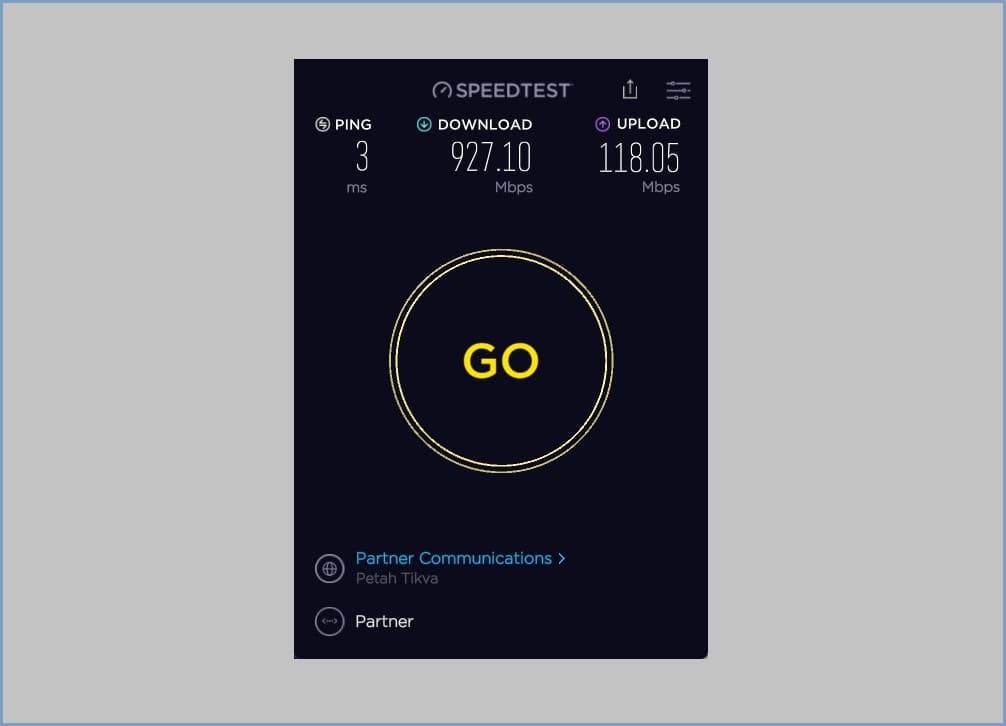
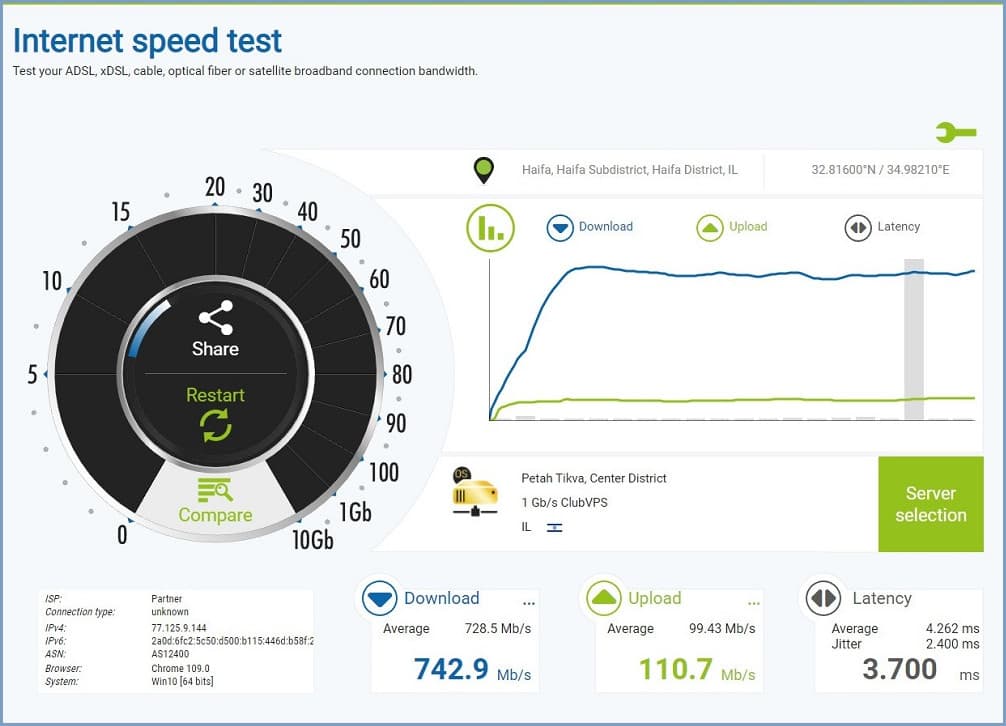
Using a 1Gbps fiber optic connection, we got good results when we tested our internet connection using popular test sites such as Speedtest by Ookla, FAST Speed Test, and nPerf.
iPerf Test: Wireless (WiFi) Speed Test
Tested at a distance of about 1m from the Banana Pi R3 router using a desktop PC equipped with an Intel(R) Wi-Fi 6E PCIe network card, we managed to get a respectable data transfer speed of 966-967Mbps.
Client-side: Windows 11 Workstation
C:\Temp>iperf -c 192.168.1.1 -i 10
------------------------------------------------------------
Client connecting to 192.168.1.1, TCP port 5001
TCP window size: 64.0 KByte (default)
------------------------------------------------------------
[  1] local 192.168.1.195 port 54855 connected with 192.168.1.1 port 5001
[ ID] Interval       Transfer     Bandwidth
[  1] 0.00-10.00 sec  1.13 GBytes   967 Mbits/sec
[  1] 0.00-10.05 sec  1.13 GBytes   963 Mbits/sec
Server-side: Banana Pi R3
root@OpenWrt:~# iperf -s -i 10
------------------------------------------------------------
Server listening on TCP port 5001
TCP window size:  128 KByte (default)
------------------------------------------------------------
[  1] local 192.168.1.1 port 5001 connected with 192.168.1.195 port 54831
[ ID] Interval       Transfer     Bandwidth
[  1] 0.0000-10.0000 sec  1019 MBytes   855 Mbits/sec
[  1] 0.0000-10.0054 sec  1020 MBytes   855 Mbits/sec
[  2] local 192.168.1.1 port 5001 connected with 192.168.1.195 port 54855
[ ID] Interval       Transfer     Bandwidth
[  2] 0.0000-10.0000 sec  1.12 GBytes   966 Mbits/sec
[  2] 0.0000-10.0450 sec  1.13 GBytes   963 Mbits/sec
Tweaking Network Performance
| Tip No. | Description | Notes and Links |
| 1 | Tweaking /etc/sysctl.conf (Overriding Kernel Settings) | Knowledge Source |
| 2 | Tweaking /etc/sysctl.conf (Overriding Kernel Settings) | (OpenWrt) Network>Interfaces>Global network options |
| 3 | Enabling SQM (Smart Queue Management) | (OpenWrt) Requires installation of Luci-app-sqm package |
| 4 | Separating 5G & 2.4G Bands under different SSID names. | This setup is required for surveillance cameras or IoT devices which require a separate 2.4G band. |


When you do recommend installing a passive (or active) heat sink to this setup? Passive cooling is I think a no brainer, it’s cheap and silent. Strange they don’t add passive heat sink to their package product, as part of the package.
“Strange they don’t add passive heat sink to their package product, as part of the package”.
They had some supply problems because of COVID.
If you have a large heatsink that will fit and cover all chips, it might be worth trying the passive cooling option. Just use a lower in height so you have the option to add a fan.
I just noticed that the “complete kit” also comes with heat sinks. Seperate heatsinks for each chip. If you buy a large heatsink, that will work as well, BUT keep in mind that the chips have different heights, meaning you should use different heat pads (1.5 mm and 0.5 mm) to have a good coverage of the heat sink on the different chips. I did read about performance issues on forum.banana-pi.org forum, when you don’t cool the chips enough. Especially with passive cooling, it might still be a good idea to add additional vent holes manually in the casing. Since… Read more »
So use 1.5-2 mm thermal pads. Nothing will happen. They are elastic, so it does not matter if you are using the highest type for all chips. It’s not rocket science. I agree about the vent holes. You can drill a few holes.. or you can also glue a small fan to the bottom of the case. And maybe use the GPIO header pins as a power source. Just to get the hot air out of the case.
Actually there is a fan header connnector on the R3 board. Which can do PWM.
Kindly Try it, and let me know if it works well.
you can email me with the info. Thanks
Ps. also add a link to the package deal of the Banana Pi BPI-R3? https://www.aliexpress.com/item/1005004886608696.html.
Since you mentioned the single board computer only on your last page.
Thanks. I added the link for the complete kit.
Which version of PCIe does the board support?
According to MediaTek website >> M.2 M-Key PCIe interface (2-lane PCIe 2.0)
Is there any nas software or docker image that will handle those multiple hdds ? Exampme if i want to raid, zfs or btrfs
1) OpenWrt has NAS support.
2) You can also try CasaOS.
3) OpenMediaVault should run on Debian.
I don’t get what is about the ONTi SFP. It is suposed to be a GPON ONT? In aliexpress I see that it comes in pairs (Tx 1310 and Rx 1550 the first one and other with Tx 1550 and 1310), like a pair which is meant to be connected together.
https://es.aliexpress.com/item/4000265957277.html?spm=a2g0o.productlist.main.17.5893oPf4oPf4kf&algo_pvid=54d3e4cb-00c6-4269-8acb-3ae1e2c40f54&algo_exp_id=54d3e4cb-00c6-4269-8acb-3ae1e2c40f54-8&pdp_npi=4%40dis%21ARS%217735.49%213867.74%21%21%2122.10%21%21%402132a26216964772264216569ed485%2110000001076765699%21sea%21AR%214647643211%21AB&curPageLogUid=VmCG7Kwqm2TR
This module is not compatible with GPON technology.
If the module information / specifications do not indicate it’s a GPON compliance, then it is safe to say that it is not GPON compliant.
Did you use anything to glue the copper-made sheet plates on chips?
I used a thermal silicone adhesive plaster.
This website doesn’t work. Whenever you click on a topic or try to love to Next page it refreshes the page and stays on page 1
Thank u. The problem was fixed.
Hello, I can’t read other 9 pages from 10 in the Banana Pi BPI-R3: Everything you need to know article. Now content is unavaible. Please to fix, it’s great portion of knowledge. Best regards
Hi, please check now.
Thanks
It’s working now, great, thank You:)
Above you mention that the XH2.54 4PIN SATA power connector can be used with a 12v fan. Would I lose PWM capacity?
It should work, but I didn’t try it with a 12V Fan. In a worst-case scenario, you can always buy a 5V separately from AliExpress and assemble it with screws on top of your existing heatsink.
If you choose to connect to the 3-pins FAN socket using Banana Pi original heatsink, PWM is also enabled by default or at least the option to
set a tipping temp point when the fan will stop or start working.