
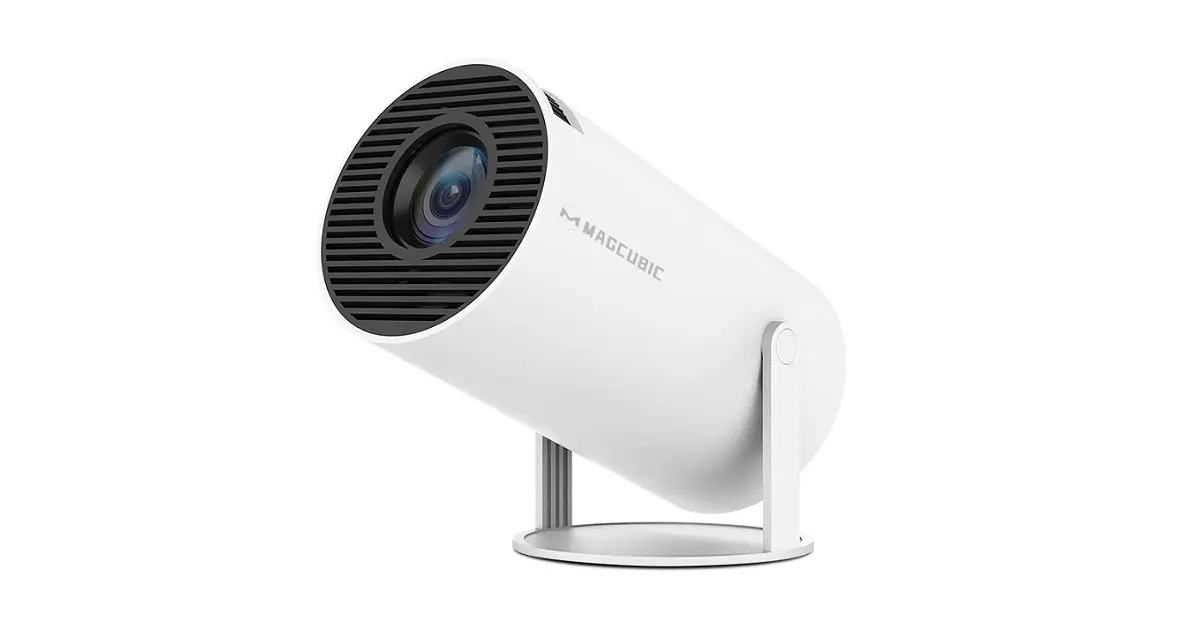
Magcubic HY300 Android Projector
Introducing the Magcubic HY300 Android Projector, an incredibly affordable device that combines functionality and value in a compact package. Priced at just $61, this projector is a game-changer in the realm of home entertainment. But is it worth the money? We aim to answer that question in this brief hands-on review.
Main Specifications
| Resolution | 1280×720 pixels |
| Brightest | 160 ANSI lumens |
| Bulb Life | 50000 Hrs |
| Image | ✅ Contrast ratio: 1500:1. ✅ Aspect ratio: 16:9 & 4:3 ✅ Projection angle: -180° flexible. ✅ Projection screen size: 40–130 inches ✅ Optimal projection distance: 1.25m |
| Automatic picture correction | You can comprehensively correct the picture by the remote control, no matter which angle. |
| Built-in Speaker | Yes, Included (3W) |
| SoC | Allwinner H713 |
| CPU | Quad-core ARM Cortex-A53 ARM |
| GPU | Mali-G31 Supports OpenGL ES3.2,Vulkan 1.1,and OpenCL2.0 |
| Operating system | Android 11.0 (Android TV) |
| RAM | 1GB |
| ROM (internal storage) | 8GB eMMC |
| Connectivity | Wi-Fi 6, 2.4G/5.8G Dual Wi-Fi IEEE802 (a/b/g/n/ac /ax). Bluetooth 5.0 |
| Other features | Miracle, Mirror screen |
| Support Multiple Languages | ✅ |
| Operation | Buttons / Remote Control Unit |
| Color | White / Black (Optional). |
| Interfaces | x1 HDMI: 2.0 HDMI input x1 * USB 2.0 x1 Headphone: Audio output, 3.5 mm x1 AC input: DC 19v 3A & OTG |
| Portable | Designed to be low noise, portable, and easily held with one hand. Its compact size makes it convenient for outdoor use. |
| Product Dimensions | Ø170x101mm |
The Benefits of Having a low cost video projector at Home
Comfort is another key benefit of having a home theater. You can customize the seating arrangement to suit your preferences, whether it’s a cozy couch or reclining chairs. You can also control the temperature and lighting to create the perfect ambiance for your movie-watching experience. No more uncomfortable seats or distractions from other moviegoers. In your own home theater, you have the freedom to create a comfortable and immersive environment that enhances your viewing pleasure.
Cost-effectiveness is also worth considering when it comes to home video projectors. Having a resolution of 720P isn’t a dealbreaker and can save you money in the long run. Going to the movies can be expensive, especially if you have a large family or enjoy watching movies frequently. With a home theater, you can save on ticket prices, concessions, and transportation costs. Additionally, you have the option to stream movies and TV shows from various platforms, which can be more cost-effective than purchasing physical copies or subscribing to cable.
Unboxing
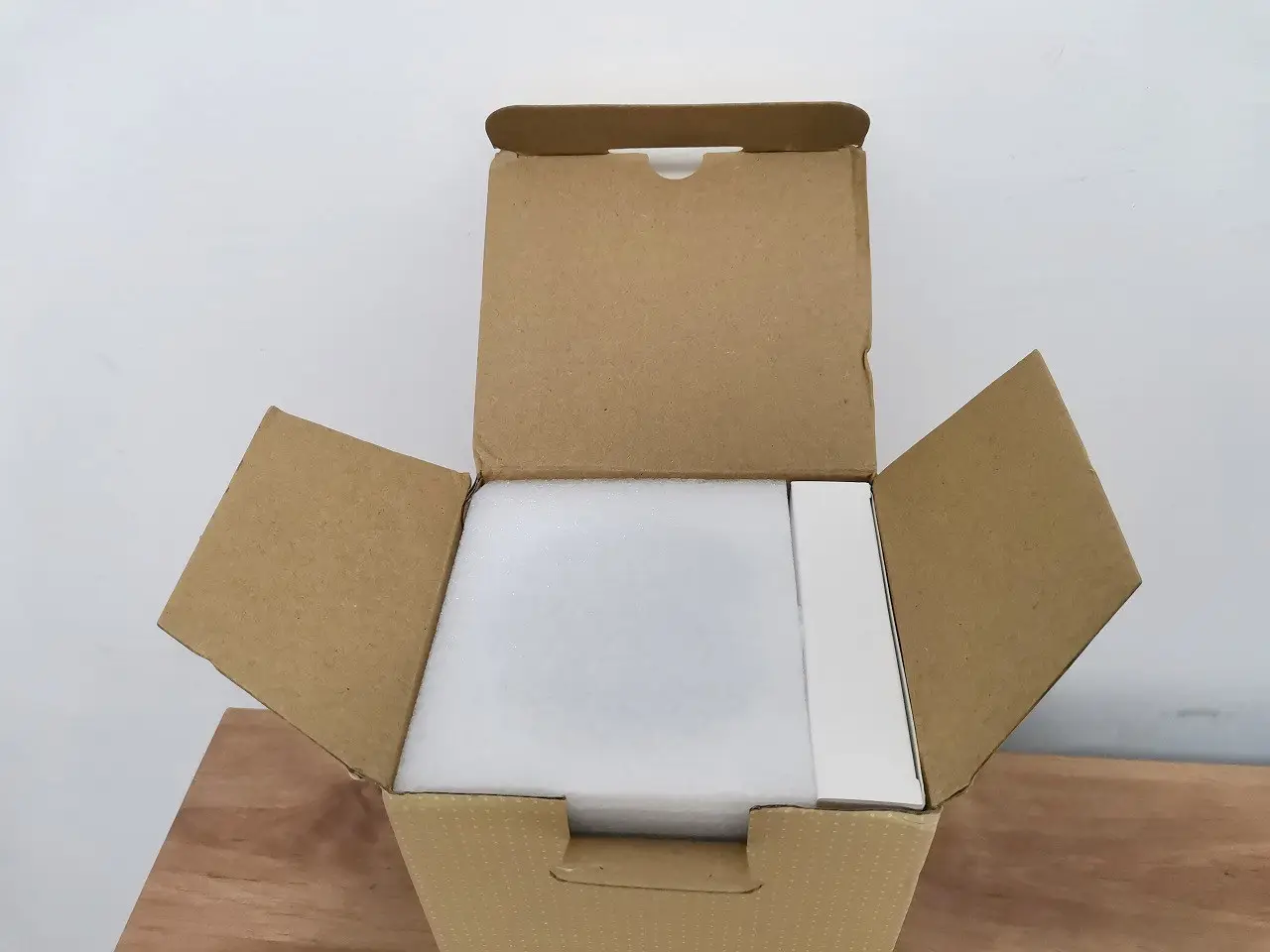
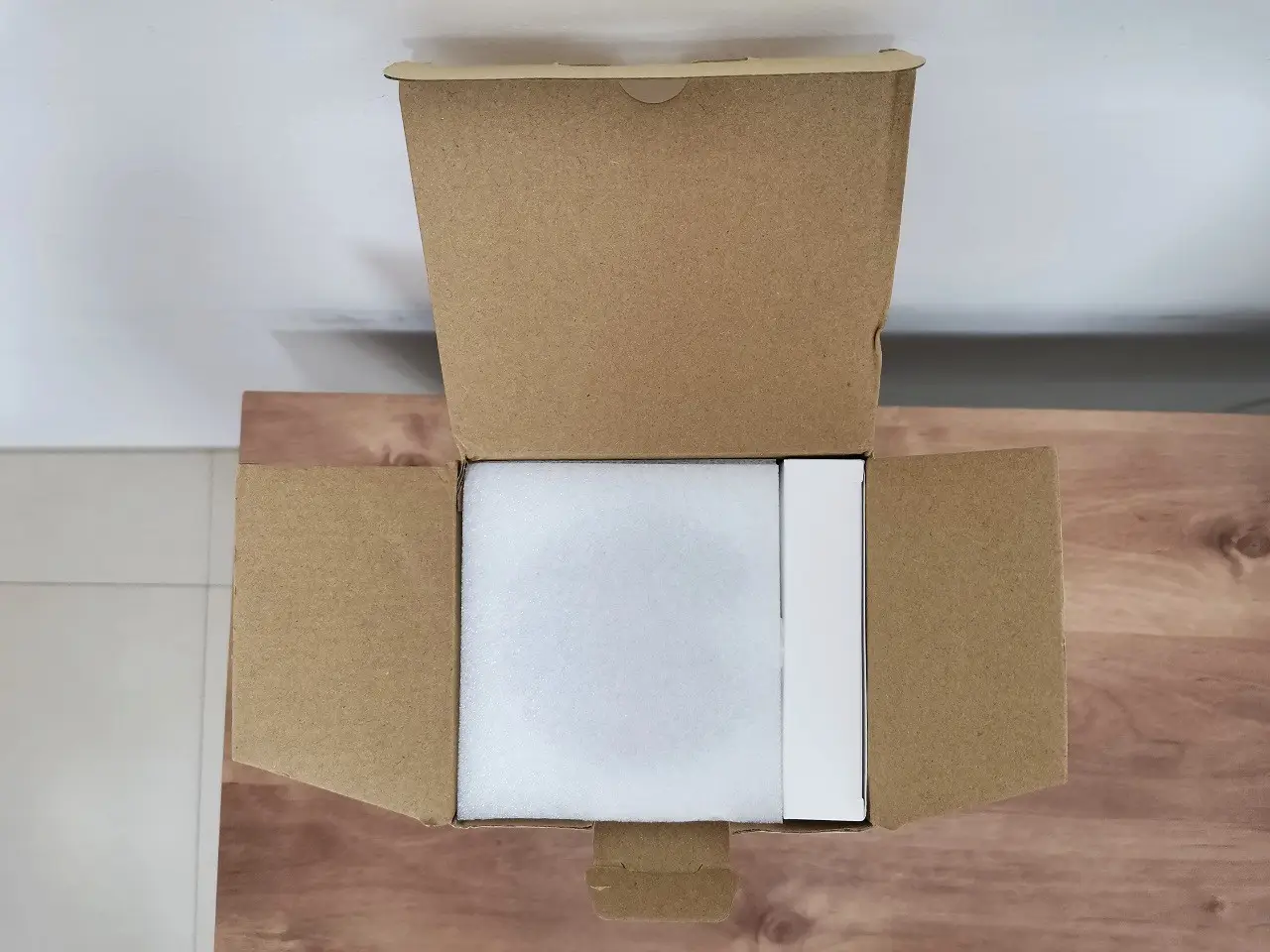
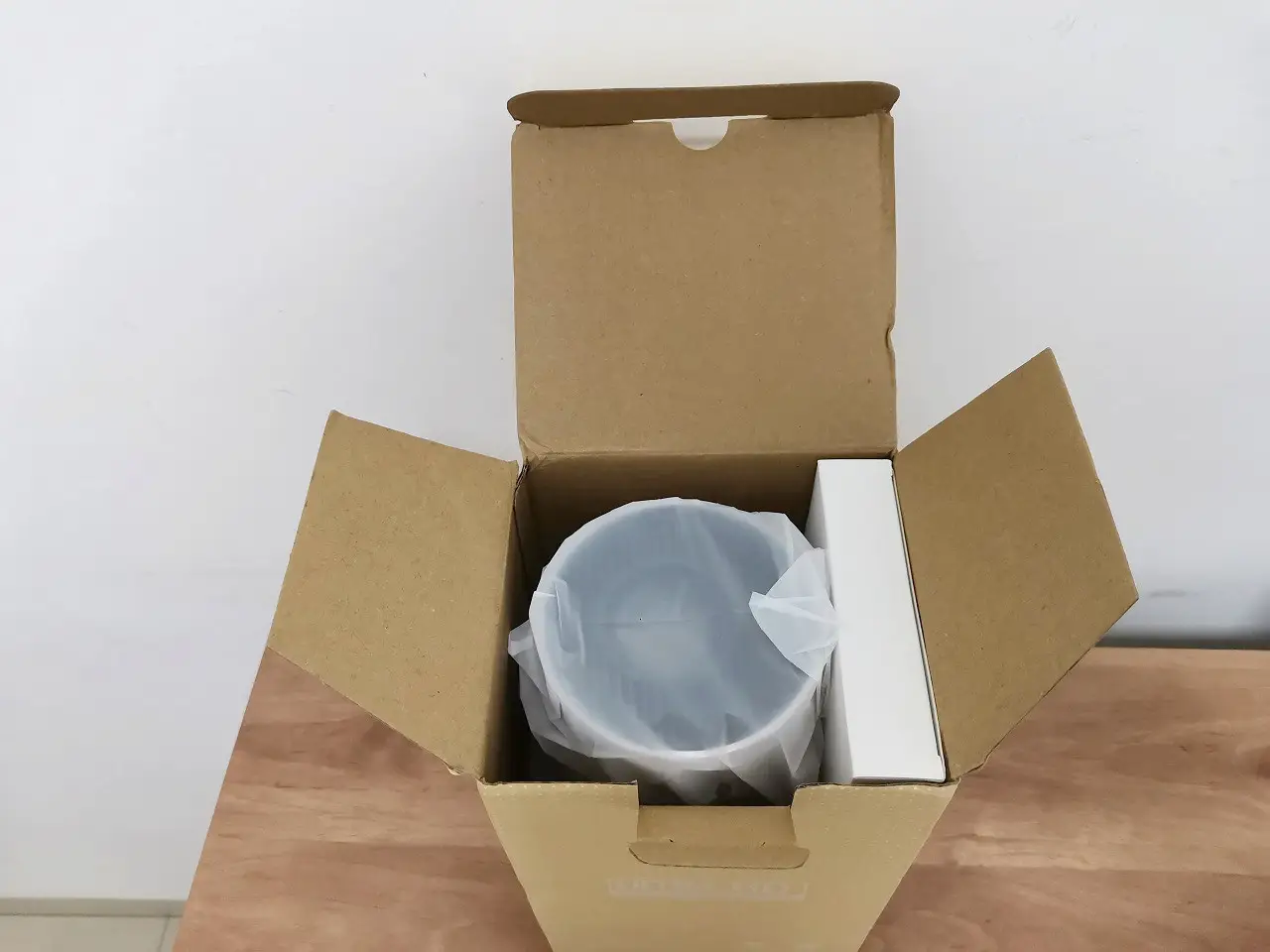

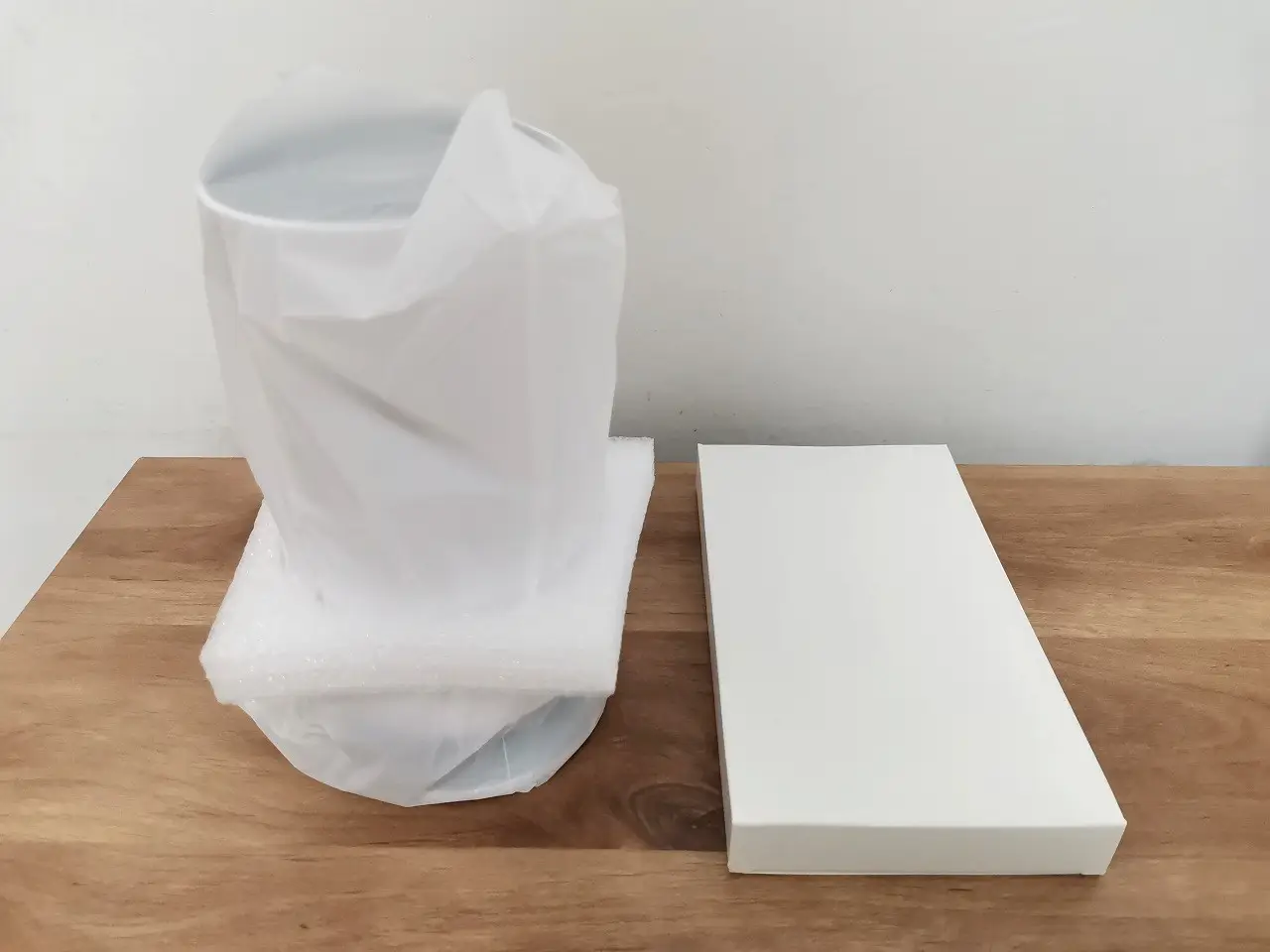
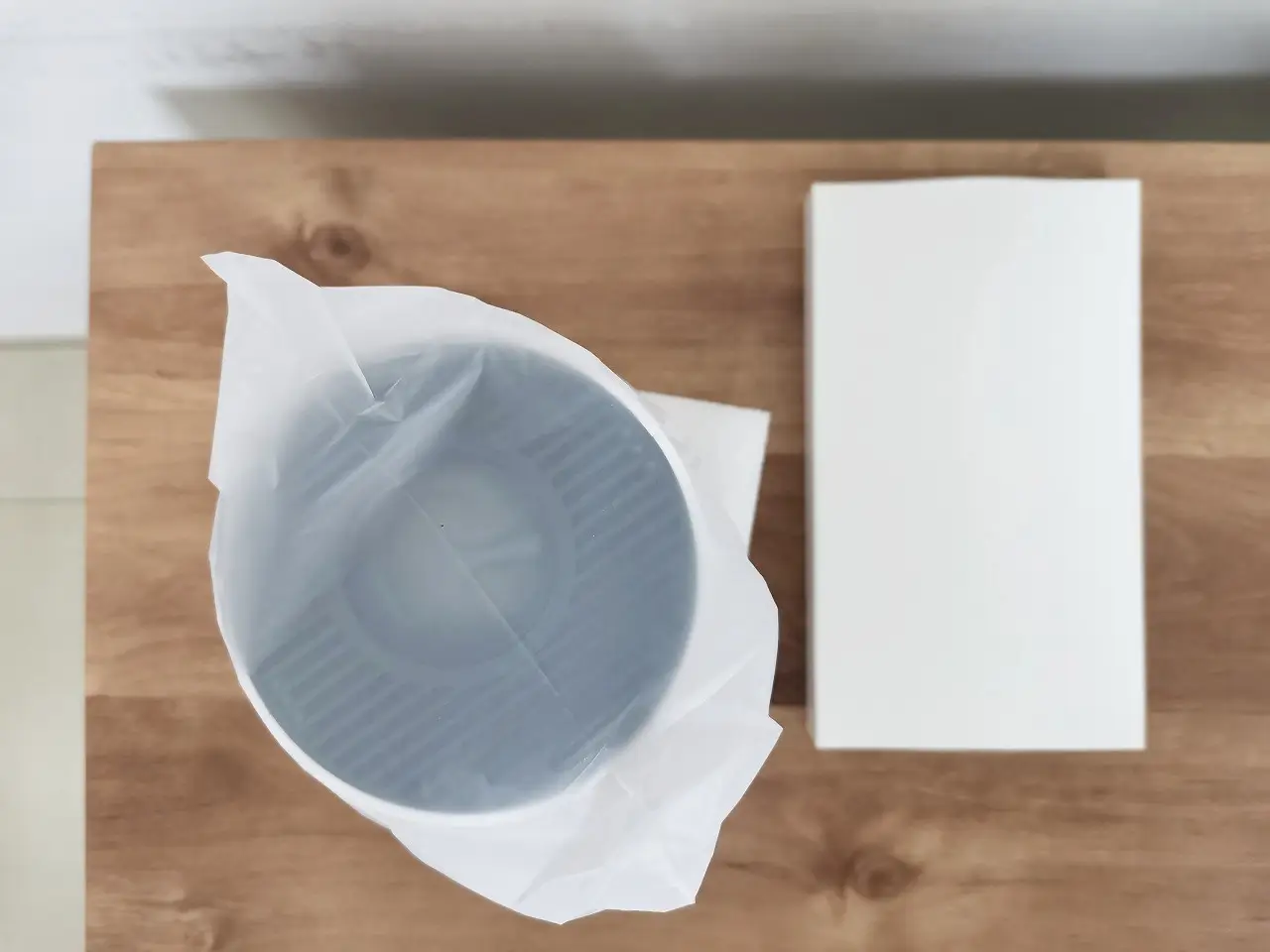
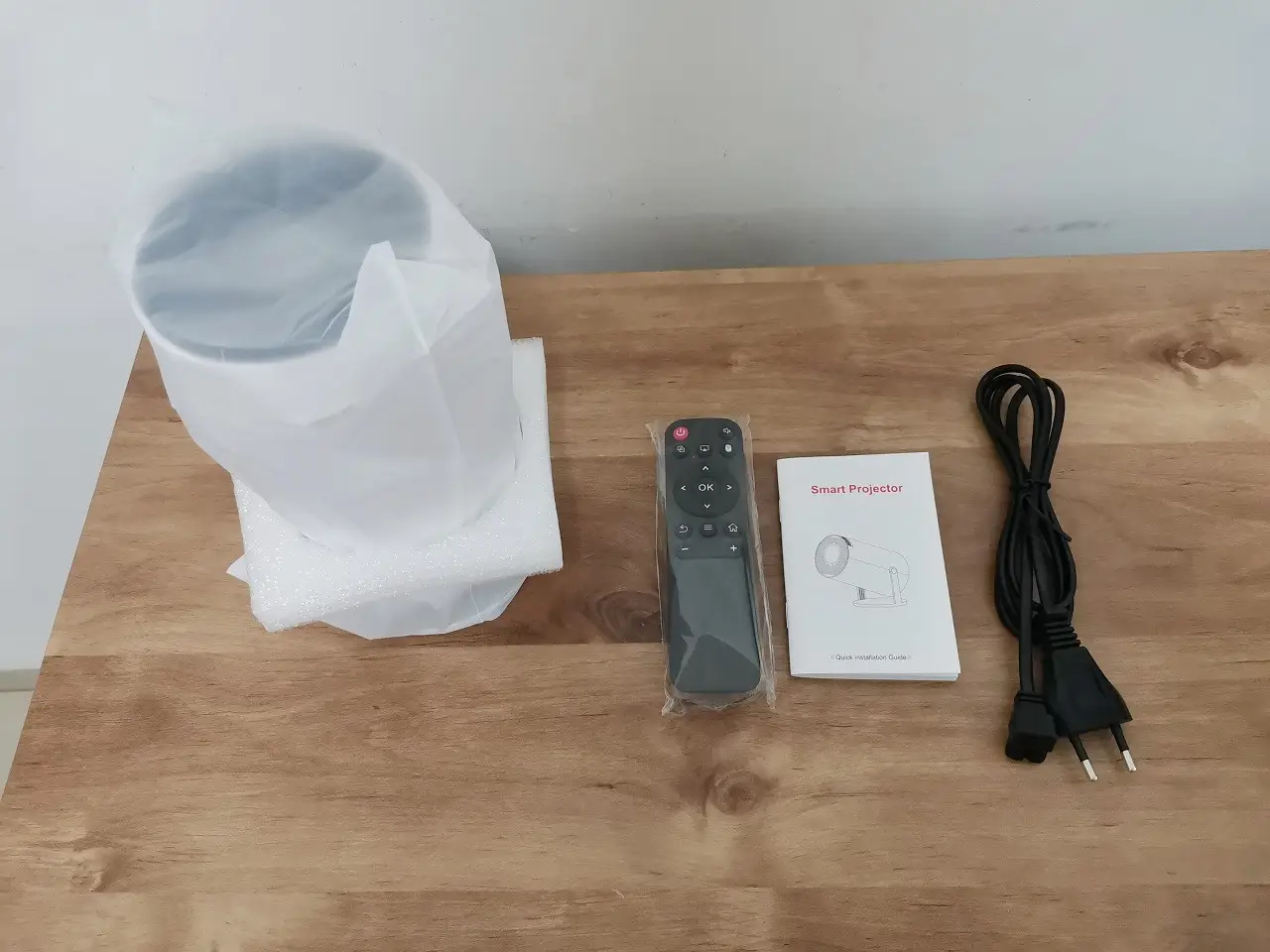
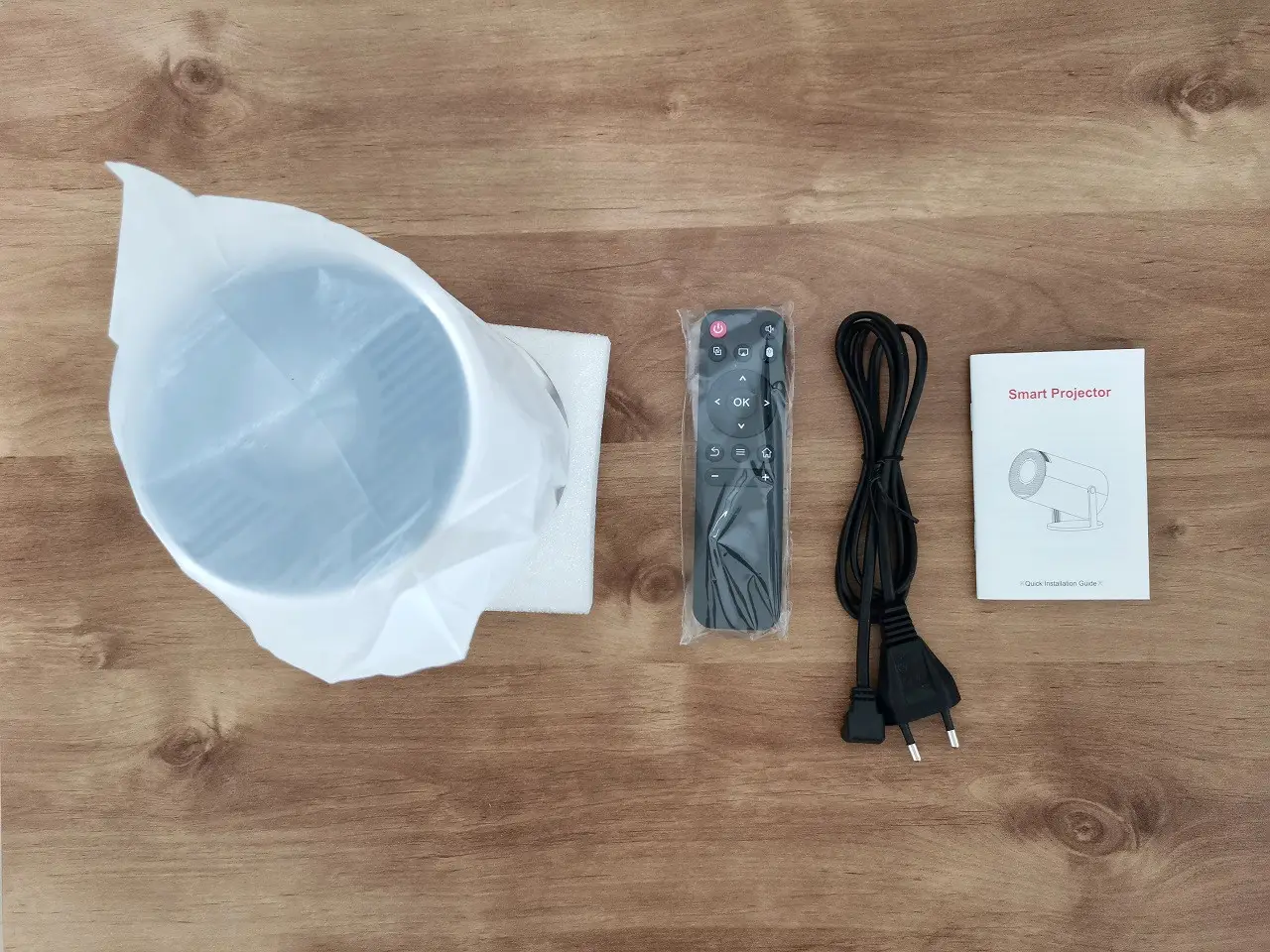
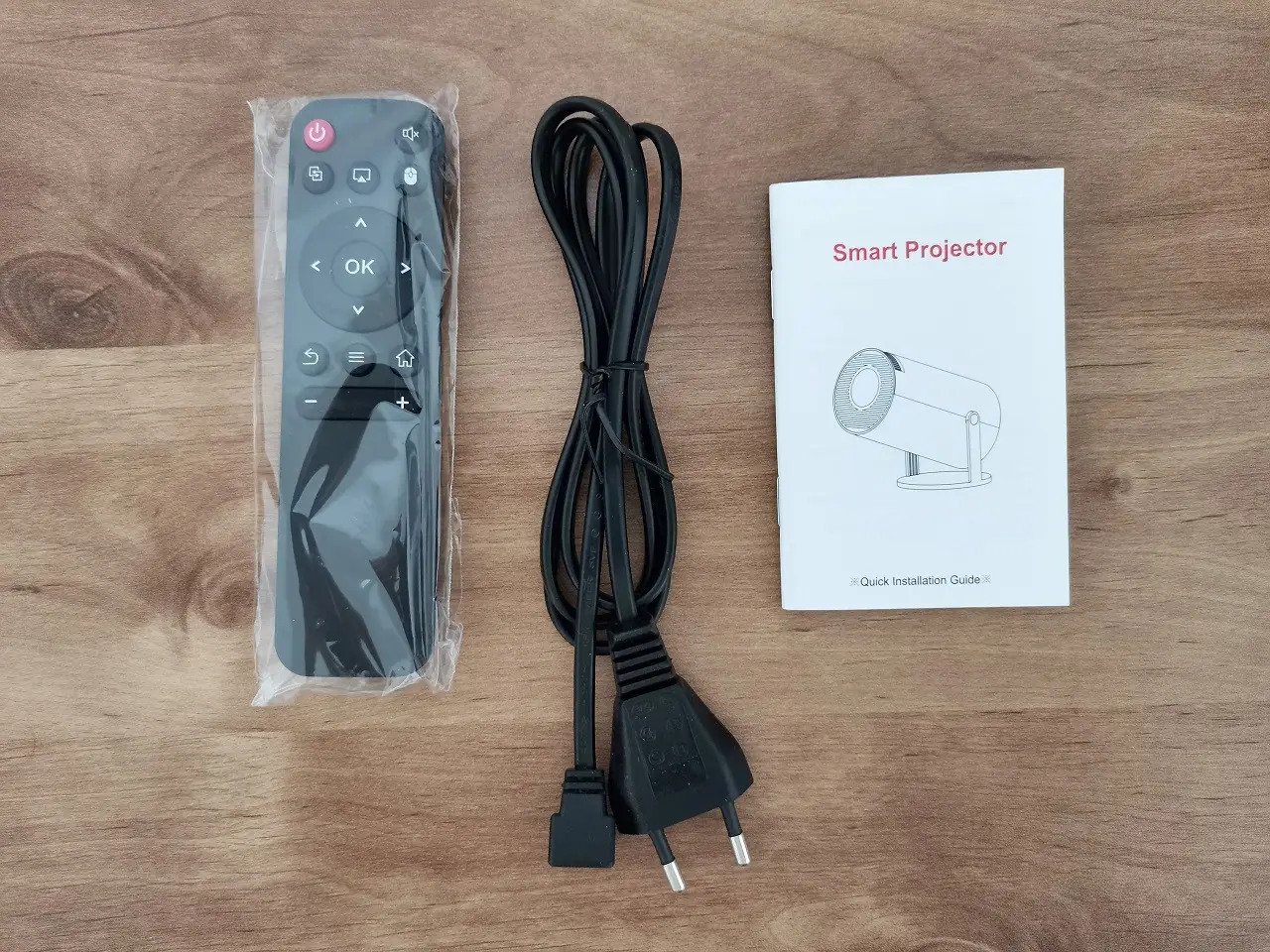
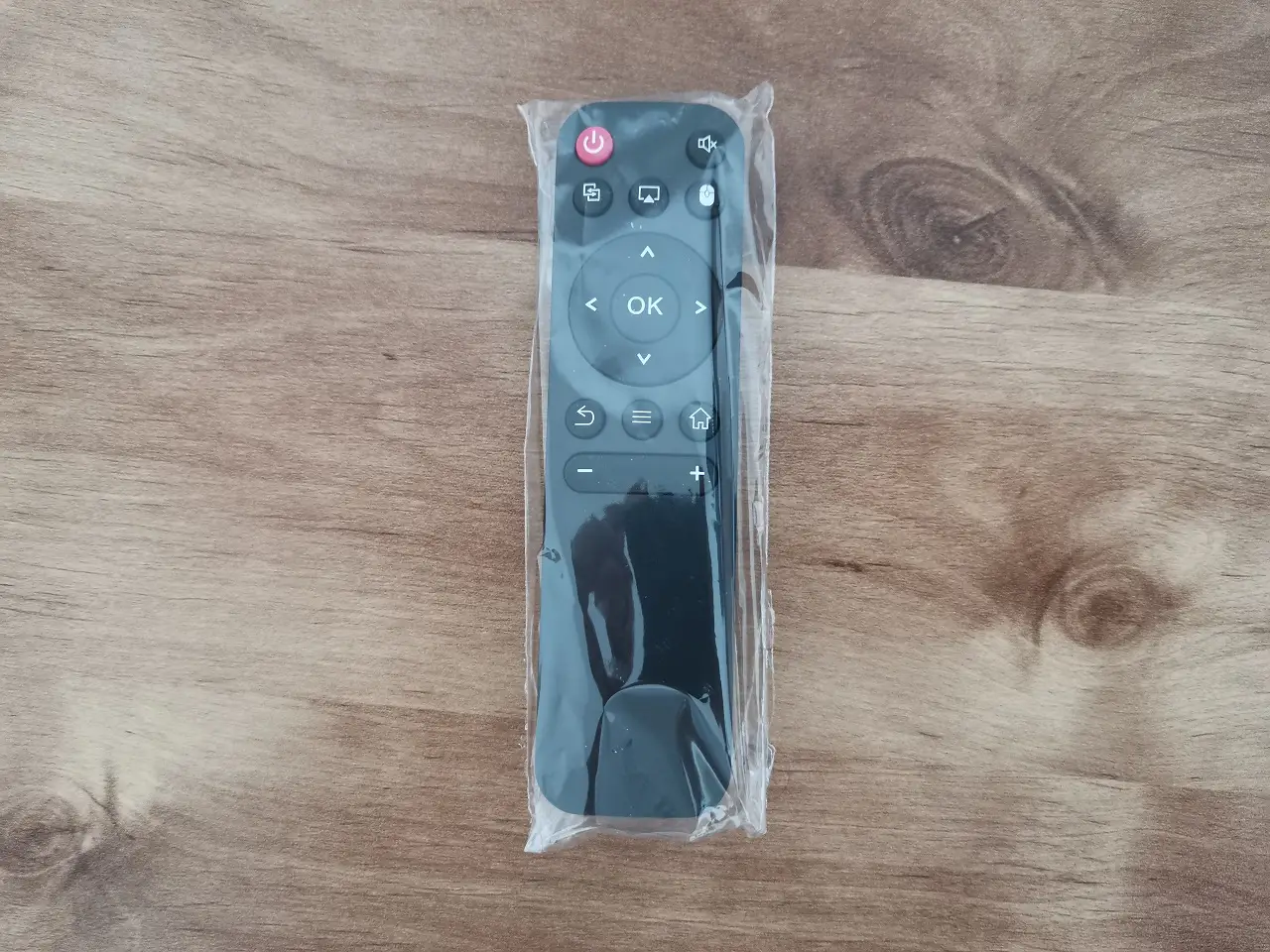
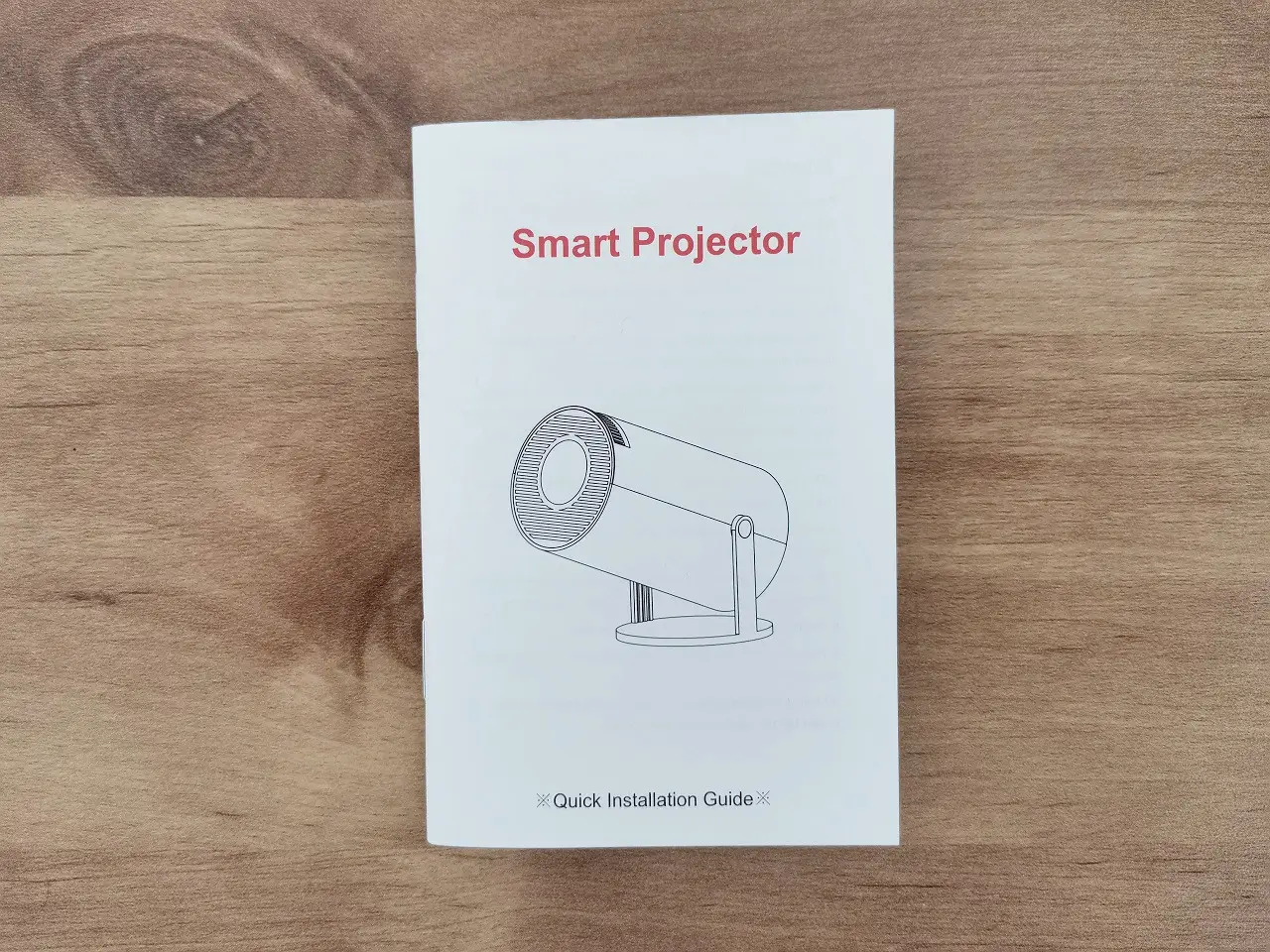
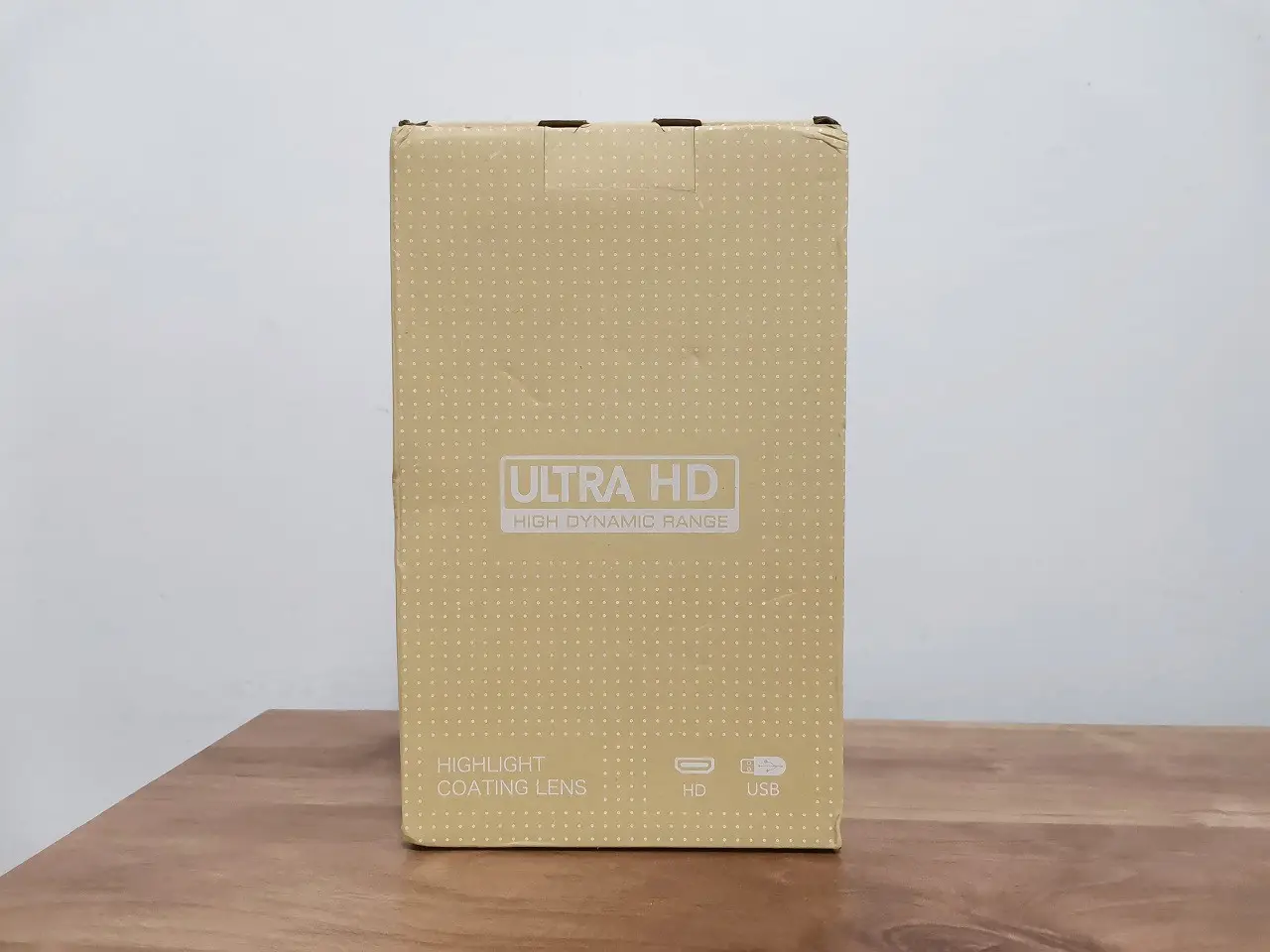
Package Contents
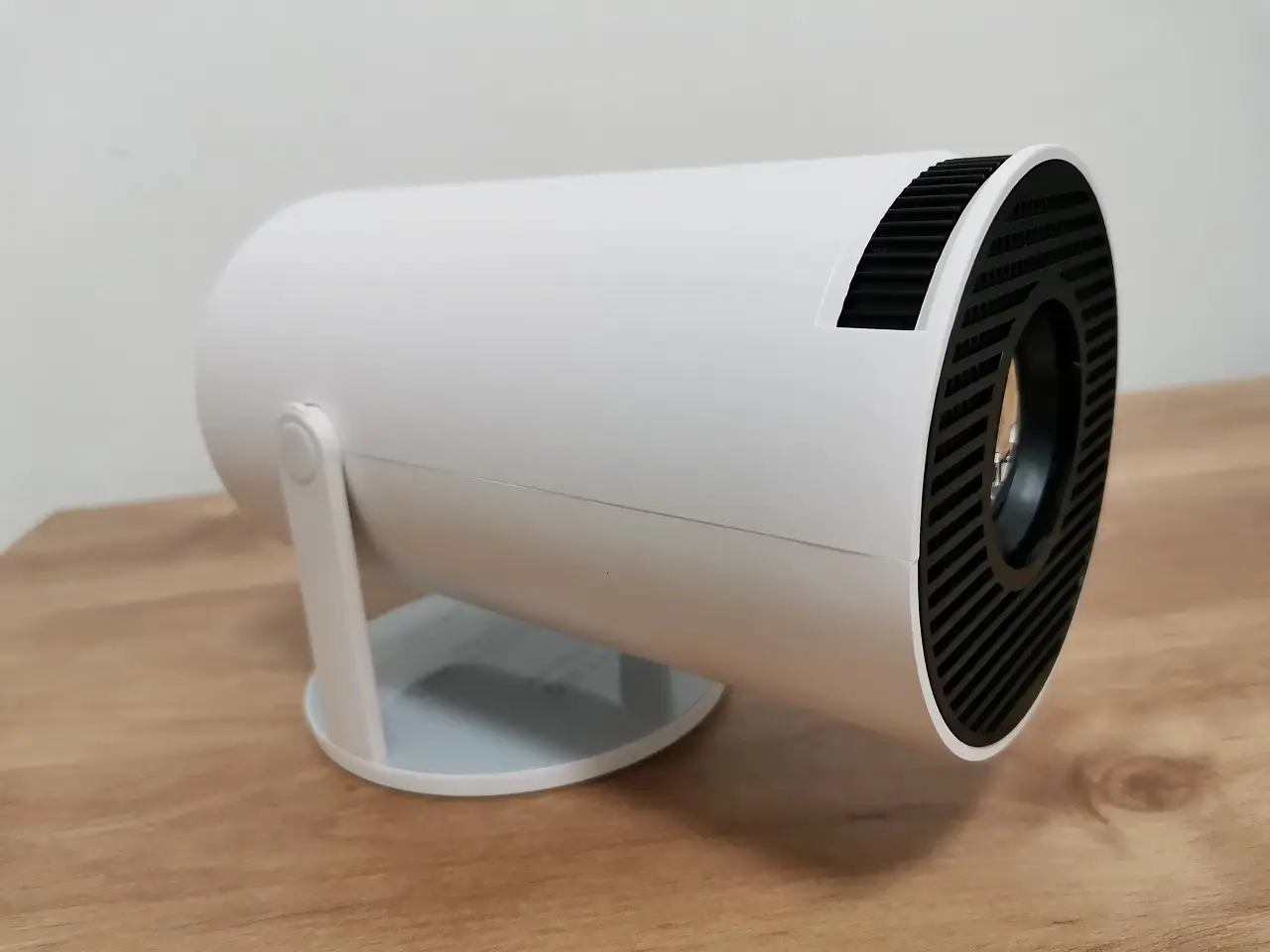
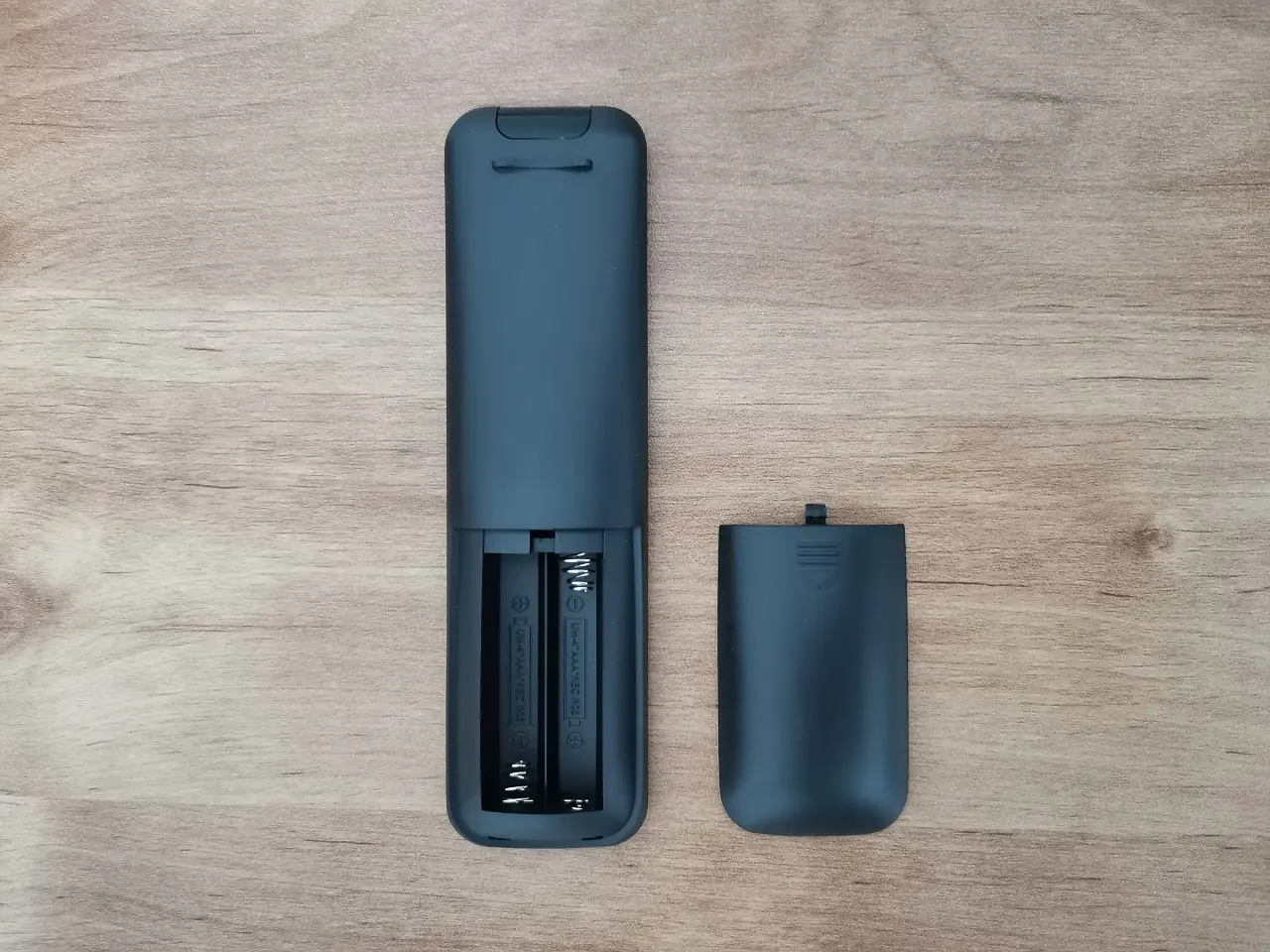
- x1 HY300 Projector
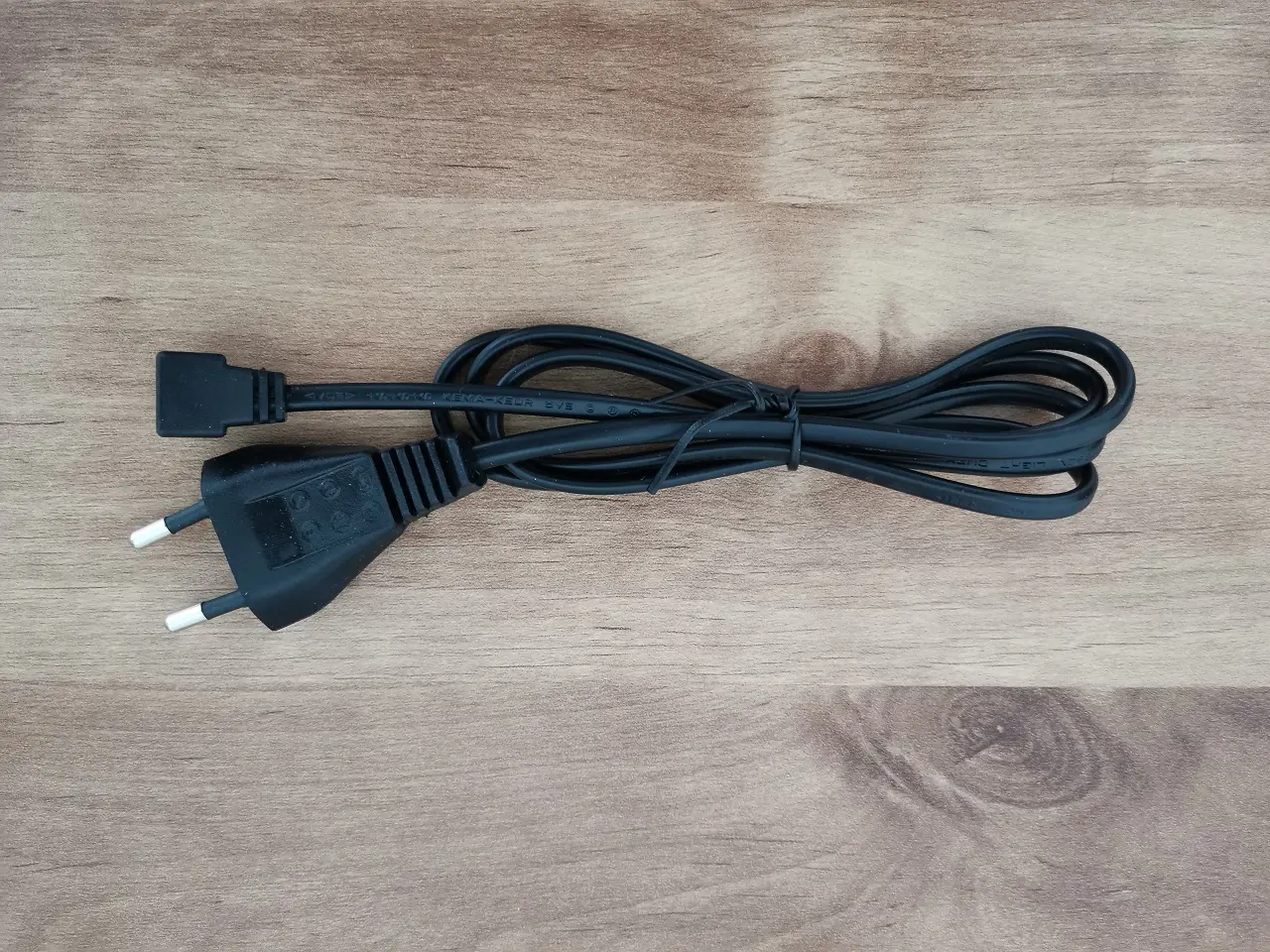
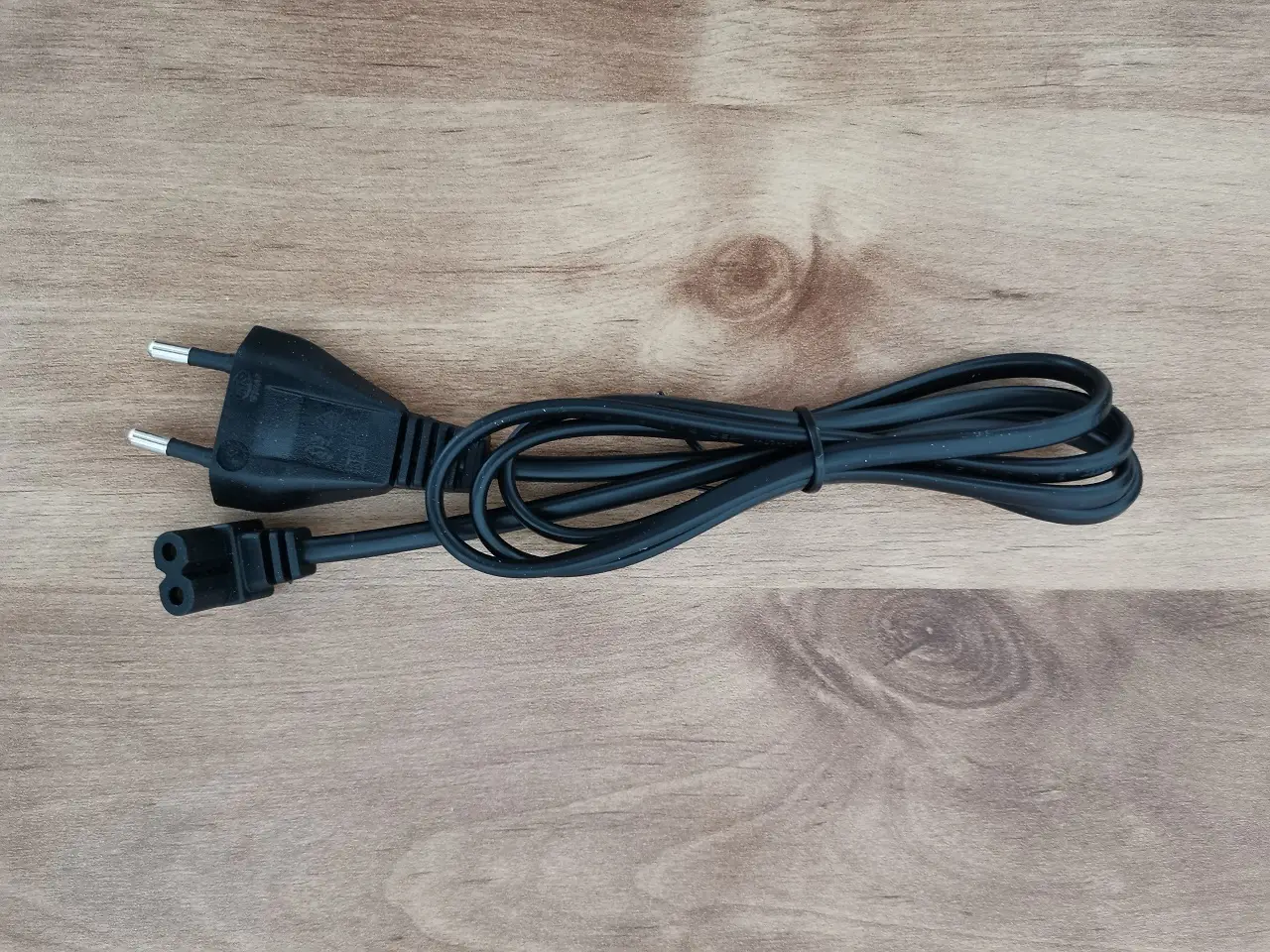
- x1 Power Cord
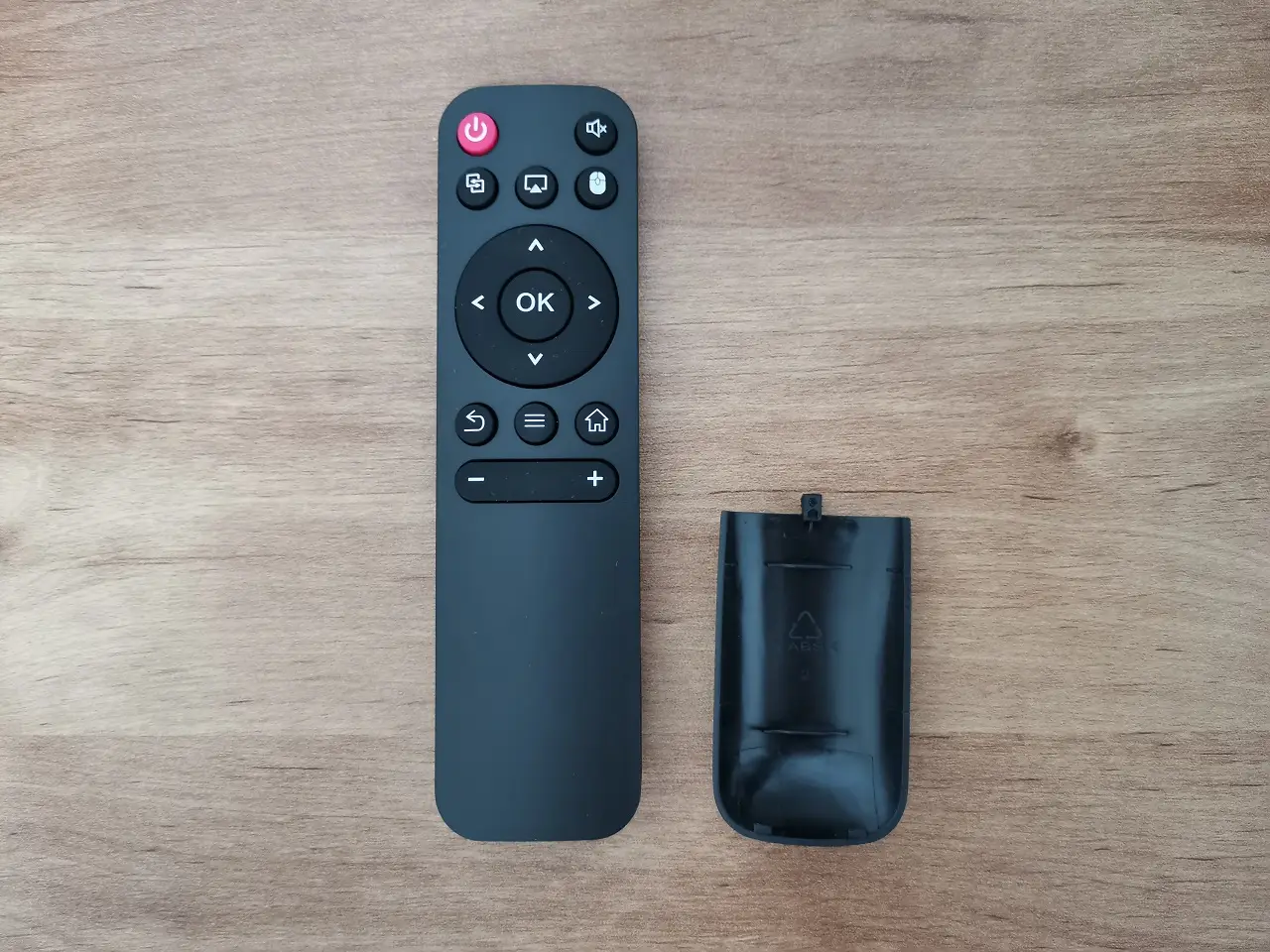
- x1 Remote Control
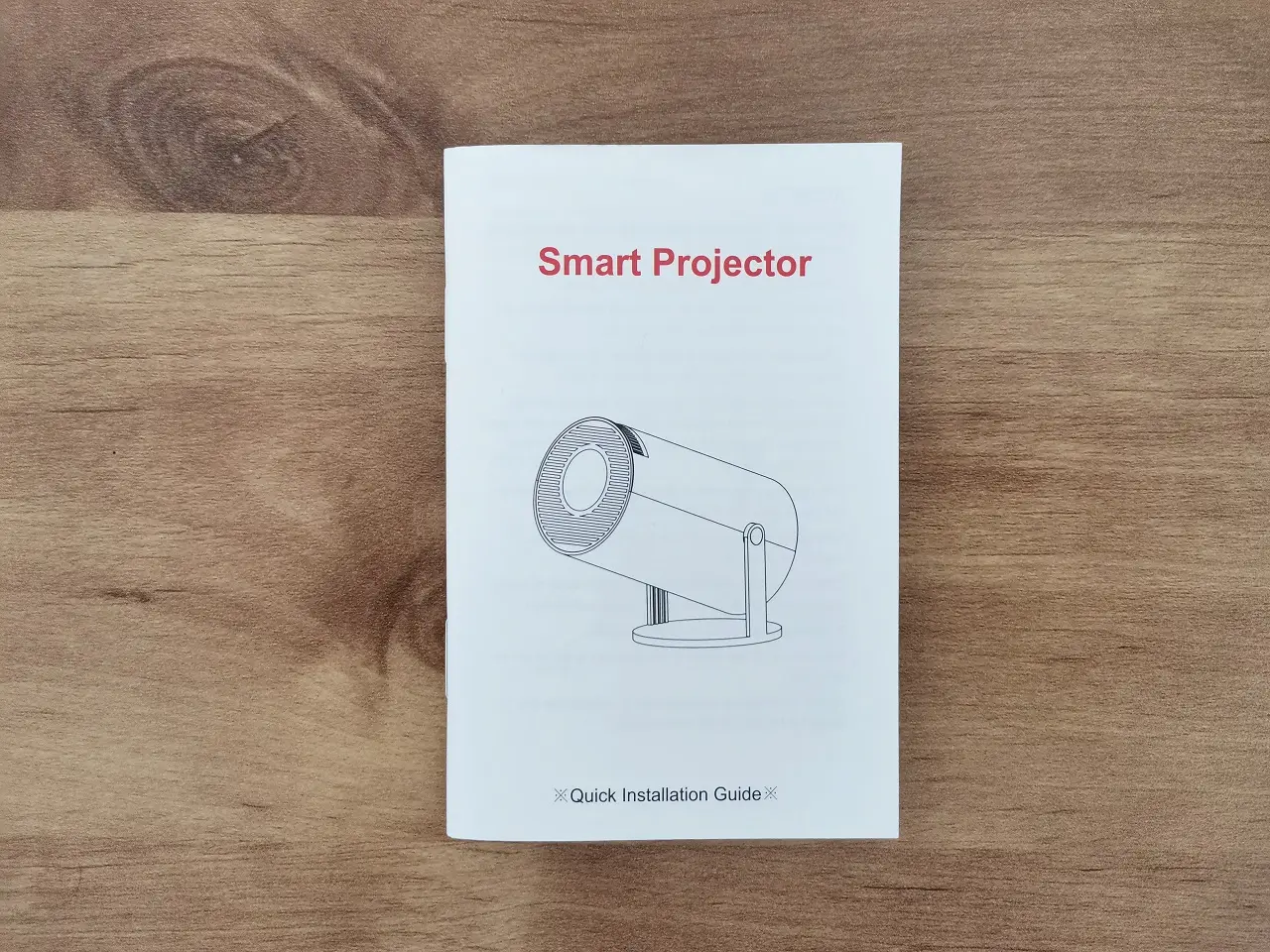
- x1 User Guide
Portability
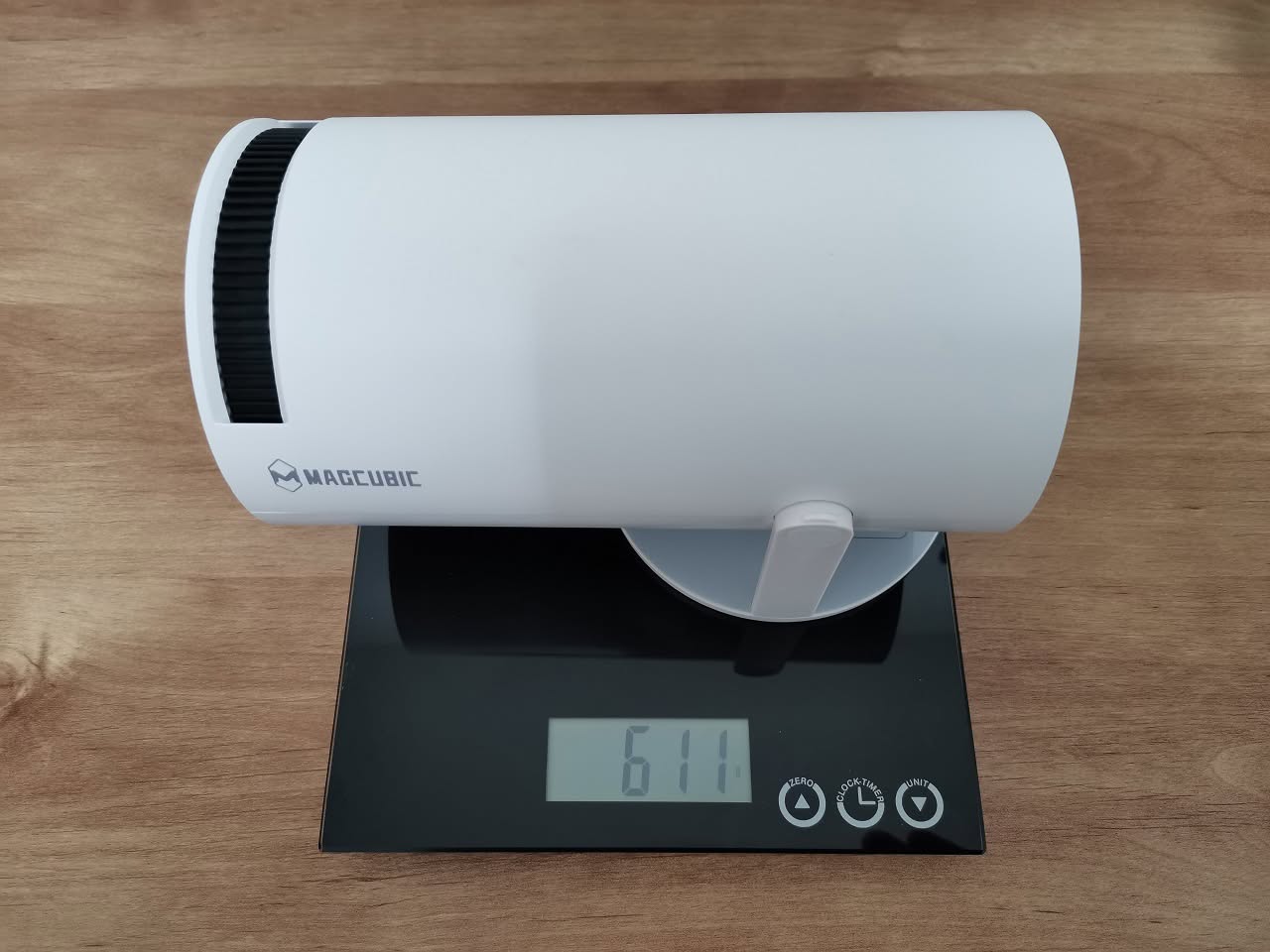
The Magcubic HY300 Android Projector is designed with portability in mind. Its compact size ensures that it doesn’t take up too much space, making it perfect for those who value convenience and mobility. Whether you’re planning a movie night at home or preparing for a business presentation on the go, this projector does a good job and is light, weighing only 611g.
Magcubic HY300 Weighing
Multiply angles adjustments
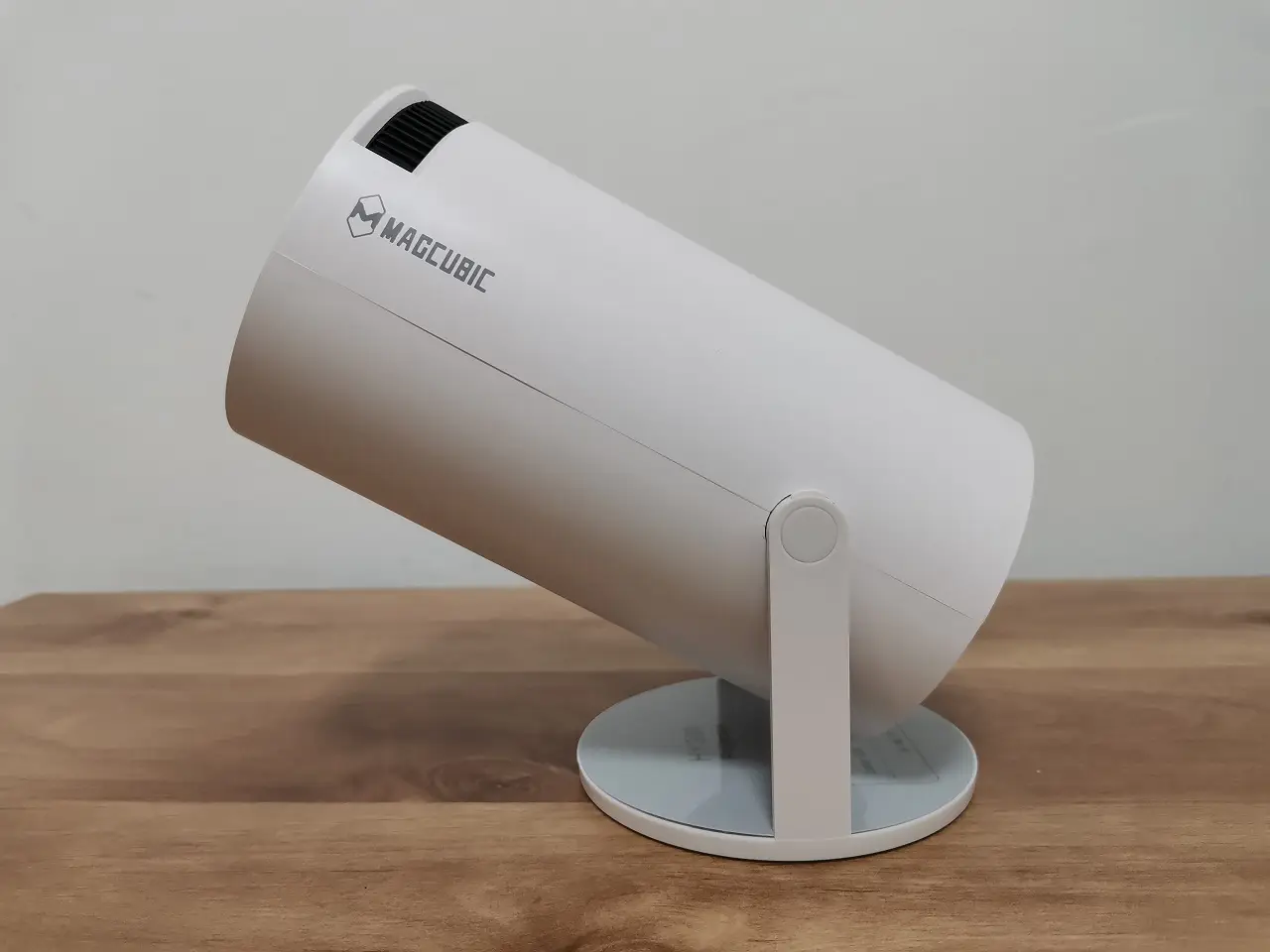
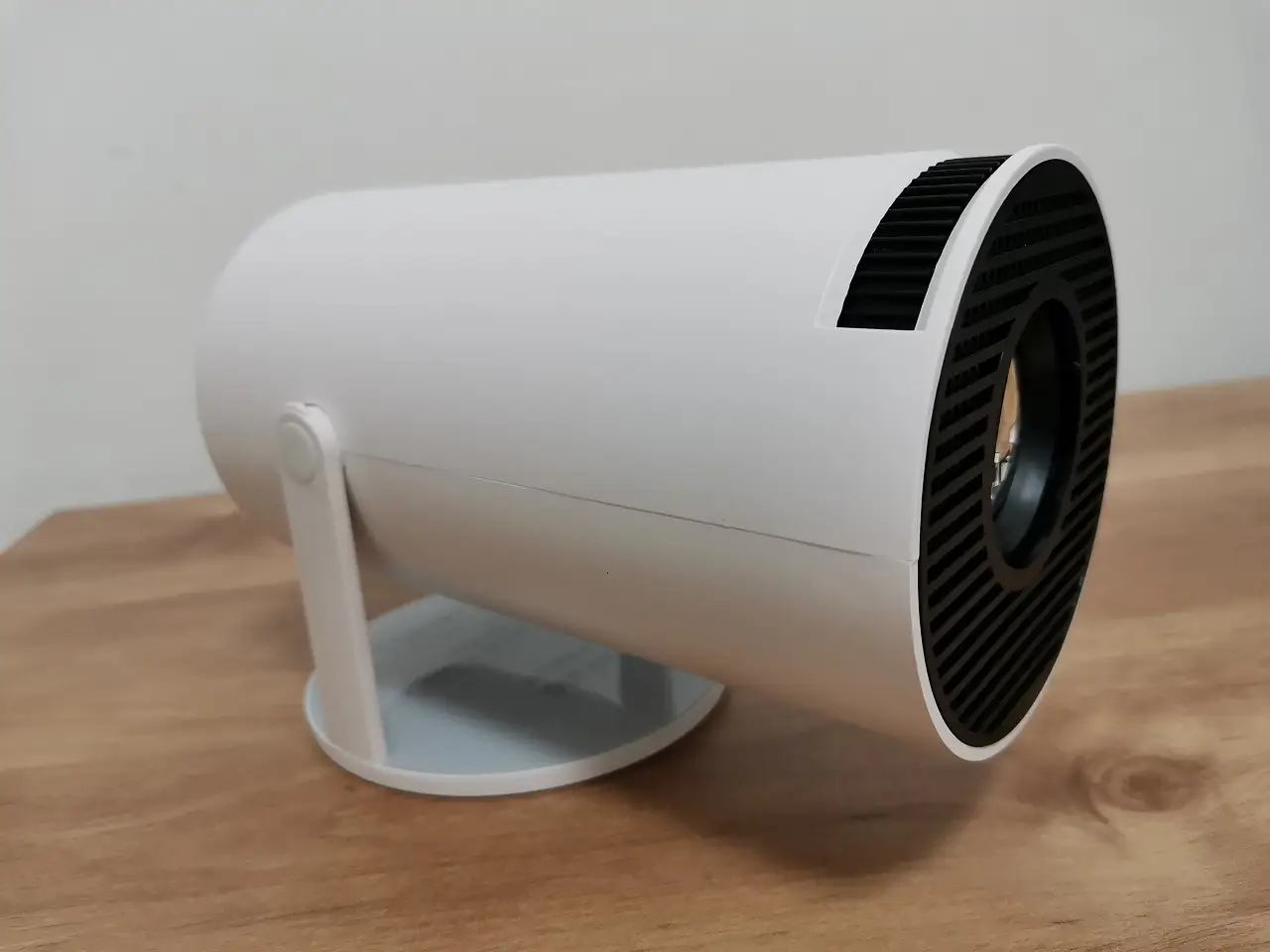
One of the standout features of the Magcubic HY300 Android Projector is its ability to project images onto the ceiling, and it does it well. You can use this special feature to turn any room into your own theater or presentation room.
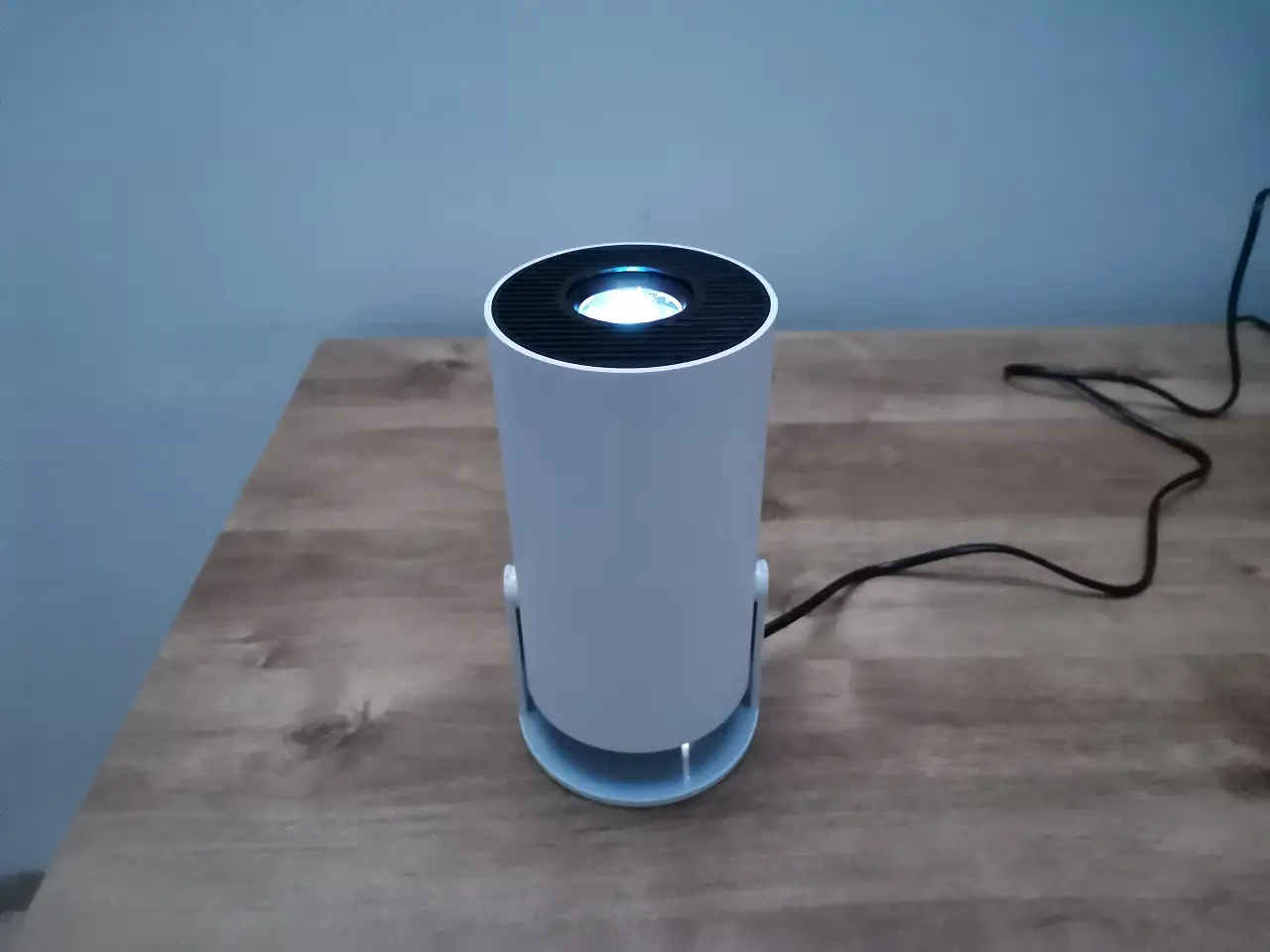
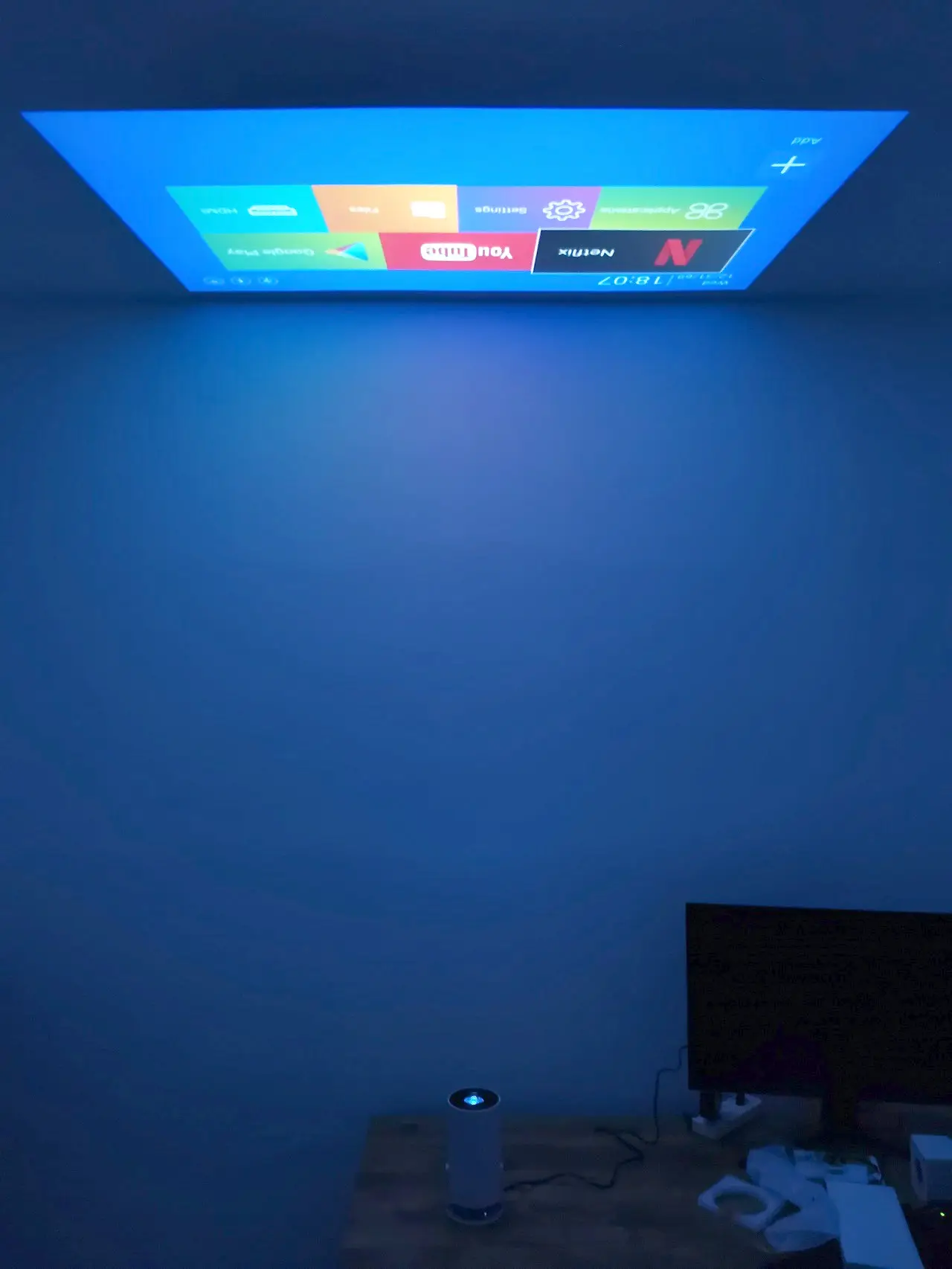
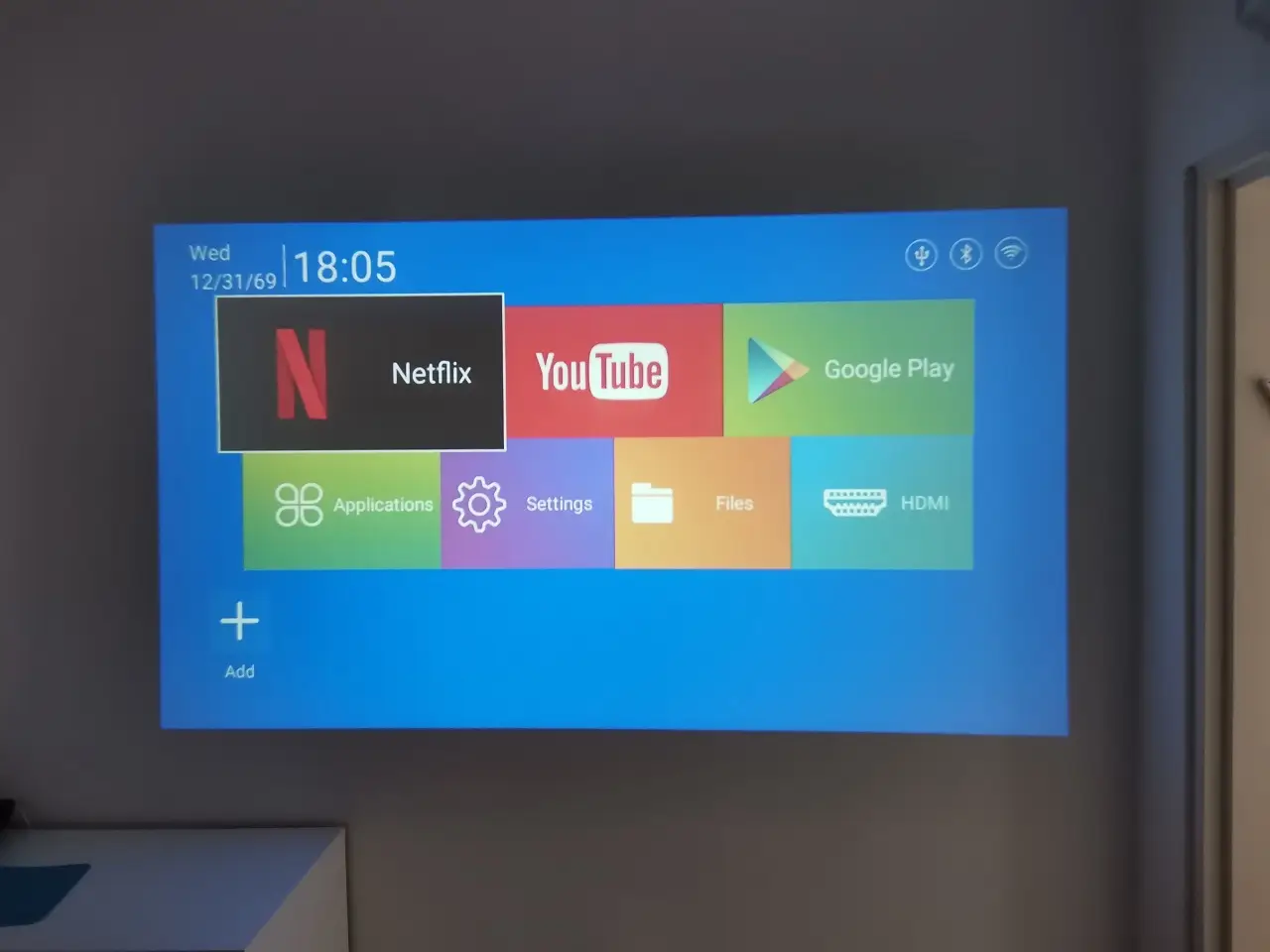
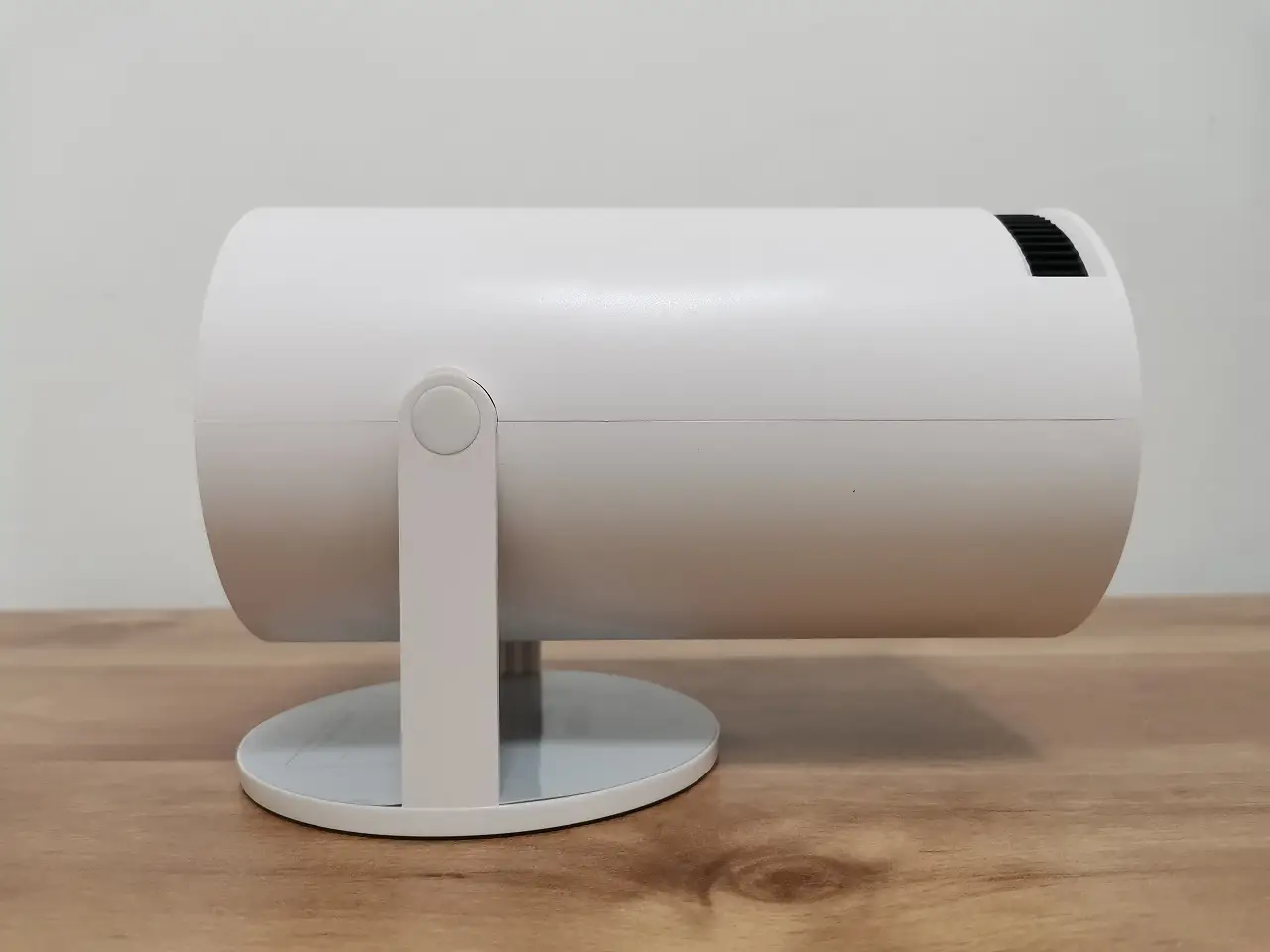
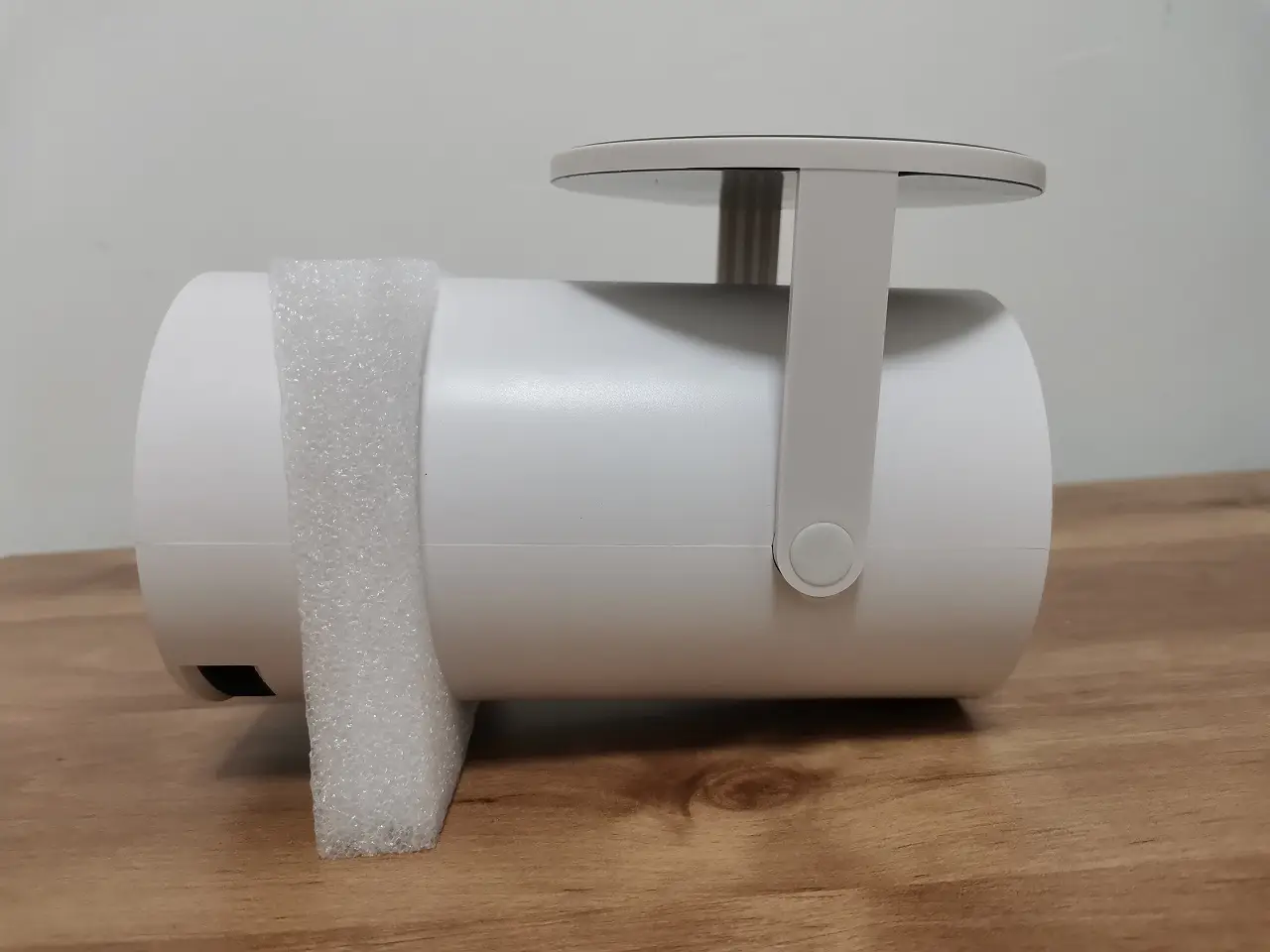
With its rotating base, you have the flexibility to easily adjust the best optimal angle and project the image onto any desired surface. The company used a rubber surface for the base. We lacked the necessary mounting holes to securely mount the device on a wall.
Cost-Effective
Despite its low cost, to our surprise the Magcubic HY300 Android Projector does look cheap with a low build quality we first expected it to have from a $47 product.
Picture & Sound Quality
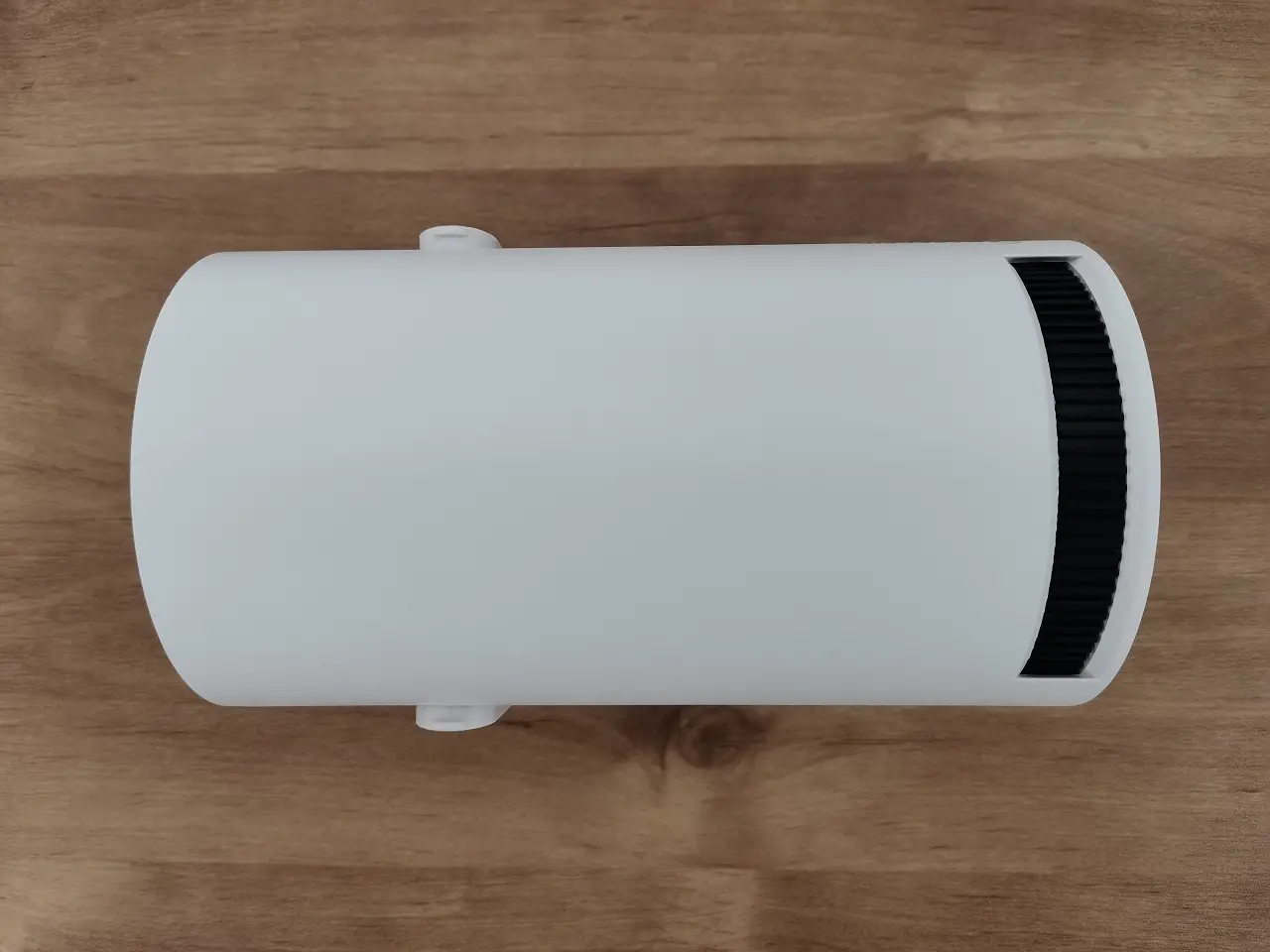
The Magcubic HY300 delivers average image quality with reasonable color saturation, which is more than enough for home cinema usage applications. The device comes with a built-in speaker that delivers excellent sound quality without being excessively loud. With just a turn of the tuning wheel, you have the power to manually modify the sharpness levels of the picture. Based on our extensive experience, the sharpness varied across a spectrum from sharp to soft.
Resolution
The HY300 can display up to 720P resolution. The projected image on the wall produced a reasonable image quality. A resolution of 720P is more than sufficient for home usage to watch content from popular streaming services such as Netflix, Disney Plus and so forth.
Picture Adjustment Settings
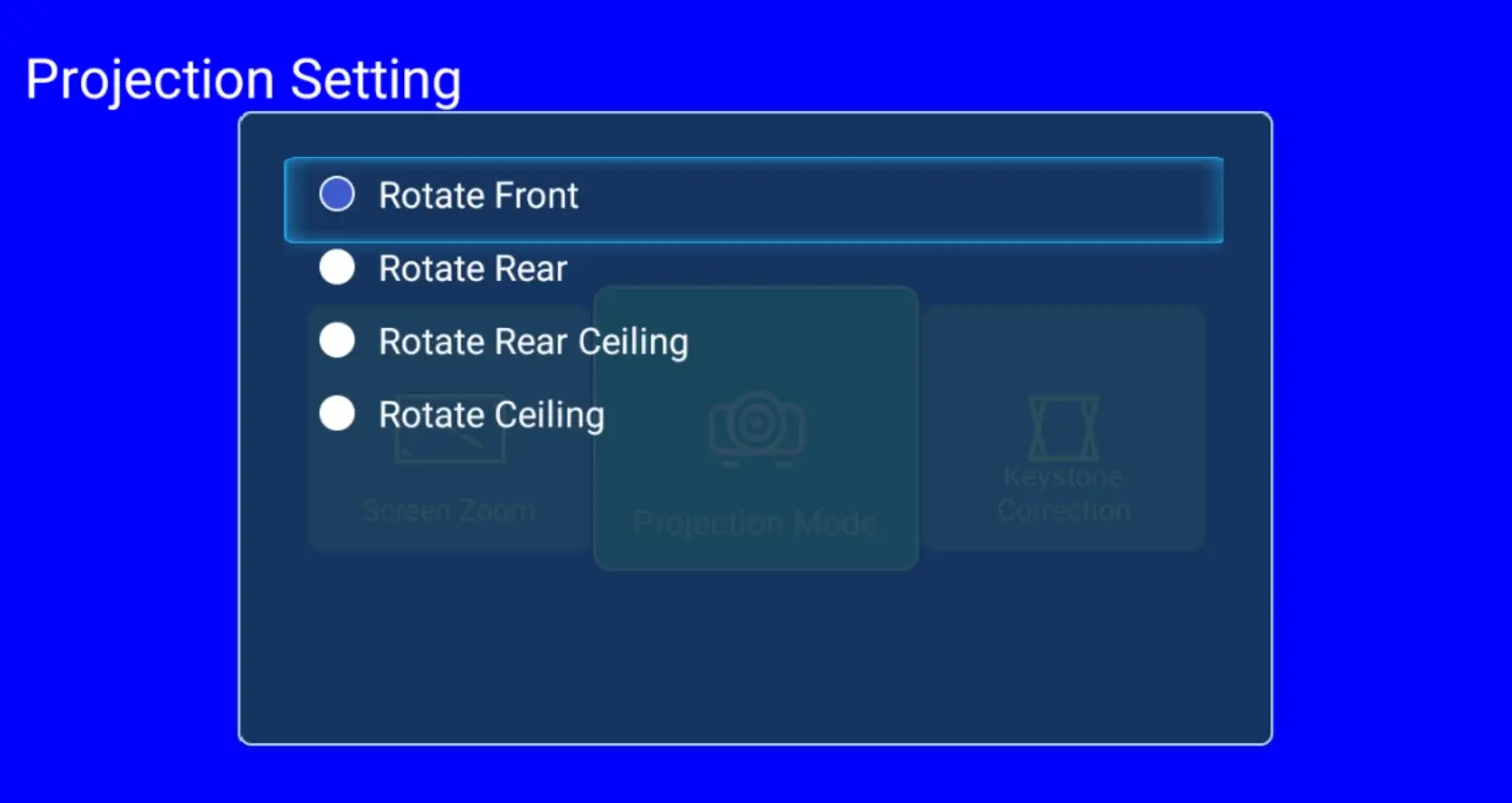
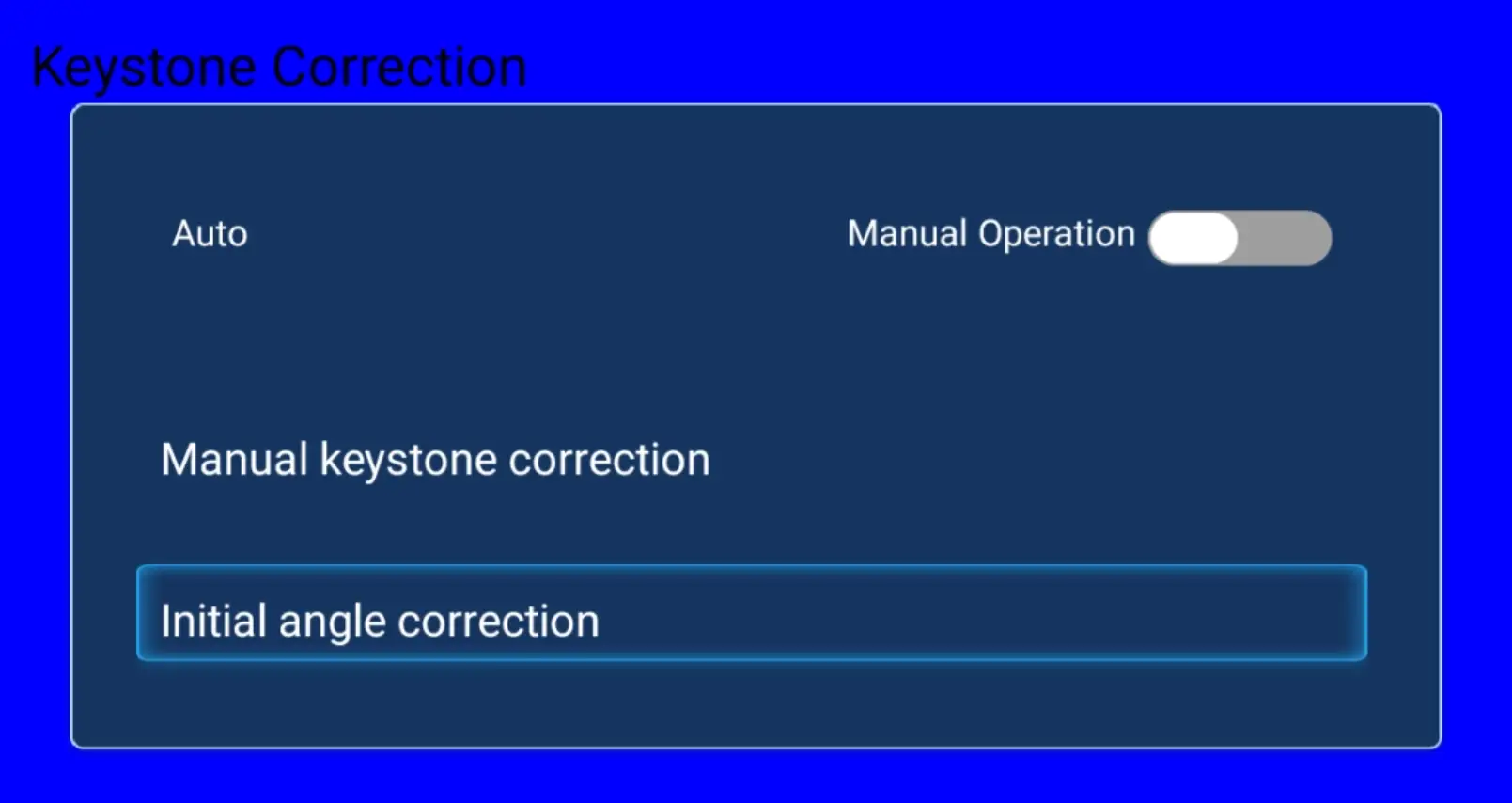
The project comes with a built-in feature for automatic Keystone correction, zoom, and picture rotation settings that can be adjusted for optimal picture quality. In addition, there is an option to manually adjust the Keystone correction and fine-tune the settings to ensure that the geometric shape of the picture appears perfectly straight with minimal distortions.
Magcubic HY300 Projector Settings
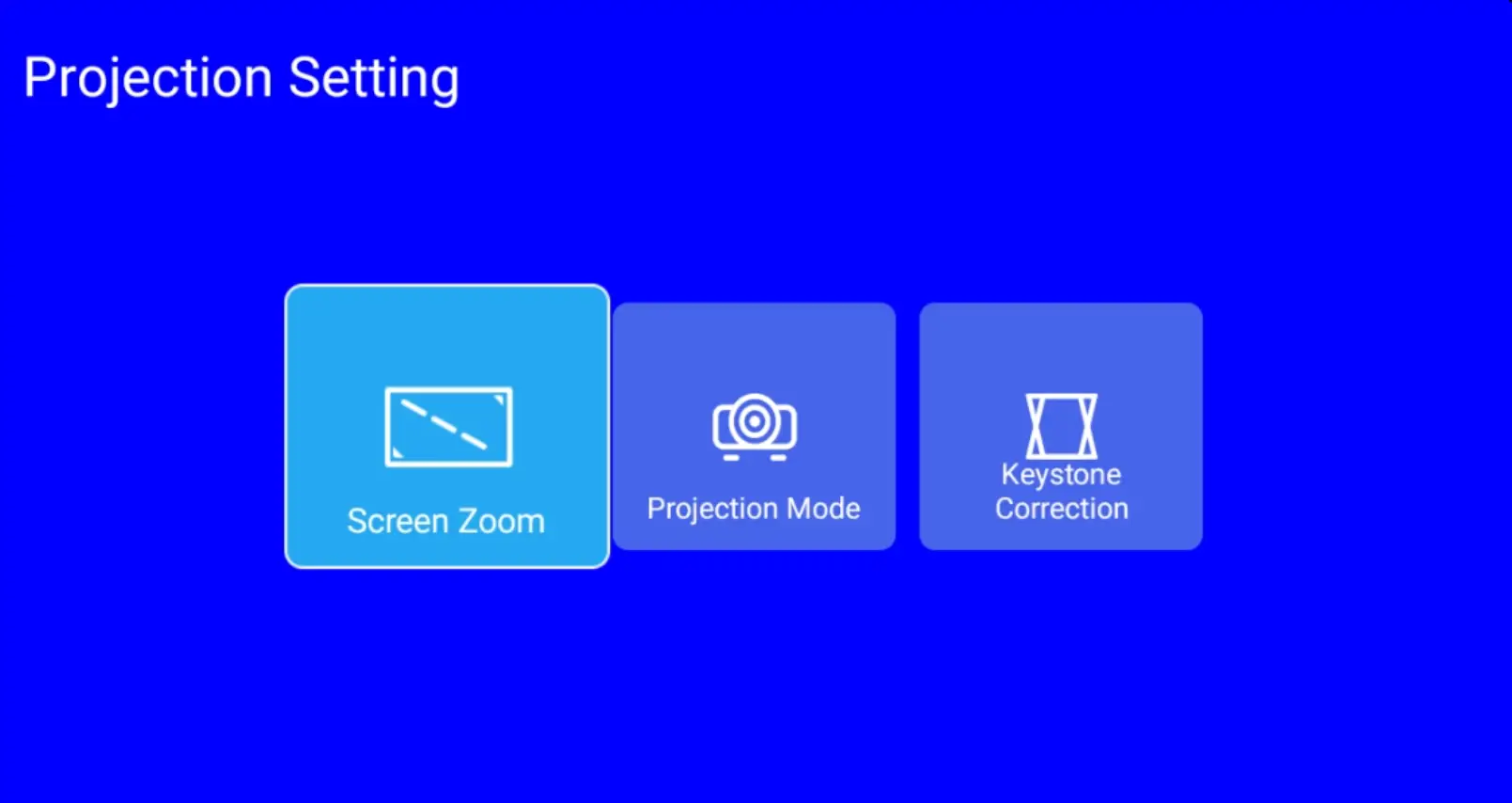
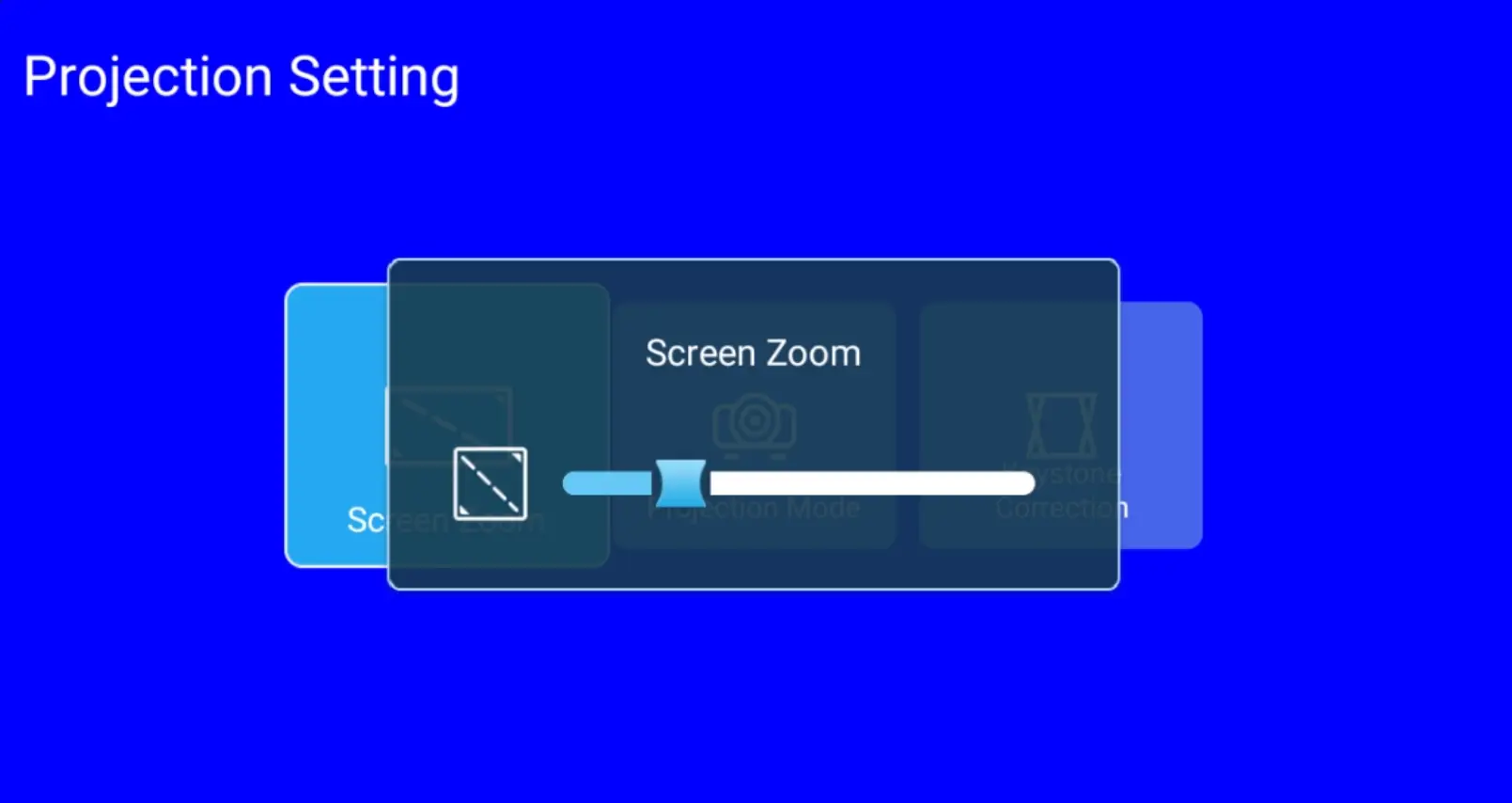
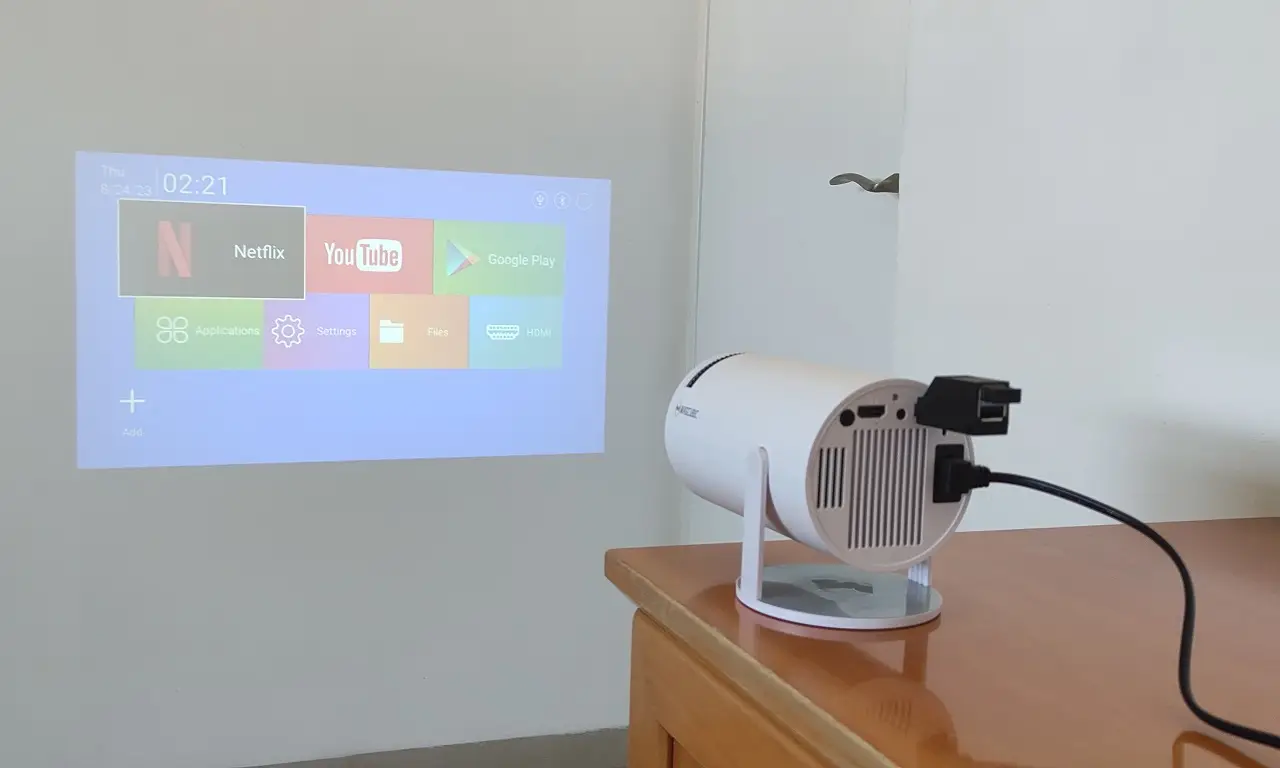
Testing picture brightness
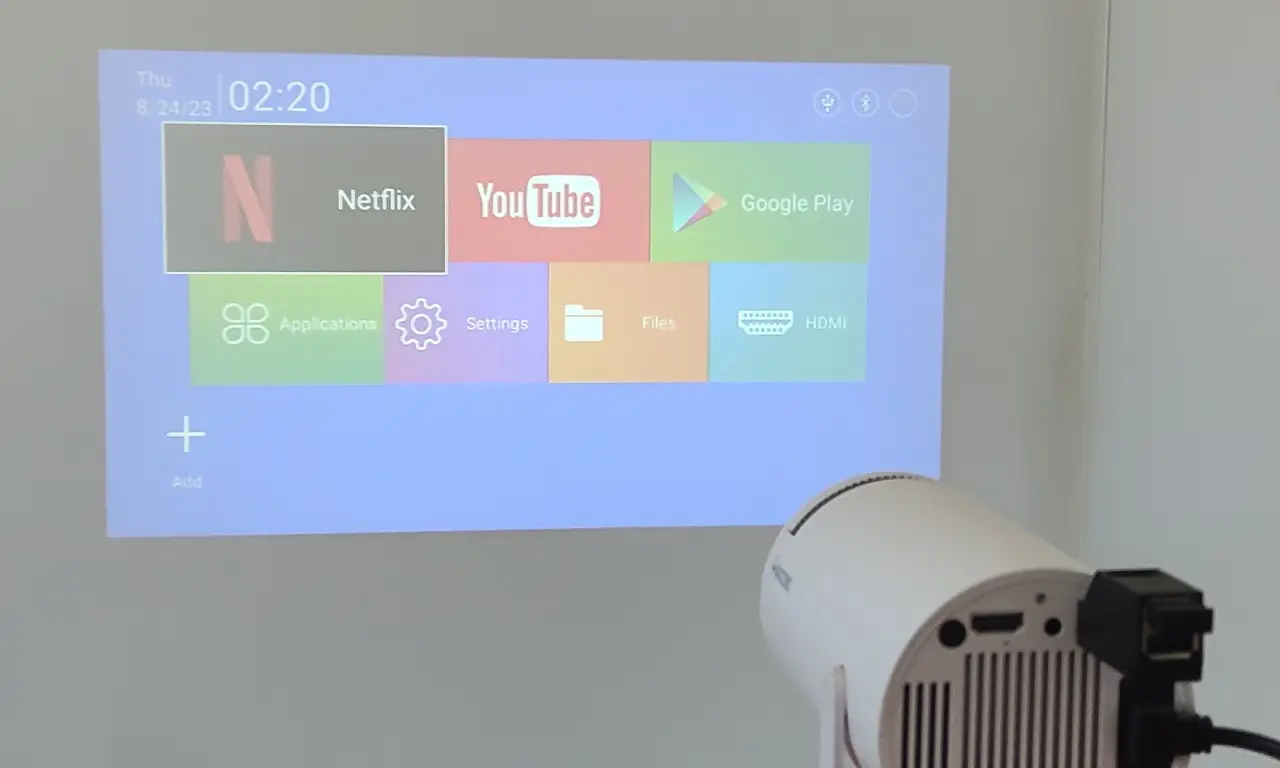
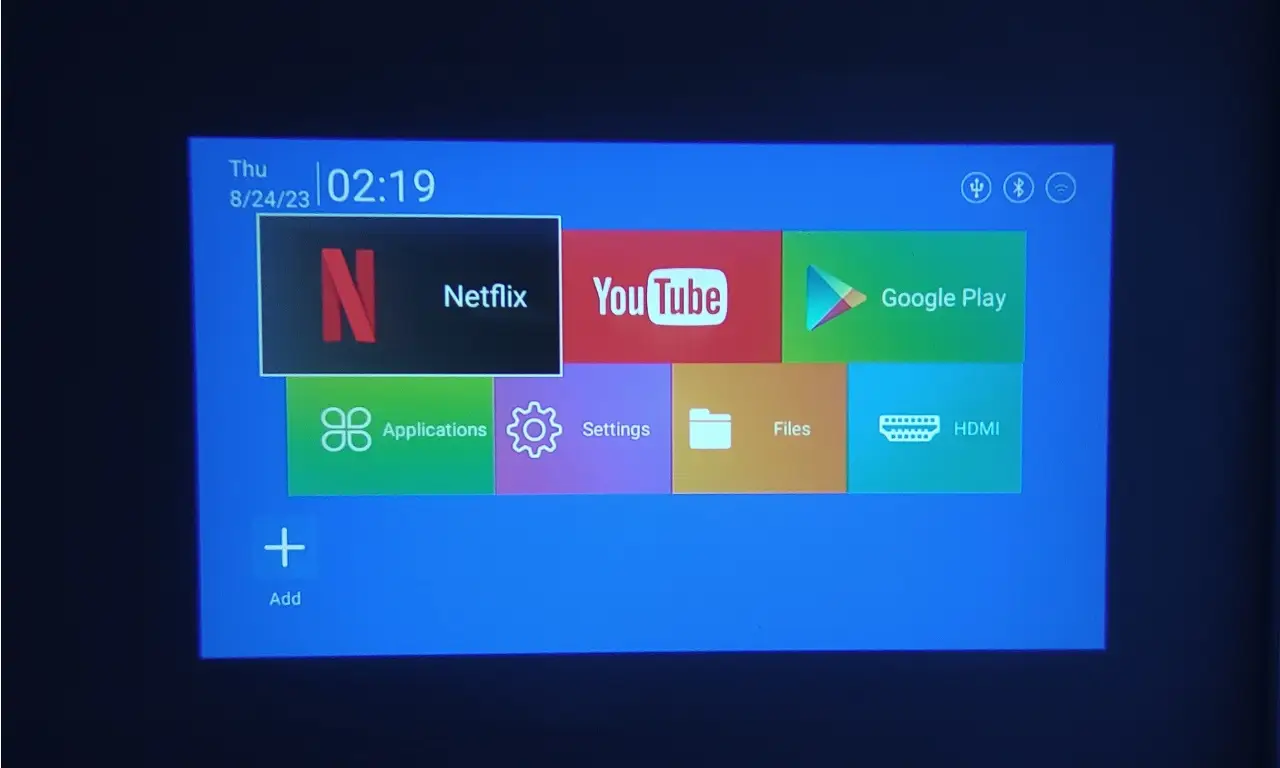
To test the projector’s brightness, we first place it in a small room. We opened the window to let in light while projecting an image on the wall. After thoroughly exploring various scenarios multiple times in both well-lit and dim settings, we have reached a definitive conclusion: the performance of the projector is undeniably good. However, as previously mentioned, to truly attain the pinnacle of visual excellence, it is highly recommended to utilize the projector in a room with minimal lighting.
Why is the product price so low?
As with most low-cost products, cheap doesn’t necessarily mean bad quality. According to the manufacturer, the LED lifespan is about 50,000 hours. The projector design has undergone a few additional compromises. For example, the light brightness is only 150-200 lumens which is considered to be low compared to expansive projectors. What does it actually mean for the end user? It basically means that you will need to use it in more dark / low light environments. There is no direct impact on the device functionally. Most home users will use their video projectors in a dark room and not during daylight.
Exterior Design
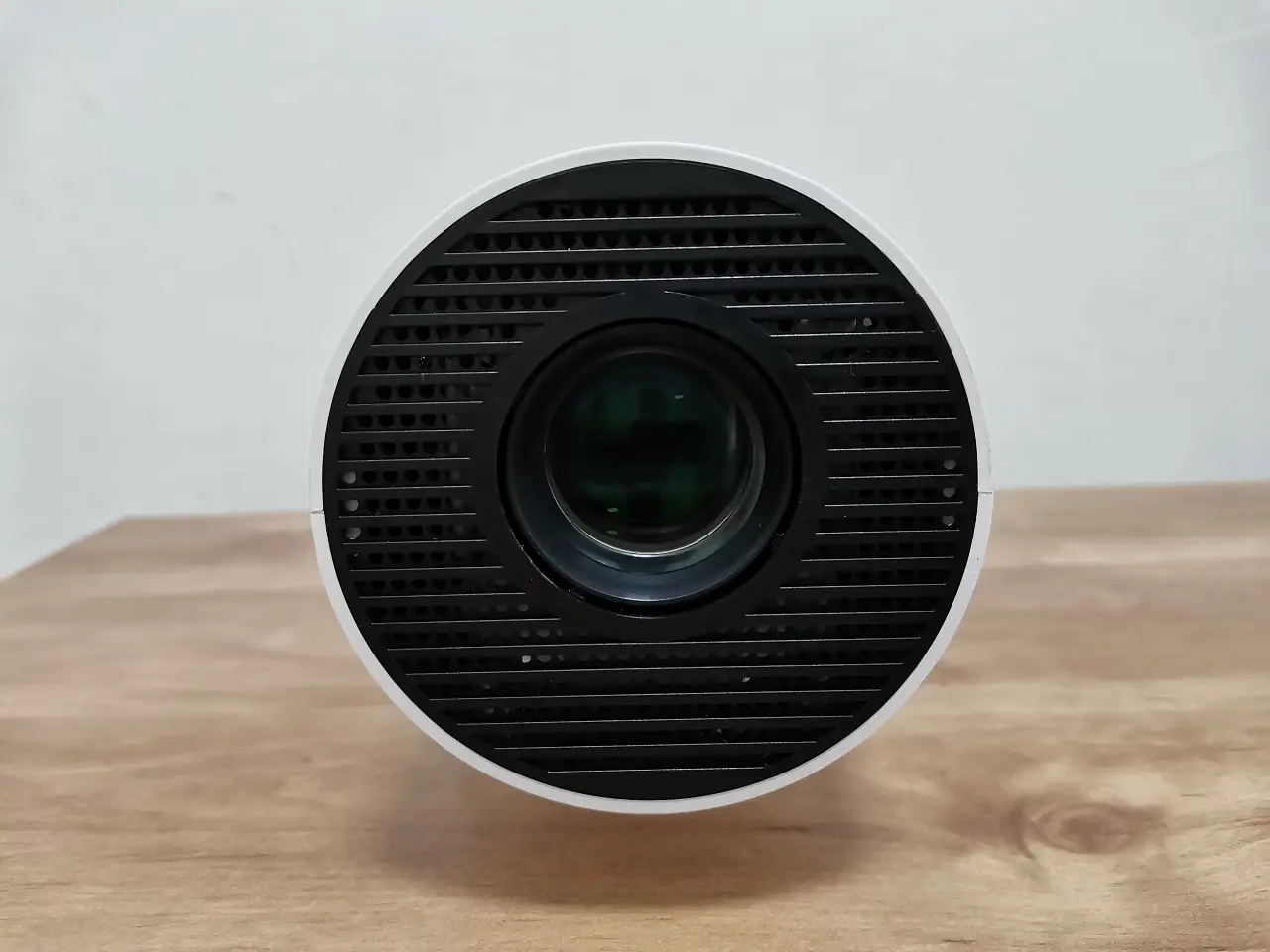
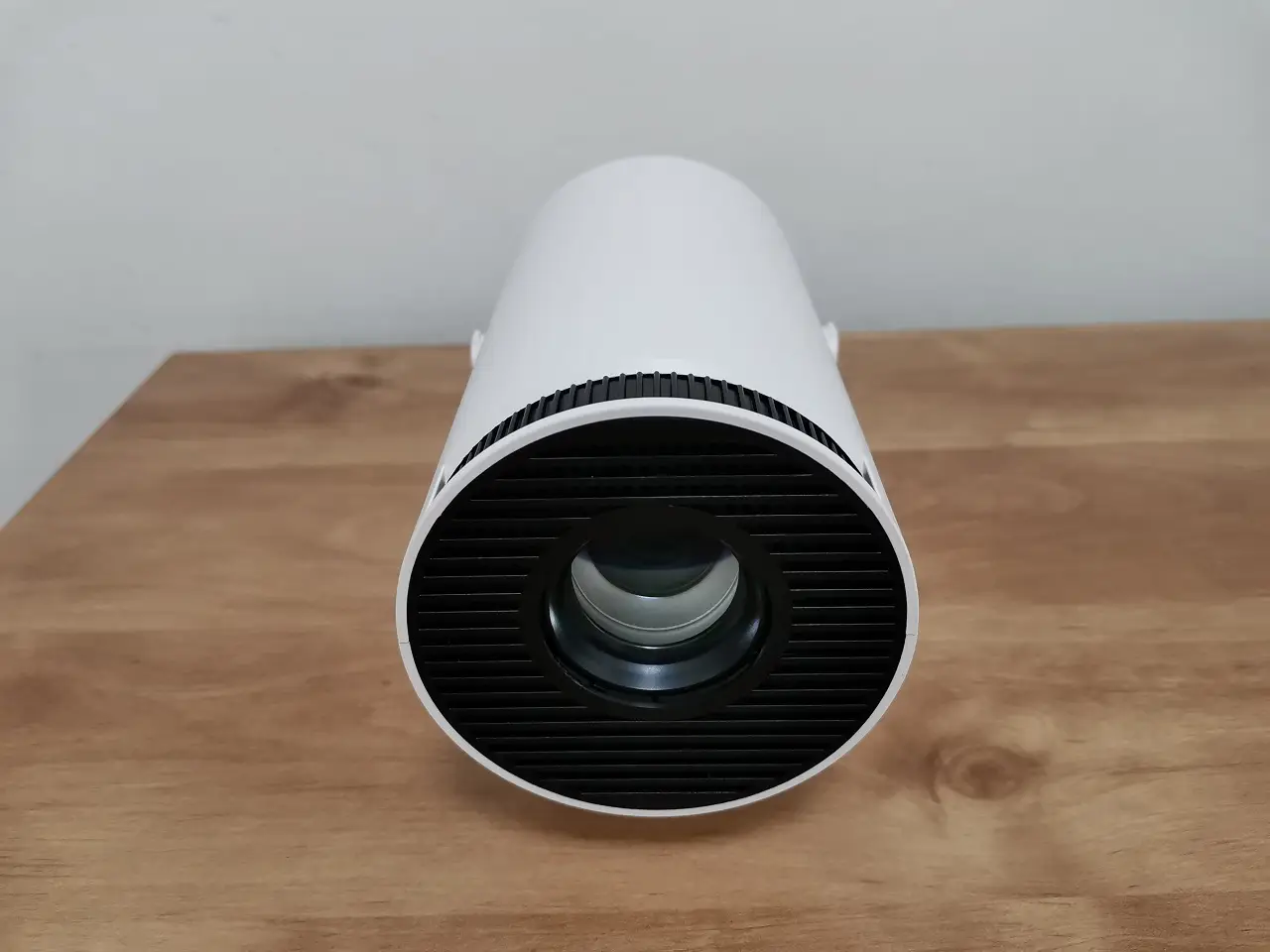
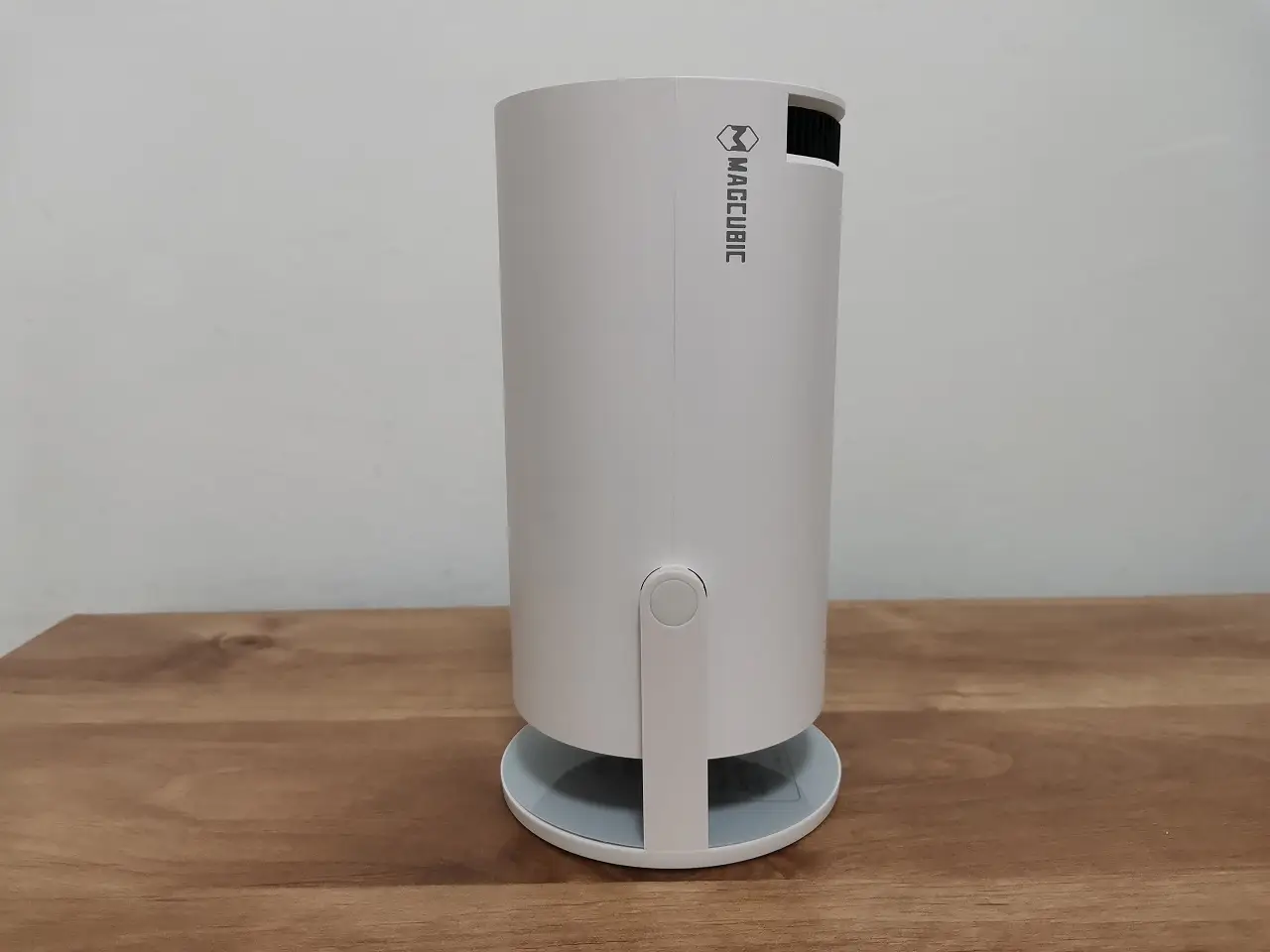
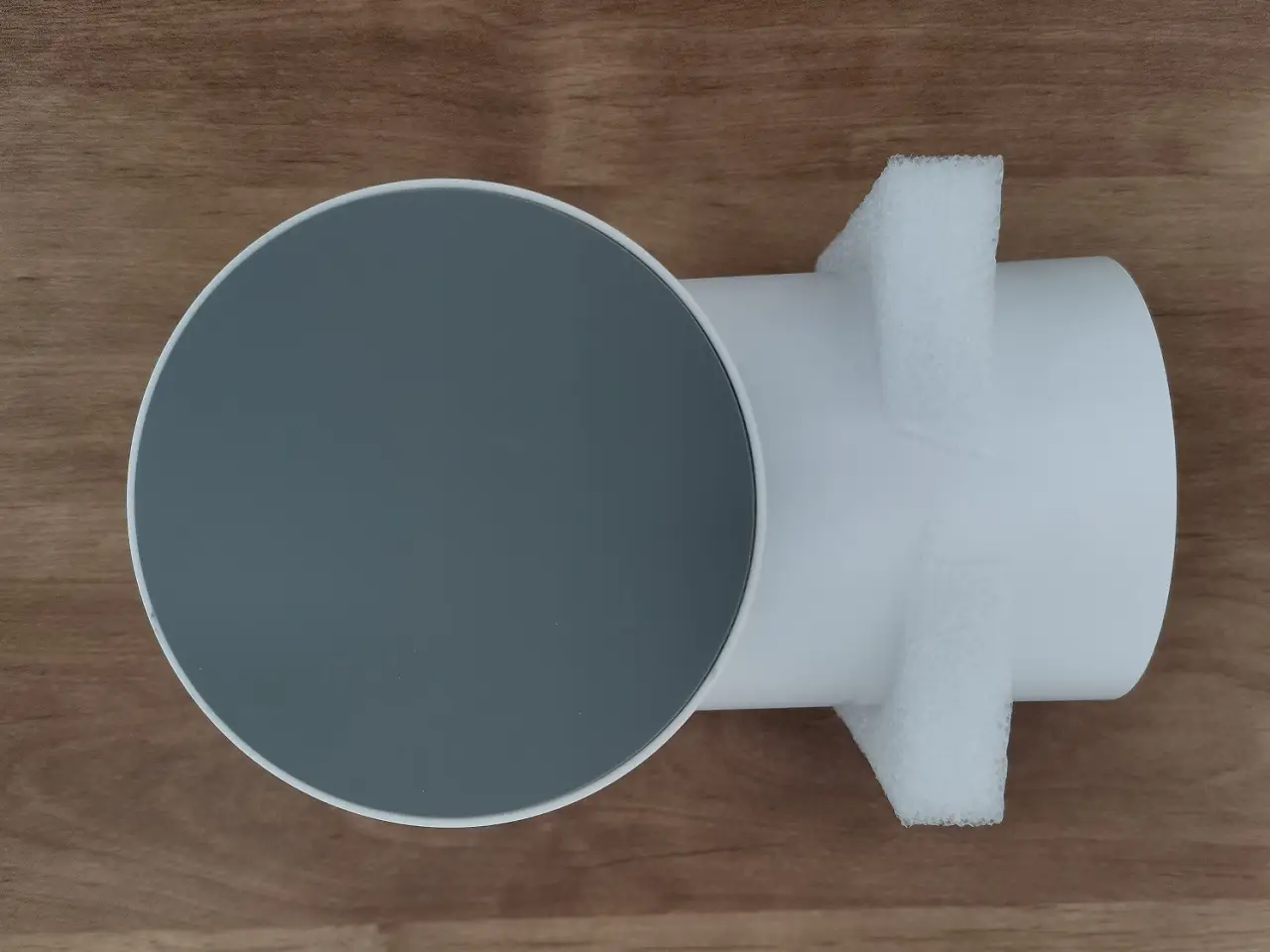
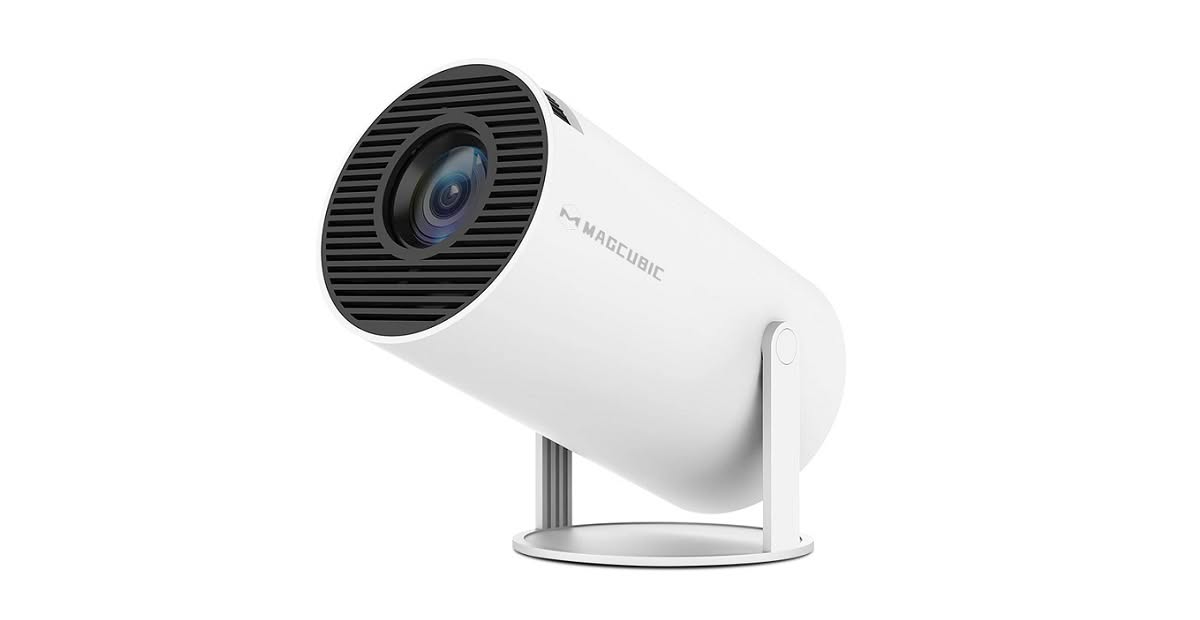
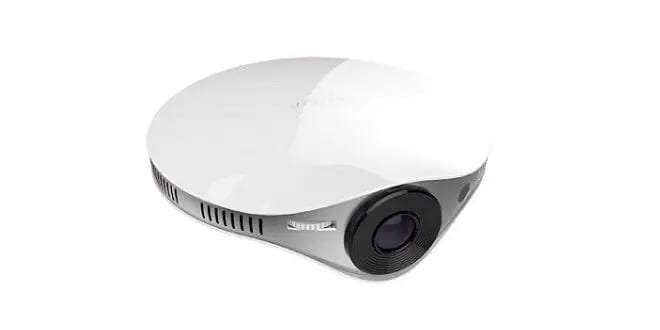
In terms of design, the Magcubic HY300 Android Projector boasts a modern cylinder-shaped look with a diameter of Ø92mm that complements any interior decor. The design of this lighting housing is reminiscent of a round spotlight, making it incredibly simple to install.
This isn’t just a projector; it’s a sophisticated enhancement for your home or office. It consumes minimal space when placed on a small shelf or table. Plus, it comes with pre-installed Android 11.0 OS, eliminating the need for an extra smart device to be connected to the projector.
Interfaces
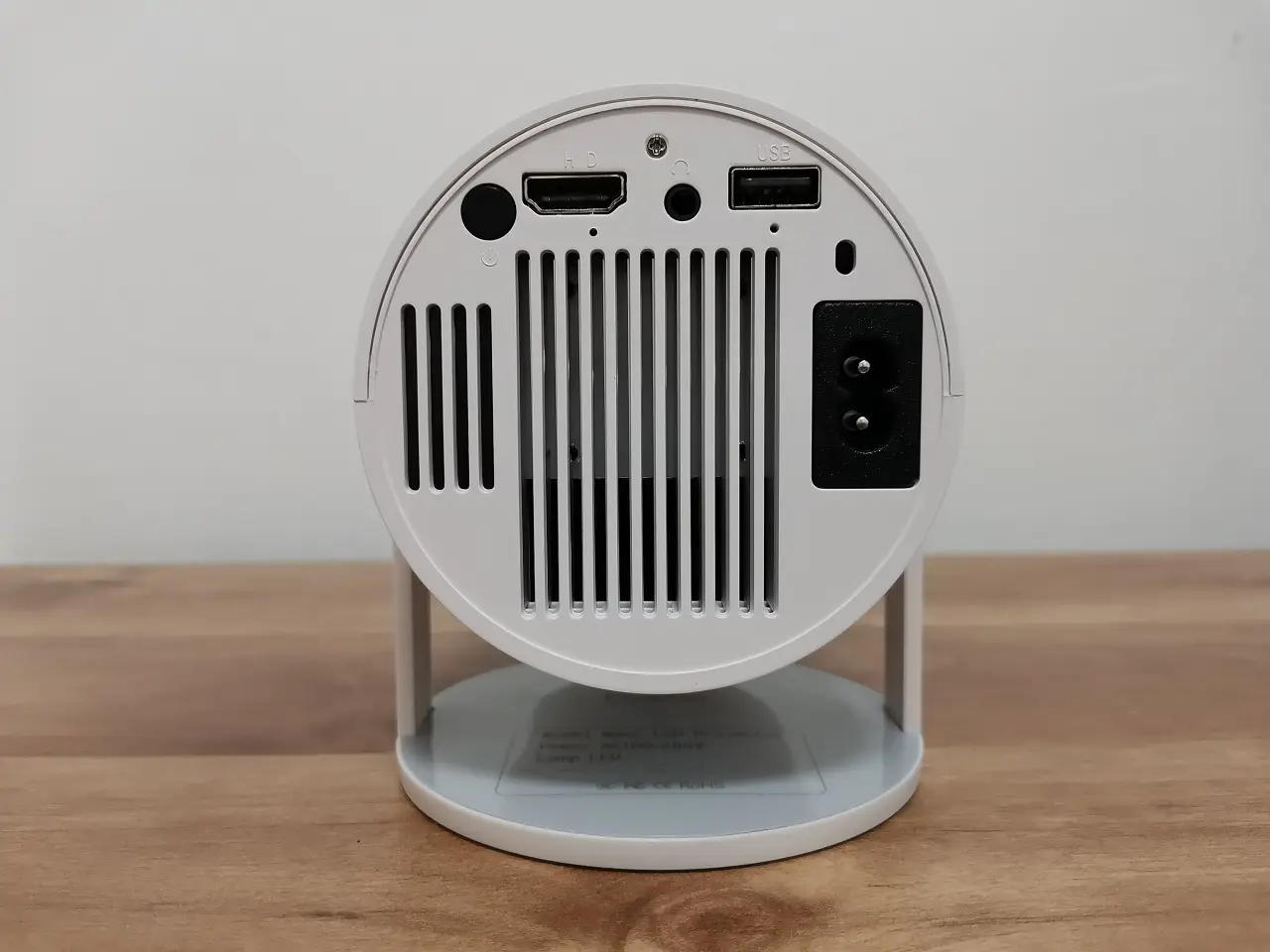
Located at the back of the H300, you will find a USB V2.0 Host, a power socket, an HDMI V2.0 Input port, a 3.5 mm headphone jack, and a convenient power on/off button which comes in handy when you don’t have the remote control unit at hand to power up or shut down the device. For enhanced connectivity of USB devices, it is highly recommended to invest in a USB hub/splitter along with an extension power cord. This powerful duo not only allows you to connect multiple devices but also offers the utmost convenience by providing the flexibility to place the unit in various locations.
Remote Control
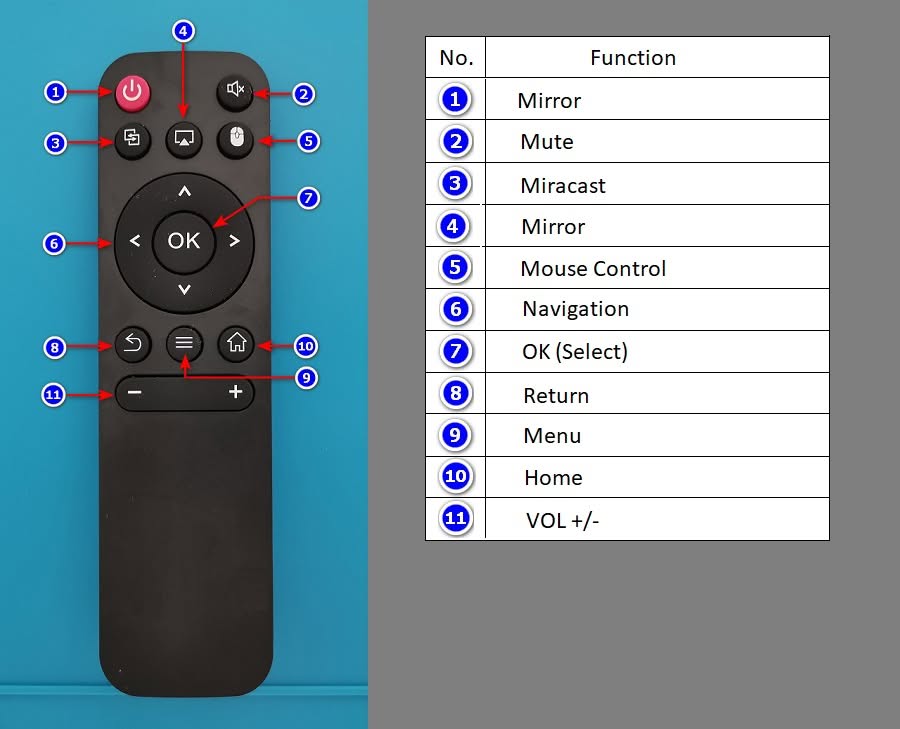
The remote unit that comes with the HY300 is generic but does the job as it should. You have all the basic essential buttons such as Power on/off, Mouse control mode button, navigation keys, Return, Ok (Select), VOL +/-, Mute button including Mirror and Miracast, so you can use your mobile device to transmit content directly to the projector unit. If you need a wider range of functions which include an integrated touchpad and keyboard keys we suggest checking the Rii i4 Wireless Keyboard.
Hardware
Beneath the HY300 modern exterior lies a powerful Allwinner Quad-core ARM Cortex-A53 processor, clocked at an impressive frequency of 672MHz up to 1.32 GHz. Paired with a formidable 1GB of RAM and a generous 8Gb of eMMC storage, this device runs on the cutting-edge Android 11.0 TV operating system.
CPU-Z System Information
⚠ Module cannot be rendered as the requested content is not (longer) accessible. Contact the administrator to get access.Software
The device comes with all popular streaming apps such as Netflix, Amazon Prime Video, Disney+ and Youtube. Furthermore, Kodi 20.1 Nexus came preinstalled as an added bonus. In addition, Google Play and Aptoide TV have been included as trusted sources for downloading applications.
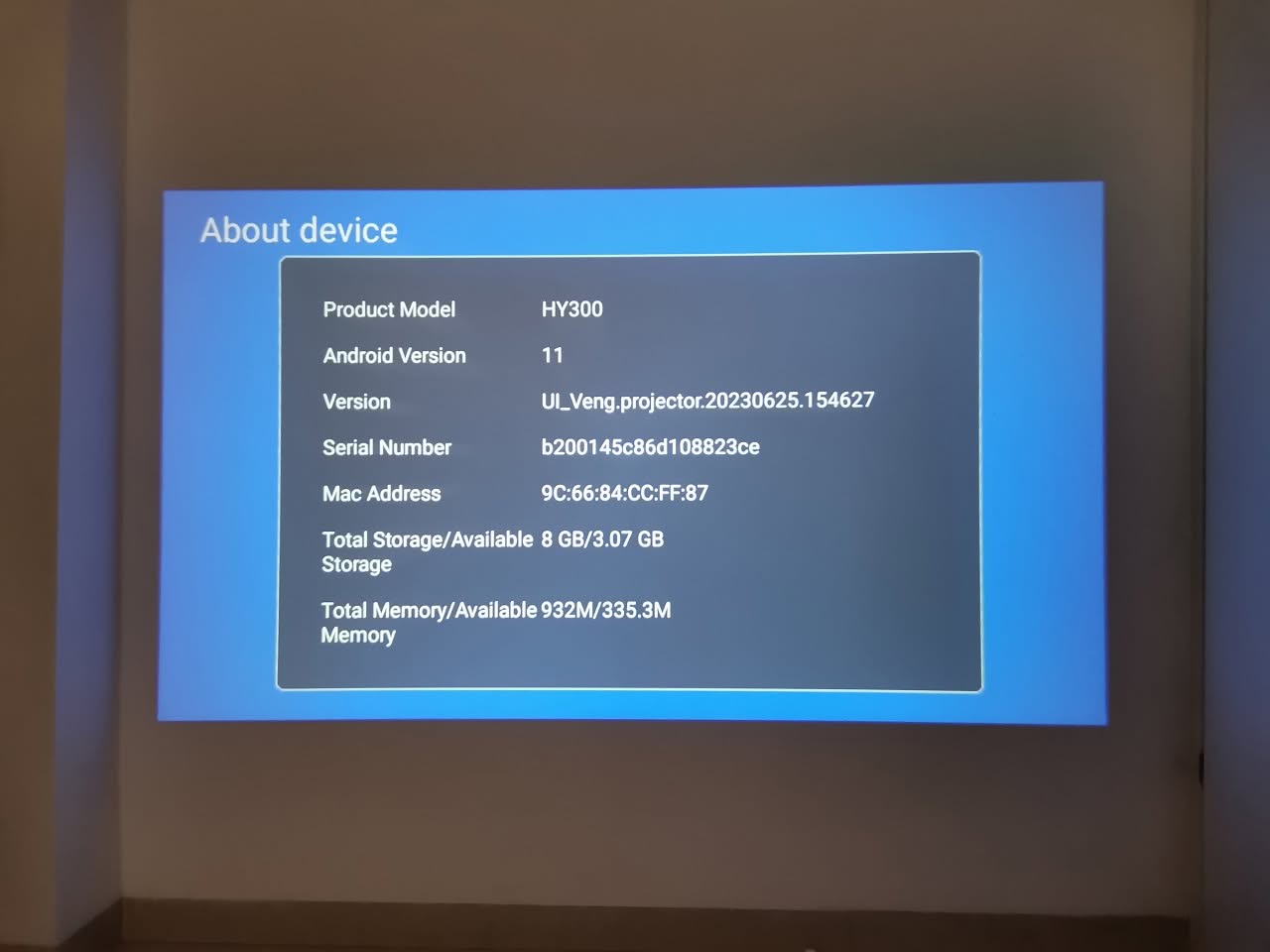
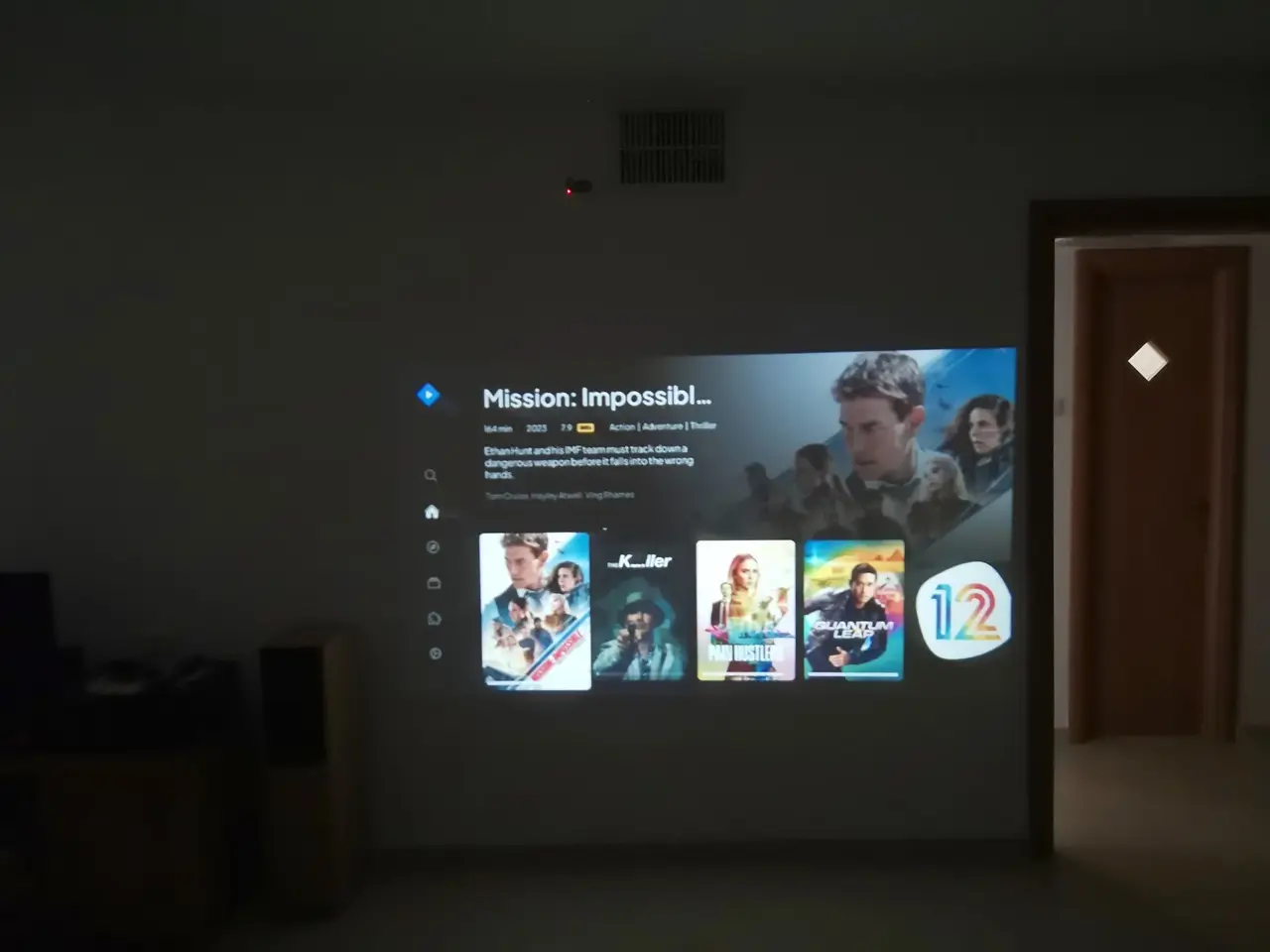
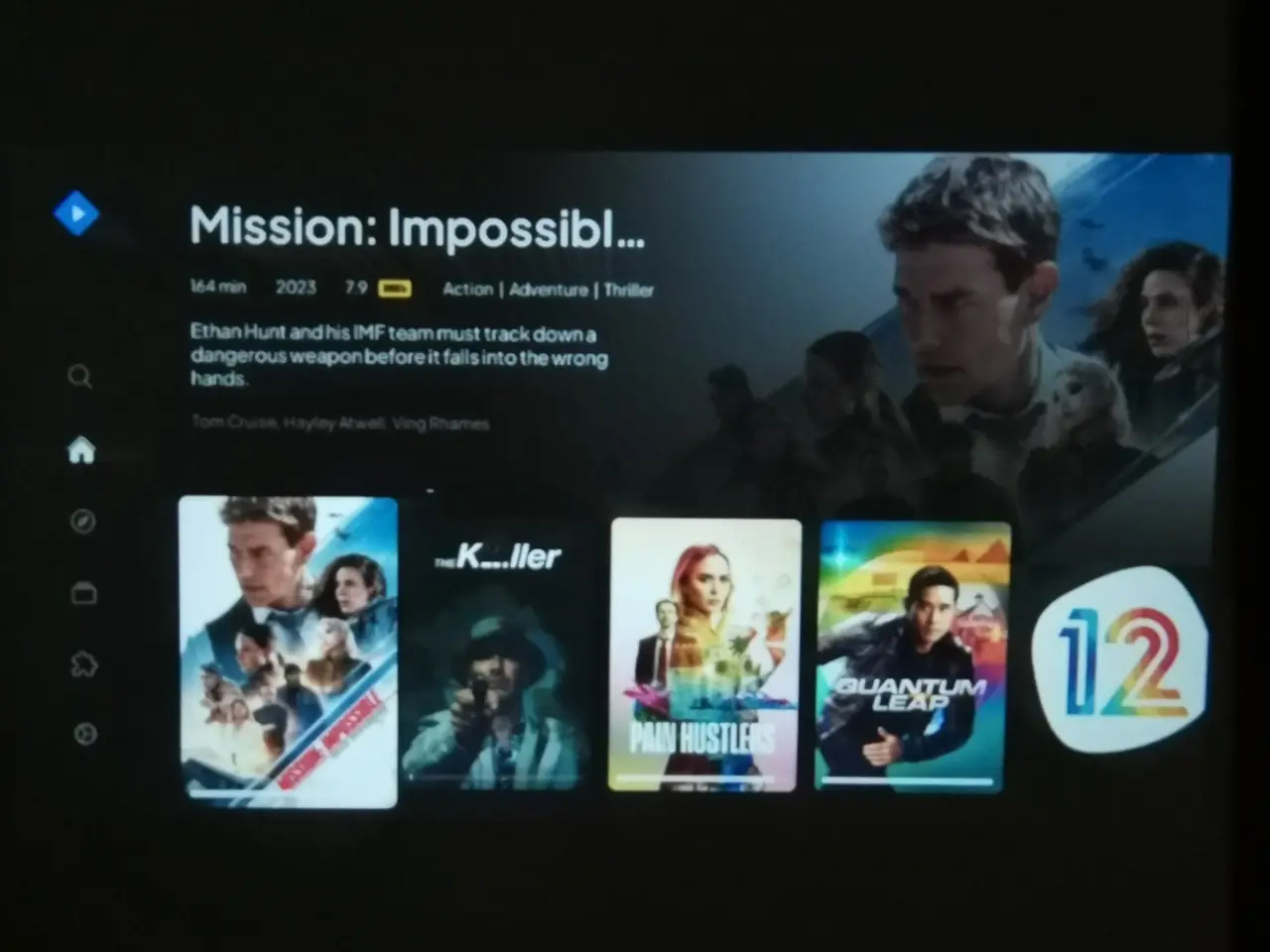
Does it support Stremio?
If you feel that the KODI user interface is too demanding on your system resources, you might want to consider exploring the Stremio App. It offers a seamless experience and performs exceptionally well.
A quick tour through the projector settings
⚠ Module cannot be rendered as the requested content is not (longer) accessible. Contact the administrator to get access.Tips for Setting up an Android Projector
In recent years, portable Android projectors have gained popularity as an ideal choice for home theaters. These compact devices offer a convenient and versatile way to enjoy movies, TV shows, and gaming experiences on the big screen. Portable Android projectors are essentially miniaturized versions of traditional projectors that run on the Android operating system. They are designed to be lightweight and portable, making them easy to carry around and set up in any room of your house.
One of the main benefits of using portable Android projectors for home theaters is their compact size. Unlike traditional projectors that require a dedicated space and mounting equipment, portable Android projectors can be easily moved around and set up wherever you want. This flexibility allows you to create a home theater experience in any room of your house, whether it’s the living room, bedroom, or even outdoors. You can take your home theater with you wherever you go, making it perfect for movie nights with friends or family gatherings.
Versatility is another key advantage of portable Android projectors. These devices are not limited to just projecting movies and TV shows. They can also be used for presentations, gaming, and even streaming content from various platforms. With built-in Wi-Fi and Bluetooth capabilities, portable Android projectors can connect to the internet and stream content directly from popular apps and services. This means you have access to a wide range of entertainment options, from Netflix and Hulu to YouTube and Spotify. You can also connect external devices, such as gaming consoles and sound systems, to enhance your home theater experience.
Ease of use is another factor that makes portable Android projectors ideal for home theaters. These devices are designed to be user-friendly, with intuitive interfaces and simple setup processes. Most portable Android projectors come with remote controls or smartphone apps that allow you to easily navigate through menus and adjust settings. They also have built-in speakers, so you don’t necessarily need to connect external audio devices. However, if you want a more immersive audio experience, you can easily connect a sound system to your portable Android projector.
Choosing the Right Portable Android Projector for Your Living Room
When it comes to choosing the right portable Android projector for your living room, there are several factors to consider. These factors will help you determine the best projector that suits your needs and preferences.
Brightness is an important factor to consider when selecting a portable Android projector. The brightness of a projector is measured in lumens, and it determines how well the image will be displayed in various lighting conditions. If you plan on using your projector in a dark room, a lower lumen count may be sufficient. However, if you plan on using it in a well-lit room or outdoors, you will need a higher lumen count to ensure a clear and vibrant image.
Resolution is another important factor to consider. The resolution of a projector refers to the number of pixels it can display. The higher the resolution, the sharper and more detailed the image will be. The most common resolutions for portable Android projectors are 720p (HD) and 1080p (Full HD). If you want a more immersive viewing experience, you may consider investing in a projector with a higher resolution, such as 4K.
Connectivity options are also worth considering. Most portable Android projectors come with HDMI ports, USB ports, and audio jacks, allowing you to connect external devices such as gaming consoles, sound systems, and streaming devices. Some projectors also have built-in Wi-Fi and Bluetooth capabilities, which allow you to connect to the internet and stream content directly from apps and services. Make sure to check the connectivity options of the projector to ensure compatibility with your existing devices.
Budget is another important factor to consider when choosing a portable Android projector. Prices can vary greatly depending on the brand, features, and specifications of the projector. Set a budget that you are comfortable with and look for projectors within that price range. It’s important to note that while higher-priced projectors may offer better image quality and additional features, there are also budget-friendly options that can still provide a satisfying home theater experience.
Some popular portable Android projectors on the market include the Anker Nebula Capsule II, the Optoma HD146X, and the ViewSonic M1+. These projectors offer a range of features and specifications to suit different needs and budgets. It’s recommended to read reviews and compare different models before making a final decision.
Tips for Creating the Perfect Viewing Environment
Setting up your home theater is crucial for creating the perfect viewing environment. Here are some tips to help you set up your home theater for optimal viewing:
- Choose the right location: Select a room or area in your house that is suitable for a home theater setup. Ideally, choose a room with minimal natural light and good acoustics. If possible, choose a room with no windows or use blackout curtains to block out any light.
- Consider screen placement: The placement of your screen is important for optimal viewing. The screen should be positioned at eye level and centered in the room. Make sure there is enough distance between the screen and the seating area to ensure a comfortable viewing experience.
- Lighting control: Proper lighting control is essential for creating a cinematic experience. Install dimmer switches or use smart lighting systems that allow you to adjust the brightness and color temperature of the lights. Consider using wall sconces or LED strip lights to create a soft ambient glow.
- Seating arrangement: Choose comfortable seating that allows for optimal viewing angles. Arrange the seating in a way that ensures everyone has a clear view of the screen. Consider using reclining chairs or sofas with built-in cup holders and storage compartments for added convenience.
- Soundproofing: If you want to create a truly immersive experience, consider soundproofing the room to minimize outside noise and echoes. Use acoustic panels or sound-absorbing materials on the walls and ceiling to improve sound quality.
- Calibrate your projector: Once you have set up your projector, make sure to calibrate it for optimal image quality. Adjust the brightness, contrast, color temperature, and sharpness settings to achieve the best picture quality. You can use calibration discs or software to help you with this process.
- Test your audio setup: Connect your sound system to your portable Android projector and test the audio setup. Make sure all speakers are working properly and adjust the volume levels accordingly. Consider adding a subwoofer for enhanced bass response.
- Create a cozy atmosphere: Add finishing touches to create a cozy and inviting atmosphere in your home theater. Consider adding plush rugs, curtains, and throw pillows for added comfort. Install shelves or cabinets to store your movie collection and other accessories.
By following these tips, you can create a comfortable and immersive home theater experience that rivals any commercial movie theater.
Connecting a Sound System to Your Portable Android Projector
Audio is a crucial component of a home theater setup. While most portable Android projectors come with built-in speakers, connecting a sound system can greatly enhance your audio experience. Here are step-by-step instructions on how to connect a sound system to your portable Android projector:
- Determine the audio output options of your portable Android projector. Most projectors have a 3.5mm audio jack or HDMI ARC (Audio Return Channel) port for audio output. Check the user manual or specifications of your projector to find out which option is available.
- Choose the appropriate audio cable or adapter based on the audio output options of your projector. If your projector has a 3.5mm audio jack, you will need a 3.5mm to RCA cable or a 3.5mm to 3.5mm cable, depending on the input options of your sound system. If your projector has an HDMI ARC port, you will need an HDMI cable.
- Connect one end of the audio cable or adapter to the audio output port of your projector and the other end to the corresponding input port of your sound system. Make sure the connections are secure.
- Turn on your projector and sound system. Access the settings menu of your projector and navigate to the audio settings. Select the appropriate audio output option (e.g., external speakers) to ensure that the audio is routed through your sound system.
- Test the audio setup by playing a movie or music through your portable Android projector. Adjust the volume levels on both the projector and sound system to achieve the desired sound quality.
By connecting a sound system to your portable Android projector, you can enjoy immersive surround sound and enhanced audio quality that complements the visual experience.
Exploring the Best Apps and Services for Home Theater Entertainment
One of the advantages of using portable Android projectors for home theaters is the ability to stream content from various apps and services. Here are some popular streaming apps and services that are compatible with portable Android projectors:
- Netflix: Netflix is one of the most popular streaming services, offering a wide range of movies, TV shows, and original content. The Netflix app is available on most portable Android projectors, allowing you to stream your favorite shows and movies directly from the projector.
- Hulu: Hulu is another popular streaming service that offers a vast library of movies, TV shows, and original content. The Hulu app is compatible with portable Android projectors, allowing you to stream your favorite shows and movies in high definition.
- Amazon Prime Video: Amazon Prime Video is a streaming service that offers a wide selection of movies, TV shows, and original content. The Amazon Prime Video app is available on most portable Android projectors, allowing you to access your favorite content directly from the projector.
- Disney+: Disney+ is a streaming service that offers a vast library of Disney, Pixar, Marvel, Star Wars, and National Geographic content. The Disney+ app is compatible with portable Android projectors, allowing you to stream your favorite movies and TV shows in high definition.
- YouTube: YouTube is a popular video-sharing platform that offers a wide range of user-generated content, music videos, and live streams. The YouTube app is available on most portable Android projectors, allowing you to access your favorite videos directly from the projector.
- Spotify: Spotify is a music streaming service that offers a vast library of songs, albums, and playlists. The Spotify app is compatible with portable Android projectors, allowing you to stream your favorite music directly from the projector.
These are just a few examples of the many streaming apps and services available for portable Android projectors. Make sure to check the compatibility of the apps and services with your specific projector model before downloading or subscribing.
Gaming on the Big Screen
How to Connect Your Gaming Console to a Portable Android Projector
Gaming on a portable Android projector can take your gaming experience to the next level. By connecting your gaming console to a portable Android projector, you can enjoy a larger and more immersive gaming experience that brings your favorite games to life.
Here’s how you can connect your gaming console to a portable Android projector:
- Determine the video output options of your gaming console. Most gaming consoles have an HDMI output port, which is the most common and convenient option for connecting to a projector. However, some older consoles may have different video output options, such as composite or component.
- Choose the appropriate video cable or adapter based on the video output options of your gaming console and the input options of your portable Android projector. If your console has an HDMI output, you will need an HDMI cable. If your console has a different video output option, you will need the corresponding cable or adapter.
- Connect one end of the video cable or adapter to the video output port of your gaming console and the other end to the corresponding input port of your portable Android projector. Make sure the connections are secure.
- Activate your gaming console and power up your portable Android projector. Access the input settings of your projector and select the appropriate input source (e.g., HDMI) to ensure that the video signal from your gaming console is displayed on the projector.
- Test the connection by playing a game on your gaming console. Adjust the display settings on both the console and projector to achieve the desired image quality.
Final Words
To sum up, the Magcubic HY300 Android Projector provides exceptional bang for your buck. For just $47, you get a portable, space-saving projector that can project images onto the ceiling and deliver high-quality visuals. It’s an investment that will surely enhance your entertainment or presentation needs.
We highly recommend checking out some excellent affordable projector screens that will ensure the best and most optimal viewing experience possible, available in the listed AliExpress store.
Supplier Contact Information
For any business inquiries or questions, please reach out.
- Full name: Elaine Li
- linshenzhen@outlook.com
- WhatsApp: 86-13510640650
- Skype / WeChat ID: eillylee
- Facebook: Elaine Li
Price and Availability
Hello ! My Hy300 projector has arrived. There is no problem with the hardware. But there are many problems with the software. For example, some applications do not update, some applications do not run after installation, and some do not uninstall. Chrome is the Android Phone version, Youtube is the Android TV version. Do you have similar problems?
Hi.
I tested it with stremio and it worked well for me. Make sure you have the latest firmware update. Check the OTA (over the air) option to see if you’re already updated.
I have not tested it with other apps or games. If you encounter compatibility issues, feel free to reach out to the salesperson and explain that certain apps are not functioning properly.
I also suggest creating a list of troublesome applications and sending it to him, allowing him to address and resolve the issues accordingly.
hey…can i use these images or videos of this product for my website?
You can do it if you agree to add a source reference with a dofollow link under the photos.
For example: (Source: https://www.androidpimp.com)
Also I was wondering if you have made a unboxing video of the product that we could use.?
Sorry, I don’t have.
Ele é 110 ou 220?!
A imagem está de cabeça pra baixo, como faço esse configuração?!
Please check the settings section. It is difficult to verify, as some sources claim 200 while others claim 110. It’s hard to really know unless you open the case.
Mi proyector hy300 no actualiza y toene errores tiene alguna actualización
I’ve updated once. It is best to inquire with the sales representative about any recent updates available.