Close Menu
  • Home
  • About
  • Wearables
  • Earbuds
  • Computer Accessories
    • Routers
    • Remotes
  • Embedded
    • Single Board Computers
    • Addon Boards
    • Raspberry Pi
  • Wireless Routers
  • Contact
Facebook X (Twitter) Instagram Threads
Trending
  • Orange Pi 6 Debuts: Next-Gen 45 TOPS AI SBC Outpace Raspberry Pi HATs in Performance
  • Orange Pi Zero 3W Review: $25 Dual Video Pi Zero 2W Killer?
  • CamThink NeoEyes NE503: A 20 TOPS 4k Edge AI Camera Platform Powerhouse
  • AliExpress Promo Codes: June 2026 (100% Verified)
  • DFRobot 6.67″ Flexible AMOLED Review: Best Raspberry Pi & LattePanda Display?
  • Banana Pi BPI-SM10 Review: 60 TOPS RISC-V Jetson Orin Nano Alternative
  • SpacemiT K3 Pico-ITX Review: 60-TOPS RISC-V Powerhouse for LLMs?
  • Banana Pi BPI-R4 Pro Review: The Best WiFi 7 OpenWrt Router? We Checked!
AndroidPIMP
Facebook X (Twitter) Instagram
  • Home
  • About
  • Wearables
  • Earbuds
  • Computer Accessories
    • Routers
    • Remotes
  • Embedded
    • Single Board Computers
    • Addon Boards
    • Raspberry Pi
  • Wireless Routers
  • Contact
AndroidPIMP

Banana Pi BPI-R4 Pro Review: The Best WiFi 7 OpenWrt Router? We Checked!

8
By androidpimp on March 17, 2026 Embedded Computers
Banana bpi r4 pro
Banana bpi r4 pro
Table of contents
  1. Part One: Meet the successor to the R4, the more powerful and advanced BPI-R4 Pro Router Board.
  2. Equipped with the MediaTek Filogic 880 SoC
    1. 1. Enhanced connectivity with WiFi 7 support
    2. 2. Interfaces
    3. 3. Computing power
    4. 4. NPU
    5. 5. Equipped with Tunnel Offloading Processor System (TOPS)
  3. Specifications
  4. Featuring a new and improved design
    1. General design updates have been made compared to the previous Banana Pi R4, including an improved case design.
  5. Detailed Overview of the Board Interfaces
    1. Network ports
  6. RT5400 PoE Module (Optional)
    1. Mobile network connectivity
    2. Wi-Fi 6E/Wi-Fi 7 NIC card
      1. BE14 โ€“ Triโ€‘band Wiโ€‘Fi 7 NIC Configuration
  7. BE19 โ€“ 4T4R band Wiโ€‘Fi 7 NIC Configuration
    1. Storage Options
    2. Power Supply
  8. Key interfaces
  9. Spec comparison of the Banana Pi BPI-R4 Pro, Lite, and R4.
  10. Typical Applications
  11. Part Two: Banana Pi BPI-R4 Pro Review (Currently being updated)
    1. Contents of the package
  12. A closer look at the BPI R4 Pro board
  13. Port names
  14. Unboxing the R4 Pro Accessories
  15. The Metal Case
    1. The components of the case
  16. Initial setup
  17. Installing an NVMe SSD
    1. NVMe stress-testing with fio
    2. Thereโ€™s also a major upgrade if you plan on using NVMe SSDs!
    3. Installation experience
    4. Installing the side-mounted fans
    5. Putting all parts together
    6. Do the fans make a lot of noise?
  18. Putting all the items together
    1. Installing the NIC WiFi 7 Module (BE14)
  19. Upgrading to future WiFi NIC modules
  20. Arrangement of Wi-Fi antenna cabling
  21. Shielding Wi-Fi cables in the most affordable way possible (Optional)
    1. Steps:
  22. Installing a compatible 5G modem card โ€“ what you need to know!
    1. The solutions:
      1. Fix 1: The Software โ€œForce-USBโ€ Workaround (Relevant to slots No. 35 and 36)
      2. Fix 2: The Hardware โ€œPCIe-Nativeโ€ Option (Recommended)
  23. Cooling the SFP+ modules
  24. The final result
  25. How to power the R4 Pro
  26. Checking the working temperatures
  27. Software wise
    1. BPI-R4 Pro bootstrap configuration
    2. The best choice for now!
    3. What image can you use right now?
    4. Using AI to build a network configuration that actually works!
    5. We gave the official Banana Pi snapshot a test run
  28. Ethernet and SFP+ Interfaces
  29. Which ports should you use?
  30. Final thoughts
  31. Banana Pi BPI-R4/Pro Pricing and Availability
    1. ๐Ÿ›’ Estimated Amazon Prices for Banana Pi BPIโ€‘R4 / R4 Pro
    2. ๐Ÿ›’ Estimated AliExpress Prices for Banana Pi BPIโ€‘R4 / R4 Pro
    3. R4 Pro Bundled packages
    4. Accessory Pricing Guidelines
    5. Key Performance Differences
  32. Places to buy!
    1. Banana Pi BPI-R4Pro Best Value
    2. Banana Pi BPI-R4 Pro
    3. About Banana Pi

Software wise

Like the earlier Banana Pi R4, the R4 Pro features the same MediaTek Filogic 880 (MT7988A) SoC. Fresh from the factory, our unit arrived with a lean, pre-flashed OpenWrt 24.10 snapshot from Banana Pi. There are still a few bugs to iron out, but we’re confident that official mainline updates will be available on the OpenWrt site soon, just as with other Banana Pi router boards.

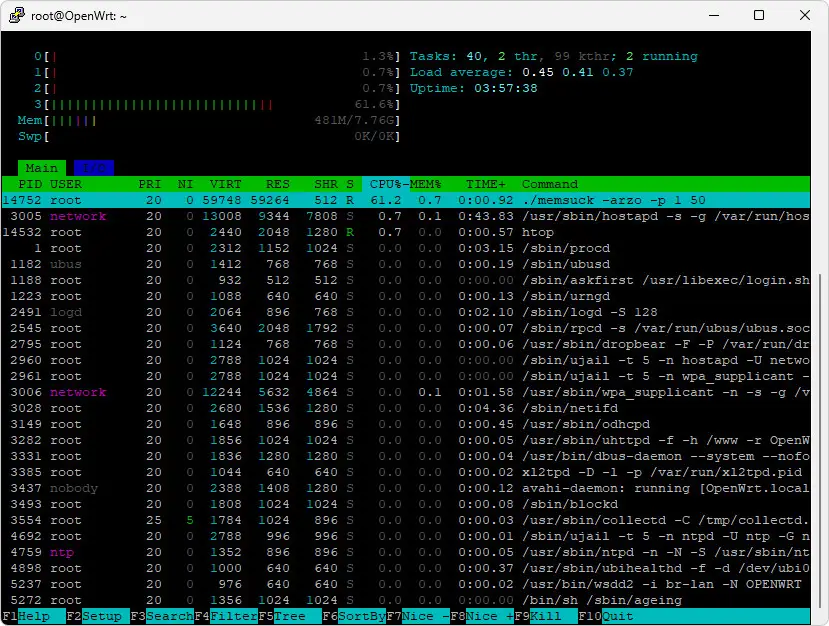
When it comes to system resources, you won’t have any issues with plenty of free RAM available. This board comes with 8GB DDR4 of RAM, and there’s also an optional 4GB version. As for RAM usage, as shown in the photo below, without installing any additional background services, only about 481MB of 7.76GB (8GB) was used (utilized).

Monitoring system resources with the htop tool
BPI R4 Pro htop
BPI R4 Pro htop

BPI-R4 Pro bootstrap configuration

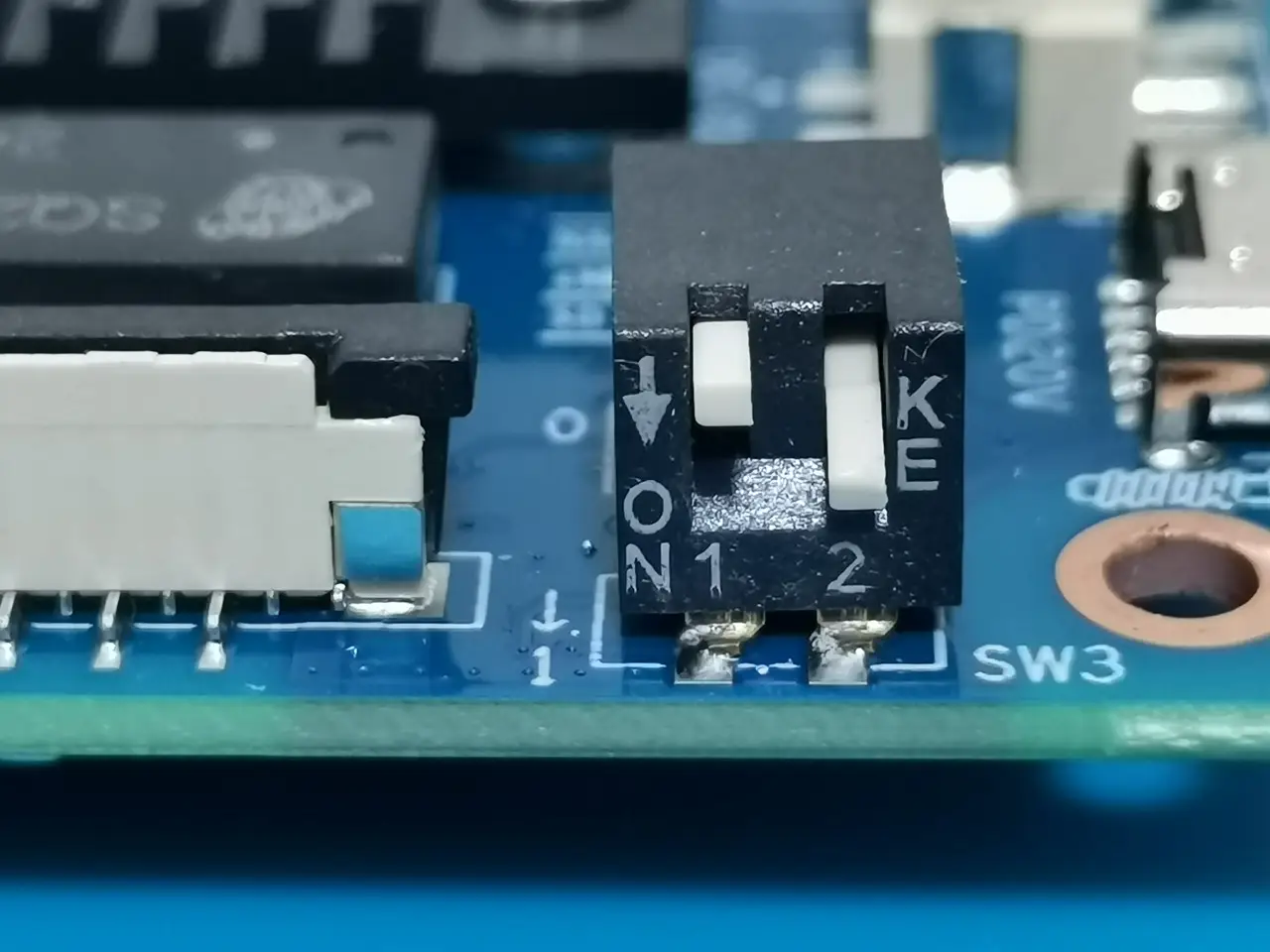
The R4 Pro comes with a simple bootstrap switch that basically lets you choose how the system files are booted on the device. You can choose from three bootstrap operation methods: SD card, SPI NAND, or eMMC. The simplest option is to burn the OS image file onto a microSD card and set both switches down. We recommend using this option until the official mainline version becomes available on the OpenWrt official website.
BPI R4 Pro Dip Switch
BPI R4 Pro Dip Switch Settings

The best choice for now!

Until a newer, more stable version of OpenWrt is released, the best approach is to burn the latest snapshot image file onto a Micro-SD card. Once the final version is available, you can then burn it onto the eMMC / SPI-NAND Flash.

To burn the image, check the R4 Pro documentation page and prepare a microSD card with a suitable capacity of 32GB–64GB. If you run into boot problems like we did, consider switching to a reliable brand like SanDisk, which worked great for us.


What image can you use right now?

Check out the OpenWrt images made by Xiaomi_ax3600 and frank-w, active members of the Banana Pi Forum, who’ve put great effort into creating builds with bug fixes and all the snapshot packages. You can also find Debian images from frank-w worth exploring. These builds are designed for self-testing, compatible with kernel 6.12.62 or later, and ready to download and try on your R4 Pro (Links are posted below).

  • Banana Pi Official Snapshot: Link #1
  • Download link #1: Link #1
  • Download link #2: Link #2
  • Image Collection by frank-w (Frank Wunderlich): Link #3

Using AI to build a network configuration that actually works!

With the current snapshot, you can expect all bands—2.4GHz, 5GHz, and 6GHz—to work. Multi-Link Operation (MLO) didn’t work for us and probably needs some fixing. So, with so many settings, how can you configure your OpenWrt to work properly?

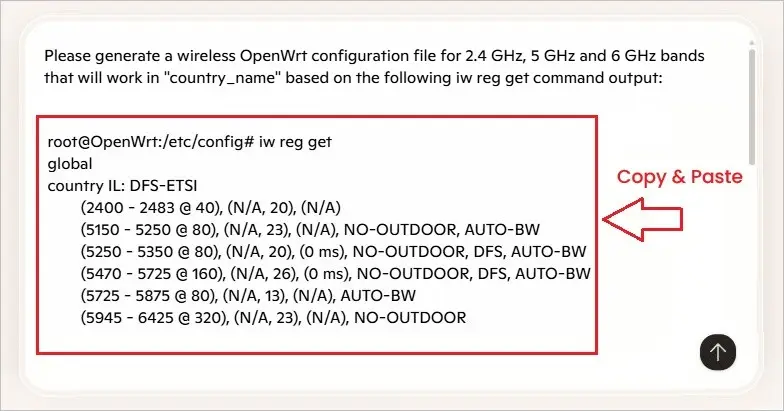
We recommend using the AI Prompt approach as shown in the example below. Due to different country locations and regulations, we recommend using a single prompt to generate a complete wireless configuration file with all the necessary settings, which can then be copied to the OpenWrt directory at /etc/config/wireless and modified if needed.

Using Microsoft Copilot (ChatGPT) to create a compatible OpenWrt network configuration file.
BPI R4 Pro Copilot Prompt
BPI R4 Pro – Example Copilot Prompt for generating a network config file

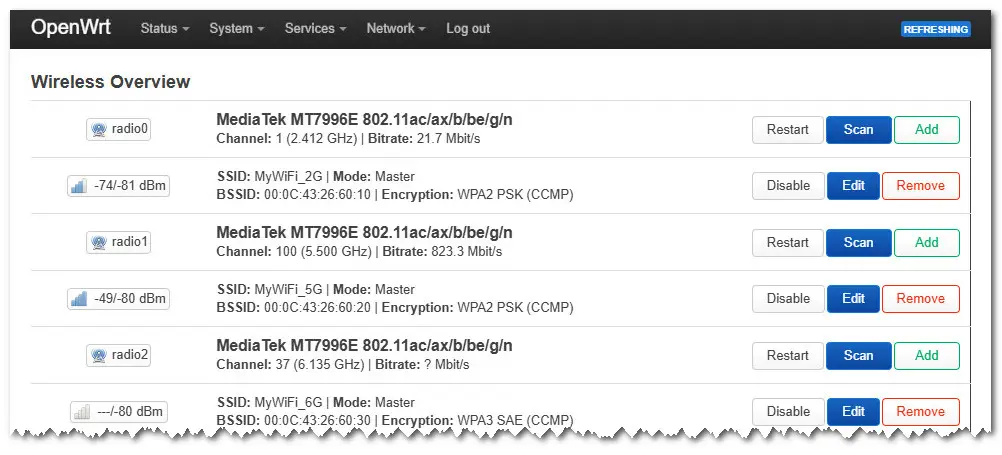
In this example, we split all three bands into separate SSID names. You can also unite the 2.4GHz and 5.0GHz bands for longer range, depending on what suits your needs.

BandSSID Name
2.4 GHzMyWiFi_2G
5.0 GHzMyWiFi_5G
6.0 GHzMyWiFi_6G
# An example configuration file that worked for us

root@OpenWrt:~# cat /etc/config/wireless

config wifi-device 'radio0'
        option type 'mac80211'
        option path 'soc/11300000.pcie/pci0000:00/0000:00:00.0/0000:01:00.0'
        option radio '0'
        option band '2g'
        option channel '1'
        option htmode 'HT40'
        option country 'IL'
        option cell_density '0'
        option disabled '0'

config wifi-iface 'default_radio0'
        option device 'radio0'
        option network 'lan'
        option mode 'ap'
        option ssid 'MyWiFi_2G'
        option encryption 'psk2'
        option key 'password'

config wifi-device 'radio1'
        option type 'mac80211'
        option path 'soc/11300000.pcie/pci0000:00/0000:00:00.0/0000:01:00.0'
        option radio '1'
        option band '5g'
        option channel '36'
        option htmode 'VHT80'
        option country 'IL'
        option disabled '0'
        option txpower '20'
        option cell_density '0'

config wifi-iface 'default_radio1'
        option device 'radio1'
        option network 'lan'
        option mode 'ap'
        option ssid 'MyWiFi_5G'
        option encryption 'psk2'
        option key 'password'

config wifi-device 'radio2'
        option type 'mac80211'
        option path 'soc/11300000.pcie/pci0000:00/0000:00:00.0/0000:01:00.0'
        option radio '2'
        option band '6g'
        option channel '37'
        option htmode 'EHT160'
        option country 'IL'
        option cell_density '0'

config wifi-iface 'default_radio2'
        option device 'radio2'
        option network 'lan'
        option mode 'ap'
        option ssid 'MyWiFi_6G'
        option encryption 'sae'
        option key 'password'
        option ieee80211be '1'
        option ocv '0'

We gave the official Banana Pi snapshot a test run

During our test, we tried different Wi-Fi configurations. It was a bit tricky to tweak all the settings to get everything working, but we managed to set up a functional configuration based on Copilot’s (ChatGPT) prompt suggestion, as we showed previously. It simplified the set-up process and worked well.

After manually setting up the OpenWrt network, all bands—2.4GHz, 5GHz, and 6GHz—worked flawlessly, delivering a steady 1200Mbps link on the 5G band with ourPoco F6 Pro phone. That said, it’s likely the network settings can be fine-tuned further to achieve even better bandwidth.

Screenshot of OpenWrt 24.10 Snapshot wireless network settings
Banana Pi R4 Pro WiFi Settings
1 2 3 4 5 6 7 8 9 10 11 12 13 14
Share. Facebook Twitter Pinterest LinkedIn Tumblr Email
Previous ArticleDFRobot ESP32-S3 LoRaWAN & Gateway Review: Build a Private IoT Network
Next Article SpacemiT K3 Pico-ITX Review: 60-TOPS RISC-V Powerhouse for LLMs?
androidpimp
  • Website

Related Posts

Orange Pi 6

Orange Pi 6 Debuts: Next-Gen 45 TOPS AI SBC Outpace Raspberry Pi HATs in Performance

June 26, 2026
Raspberry Pi Zero 3W SBC

Orange Pi Zero 3W Review: $25 Dual Video Pi Zero 2W Killer?

June 26, 2026
NeoEyes NE503 Edge AI Camera

CamThink NeoEyes NE503: A 20 TOPS 4k Edge AI Camera Platform Powerhouse

June 26, 2026
0 0 votes
Article Rating
Subscribe
Notify of
8 Comments
Oldest
Newest Most Voted
Miles
8 months ago

It is already on presale.

0
Reply
Author
androidpimp
8 months ago
Reply to  Miles

Yes, I know, thank you.

0
Reply
LP
8 months ago

Hi, the main problem about the BPI R4 is its BE14 Wifi NIC (6 antennas and many shielding/noise problems).
In your pictures, we can clearly see the new BE19 NIC with 14 antennas: did you test it? Is it going to be released to the public this year? Thank you!

0
Reply
Author
androidpimp
8 months ago
Reply to  LP

HI. Not yet, but from what Iโ€™ve heard, it should officially be released in a few weeks.

0
Reply
LP
8 months ago
Reply to  androidpimp

Thank you so much! Will you make a new post when the BE19 will be out? Did you have the R4 Pro for testing or these are just info from the company?

0
Reply
Author
androidpimp
8 months ago
Reply to  LP

Not yet, but Iโ€™ll probably test the R4 Pro and the Wi-Fi expansion board and review them once both are ready and available.
For now, it’s just general news info.

0
Reply
simonhayteruk
3 months ago

Great write up worth adding the battery is uses the ML1220 as you have correctly used instead of the CR1220 because the board features a tickle charge, but what’s more important to note, is that tickle is 3.3v to 3.4v, the ML1220s nominal is 3v, charged it’s around 3.35v, which is 0.35v higher than a CR1220. The BPI team lists the No 42 as CR1220 but it’s important to note thier POS is wrong. The other thing, you mention the battery keeps certain boot options, while this is true for a PCs, it’s untrue for the BPI, the only function… Read more »

0
Reply
Author
androidpimp
3 months ago
Reply to  simonhayteruk

Thank you for providing the information; it’s greatly appreciated.

0
Reply
PureVPN
PureVPN Ad Banner
VyprVPN – No. 1 in Anonymity
Vyprvpn 350x260
PrivadoVPN – No. 1 in Parental Control
PrivadoVPN 350x437
Recent Posts
  • Orange Pi 6 Debuts: Next-Gen 45 TOPS AI SBC Outpace Raspberry Pi HATs in Performance
  • Orange Pi Zero 3W Review: $25 Dual Video Pi Zero 2W Killer?
  • CamThink NeoEyes NE503: A 20 TOPS 4k Edge AI Camera Platform Powerhouse
  • AliExpress Promo Codes: June 2026 (100% Verified)
  • DFRobot 6.67″ Flexible AMOLED Review: Best Raspberry Pi & LattePanda Display?
  • Banana Pi BPI-SM10 Review: 60 TOPS RISC-V Jetson Orin Nano Alternative
  • SpacemiT K3 Pico-ITX Review: 60-TOPS RISC-V Powerhouse for LLMs?
  • Banana Pi BPI-R4 Pro Review: The Best WiFi 7 OpenWrt Router? We Checked!
  • DFRobot ESP32-S3 LoRaWAN & Gateway Review: Build a Private IoT Network
  • WaveNote AI Review 2026: An Honest Pro/Con Comparison (Tested)
RSS The Latest RSS Feeds
  • Orange Pi 6 Debuts: Next-Gen 45 TOPS AI SBC Outpace Raspberry Pi HATs in Performance
  • Orange Pi Zero 3W Review: $25 Dual Video Pi Zero 2W Killer?
  • CamThink NeoEyes NE503: A 20 TOPS 4k Edge AI Camera Platform Powerhouse
Facebook X (Twitter) Instagram Pinterest
@2026 - All Right Reserved. Designed by AndroidPIMP

Type above and press Enter to search. Press Esc to cancel.

Powered by
►
Necessary cookies enable essential site features like secure log-ins and consent preference adjustments. They do not store personal data.
None
►
Functional cookies support features like content sharing on social media, collecting feedback, and enabling third-party tools.
None
►
Analytical cookies track visitor interactions, providing insights on metrics like visitor count, bounce rate, and traffic sources.
None
►
Advertisement cookies deliver personalized ads based on your previous visits and analyze the effectiveness of ad campaigns.
None
►
Unclassified cookies are cookies that we are in the process of classifying, together with the providers of individual cookies.
None
Powered by
wpDiscuz